
Clinic Insights > Past clinic metrics > Utilisation & hours tab > Room utilisation
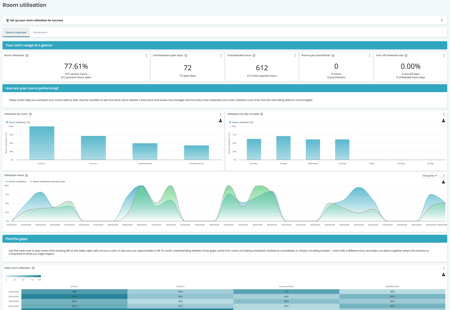
Click through to view the metrics and data available in this section:
⚠️ You must complete both your Open Hours and Rooms sections in Settings to view key utilisation data in this metric.
Please visit How to complete Cubiko Settings for guidance on setting up and allocating your rooms.
The key sections in this article are:
Understanding the metrics
The five figures at the top of the Room Utilisation page give you a quick snapshot of how your rooms are scheduled and used across the selected period:
- Room utilisation
- Unscheduled open days
- Unscheduled hours
- Rooms per practitioner
- One-off schedule rate
The following graphs and tables allow you to explore your overall room utilisation in more detail:
Room utilisation
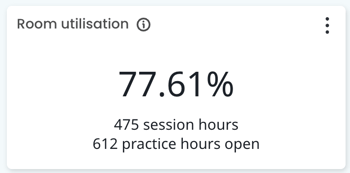
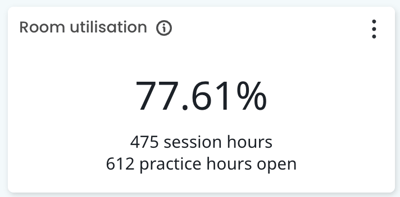
This figure shows the proportion of available time that was booked across all rooms in the practice for the selected timeframe. A higher percentage means your rooms are being used effectively relative to when they are scheduled to be open.
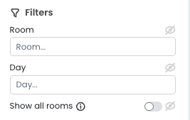
💡 TOP TIP! Use the Select Room and Select Day filters on the left-hand side of the page to drill into a specific room or day and see how that combination is performing.
Unscheduled open days
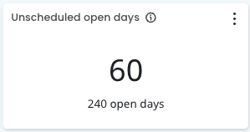
This figure shows the number of days your practice was open where at least one room had no schedule assigned. An unscheduled room on an open day represents a missed opportunity — the room cannot be counted in utilisation calculations and may not appear in your appointment book as available.
💡 TOP TIP! If this number is higher than expected, head to Settings > Room Schedule and check that each room has been assigned a recurring weekly schedule. See the Setting up and managing your rooms section below.
Unscheduled hours
This figure shows the total number of hours across all rooms and open days where no schedule was in place. Unlike Unscheduled open days (which counts days), this metric counts the actual hours of lost scheduling opportunity.
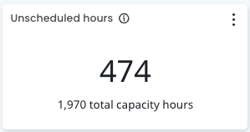
ℹ️ Unscheduled hours are calculated against your practice's Open Hours as set in Cubiko Settings. If your open hours are not fully configured, this figure may not be accurate. Head to Settings > Open Hours to review.
Rooms per practitioner
This figure shows the average number of rooms assigned to each active practitioner over the selected period. A ratio above 1.0 may indicate that some practitioners are sharing rooms or that rooms are not being fully allocated. A ratio below 1.0 could suggest practitioners are sharing a single room at different times.
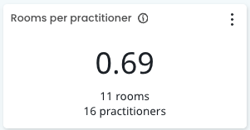
💡 TOP TIP! Pair this metric with Utilisation by room (below) to identify rooms that may be over- or under-allocated to practitioners.
One-off schedule rate
This figure shows the percentage of room schedule entries that were created as one-off allocations in Cubiko Settings, rather than being part of a recurring weekly schedule. A high one-off rate may suggest room scheduling is being managed reactively rather than proactively, which can increase admin effort and lead to gaps in utilisation data.
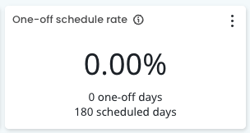
💡 TOP TIP! Where possible, set up rooms using a recurring schedule in Settings > Room Schedule rather than creating one-off entries. This ensures Cubiko has a complete picture of room availability and improves the accuracy of all utilisation metrics.
Utilisation by room
This chart shows the percentage of scheduled time booked for each individual room in the practice over the selected period. Rooms are displayed on the horizontal axis and utilisation percentage on the vertical axis.
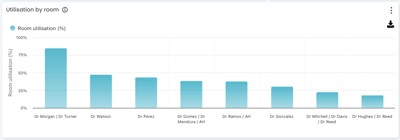
Utilisation by room — each bar represents one room; taller bars indicate higher utilisation.
💡 TOP TIP! Use the Role filter to view utilisation broken down by Doctors, Nurses, or Allied Health. If you have Allied Health practitioners renting rooms, this chart quickly shows how much of that space they are actually using — and when.
Pair this with a billing metric to understand what each room is generating for your practice.
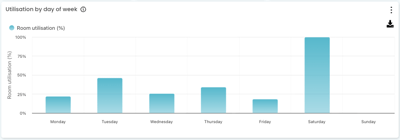
Utilisation by day of week
This chart shows the average room utilisation for each day of the week across the selected timeframe. Use it to spot which days your rooms are consistently full and which still have capacity to grow.
Utilisation trend
This chart shows your practice's overall room utilisation over time across the selected date range. It also includes a comparison to the same period last year, helping you identify patterns and understand how utilisation changes alongside events such as new practitioners, added rooms, or schedule updates.

💡 TOP TIP! Use this chart to spot patterns over time, then zoom into specific periods using the date filters to investigate what’s driving changes in utilisation.
Daily room utilisation - heat map
This heat map displays the proportion of available time that was booked for each room on each day across the selected timeframe. Rooms are shown on one axis and dates on the other. Darker cells indicate higher utilisation; blank or light cells highlight under-utilised days.
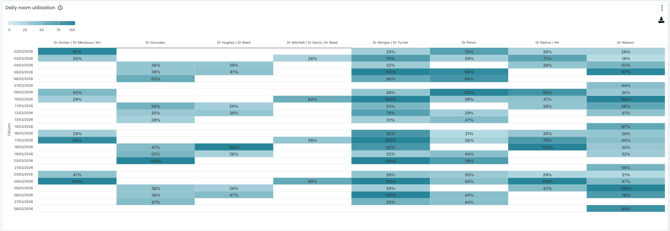
💡 TOP TIP! Look for large areas of lighter/white space — these represent days where rooms were open but not well utilised. This can highlight opportunities for irregular room rentals or additional practitioner sessions to generate extra income for the practice.
Daily & Hourly room utilisation tables
Found in the Breakdown tab.
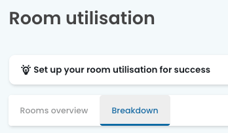
Daily room utilisation details:
This table shows a day-by-day breakdown of room utilisation in a structured list format. It is useful for exporting or reviewing specific dates in detail alongside the heat map above.
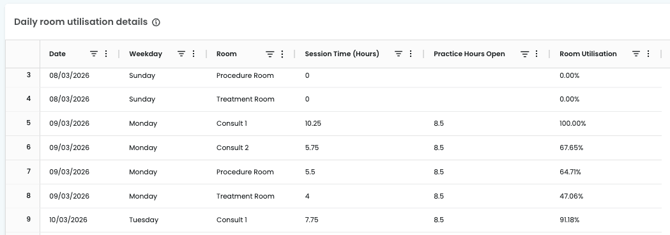
Hourly room utilisation:
This table shows room session times, consultation times, and utilisation rates for each hour of the day across your selected dates. It is the most granular view of room usage available in Cubiko.
Consultation time does not affect the utilisation calculation but gives insight into how the session time was spent. For a full breakdown, see the Hours page.
💡 Top Tip! Use the hourly utilisation table to identify where missed opportunities may exist.
For example:

Treatment Room at 2:00pm
The practice is open for 60 minutes during the 2:00–3:00 pm slot.
Session time is 30 minutes - the allocated practitioner's appointment book was not made available until 8:30 am.
Room utilisation = 30 ÷ 60 = 50%. The remaining 30 minutes were open practice time where the room was not bookable.
Treatment Room at 3:00pm
The practice is open for 60 minutes during the 3:00–4:00 pm slot.
Session time is 45 minutes - the practitioner had 15 minutes marked right-click unavailable (e.g. for an afternoon break) or there was a 15 min break scheduled in their session setup.
Room utilisation = 45 ÷ 60 = 75%.
Treatment Room at 4:00pm
The practice is open for 60 minutes during the 4:00–5:00 pm slot.
Session time is 60 minutes - no right click unavailable occured; the whole session was open for consulting.
Room utilisation = 60 ÷ 60 = 100%.
Another example (not pictured):
Room 2 at 3:00 pm
The practice is open for 60 minutes during the 3:00–4:00 pm slot.
Session time is 50 minutes - the practitioner had 10 minutes marked right-click unavailable (e.g. for an afternoon break).
Room utilisation = 50 ÷ 60 = 83.3%.
In this example, consultation time is 40 minutes, meaning 10 minutes of session time was not spent in a patient appointment (e.g. a DNA or non-patient appointment). Consultation time does not affect the utilisation calculation but gives insight into how the session time was spent. For a full breakdown, see the Hours page.
Understanding the columns
| Column | What it means |
|---|---|
| Session time (mins) | The time opened up in the appointment book via the sessions setup screen or right-click > Make Available. Excludes: practice closures, days away, and right-click > Make Unavailable. |
| Consultation time (mins) |
Patient appointment time that is completed, billed, paid, or booked. Consulting time does not affect room utilisation. Excludes: DNA appointments, non-patient appointments (e.g. Meeting, Other), and double-booked appointments. |
| Opening time (mins) | How many minutes the practice is open during that hourly slot, based on your Open Hours in Cubiko Settings. |
| Room utilisation % | Session Time ÷ Opening Time × 100. Reflects how much of the practice's open time was made available as a bookable session in the room. |
| Practice Hours Open | The hours that the practice is set as open applied in Settings > Open Hours |
| Hour | The hour beginning at the time indicated. For example, 8:00am refers to the hour between 8:00am and 9:00am. |
Setting up and managing your rooms
Room utilisation data in Cubiko is entirely dependent on how your rooms and schedules are configured in Settings. The Room Schedule page works like a weekly calendar grid: rows represent your rooms, columns represent days of the week, and each cell shows which practitioner is assigned to that room on that day.
⚠️ You must complete both your Open Hours and your Room Schedule in Settings before room utilisation data will populate. If you have not yet done this, follow the steps below.
Note: Updates will take overnight to appear in your Cubiko dashboard.
The headings below allow you to jump straight to the section you need:
Navigating to Room Schedule
- Log in to Cubiko and go to Settings > Room Schedule.
The weekly grid showing rooms (rows) and days (columns). Today's column is highlighted. - Use the left/right arrows to move between weeks, or click the date range button in the centre to jump to any week using the calendar picker. Click Today to return to the current week.

Managing your rooms
| Action | How to do it |
|---|---|
Add a room
|
Click the Add room button (top-right). A new row appears with an editable name field. Each room must have a unique name. |
Rename a room 
|
Click directly on the room name in the left column and type the new name. |
Delete a room 
|
Click the trash icon next to the room name. A confirmation dialog will appear before deletion. Note: deleting a room permanently removes all of its schedule history. |
⚠️ Important: Deleting a room permanently removes all schedule data associated with it. This cannot be undone. If you simply want to stop using a room, consider using a recurring closure instead — this keeps the room and its history intact. 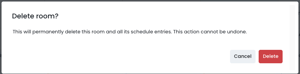
Adding schedule entries
There are two ways to add a schedule entry:
- Click an empty cell in the grid — this opens the scheduling modal pre-filled with that room and date.
- Click Add schedule entry in the top-right — this opens a blank modal for you to fill in.
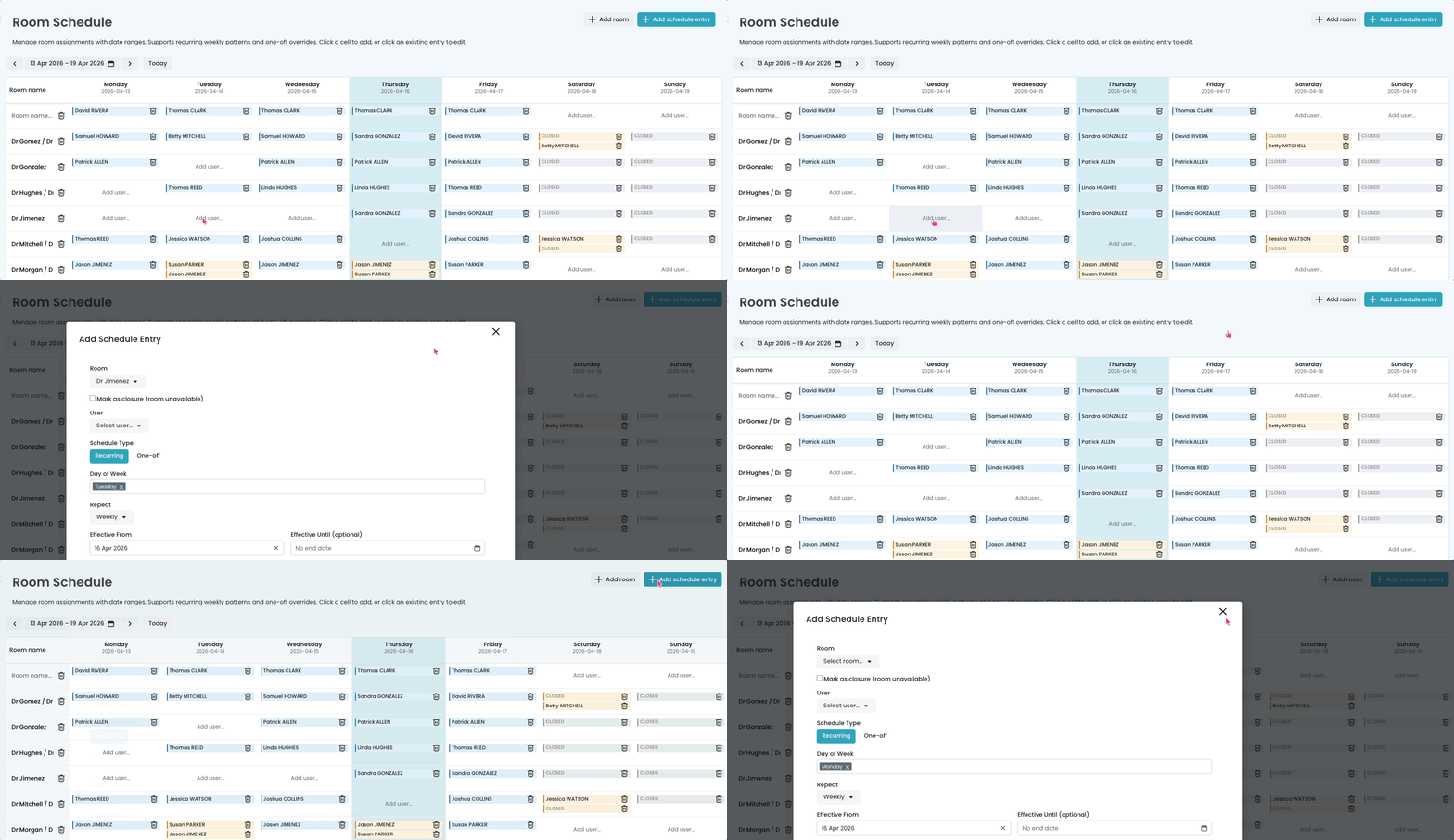
When creating a schedule entry, you will choose between two types using the Schedule Type toggle:
| Type | When to use it | Options |
|---|---|---|
| Recurring | For regular, ongoing room assignments — the preferred option for most rooms. | Set the Day(s) of week, Repeat frequency (Weekly, Fortnightly, or Monthly/every 4 weeks), Effective From date, and an optional Effective Until end date. Leave Effective Until blank for an ongoing schedule. |
| One-off | For a single specific date, such as a locum, a room swap, or a one-time booking. | Select the specific Date for the entry. |
💡 TOP TIP! Use recurring schedules wherever possible. Recurring schedules reduce admin effort and give Cubiko a complete picture of room availability, which directly improves the accuracy of the One-off schedule rate and Unscheduled hours summary metrics.
Marking a room as closed
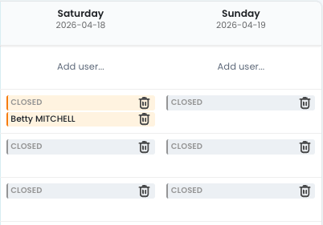
When creating or editing a schedule entry, tick the Mark as closure checkbox to mark a room as unavailable on that day. The cell will display CLOSED on the grid. Closures can also be set as recurring (e.g. a room that is always closed on Wednesdays).
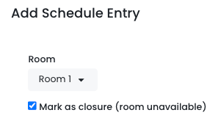
ℹ️ When a closure is applied to a date, all other schedule entries for that room on that date are hidden in the grid, but they are not deleted. If you remove the closure later, those entries will reappear automatically.
Assigning multiple practitioners to one room
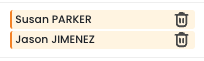
You can assign more than one practitioner to the same room on the same day — for example, when a room is shared between practitioners at different times. Each assignment is added as a separate entry and all names will appear in that cell. Cells with multiple assignments are highlighted in orange so you can quickly identify shared rooms at a glance.

💡 TOP TIP! If you see an orange cell, click it to review which practitioners are assigned and confirm there are no unintended overlaps.
Editing schedule entries
For one-off entries, simply click the entry to open the edit modal.
For recurring entries, clicking an entry opens a menu with three options, similar to how an online calendar handles recurring events:
| Option | What it does | When to use it |
|---|---|---|
| This event | Creates a one-off override for just that date. The rest of the recurring series is unchanged. | A practitioner is in a different room for just one day. |
| This and all following events | Ends the original series the day before the selected date, then opens a new series starting from that date. | A room assignment is permanently changing from a certain date — e.g. a new practitioner takes over the room. |
| All events in the series | Opens the edit modal for the entire recurring series. Changes apply to all occurrences. | A minor detail (such as a room name) needs updating across the whole series. |
Deleting schedule entries
For one-off entries, click the trash icon on the entry and confirm the deletion.
For recurring entries, clicking the trash icon gives you the same three-option menu:
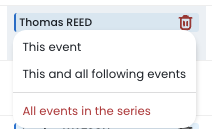
| Option | What it does |
|---|---|
| This event | Removes the schedule for just that specific date. The rest of the series continues as normal. |
| This and all following events | Ends the series from the selected date onwards. All previous occurrences remain visible, ensuring past entries are not affected. |
| All events in the series |
Deletes the entire recurring series — past, present, and future. Past entries will no longer display in reporting. |
⚠️ Heads up: Editing All events in the series will also update how past dates display. If you need to preserve the history of who was in the room previously, use This and all following events from today's date instead — this keeps the past series intact and starts a new one going forward.
Saving your changes
Any changes you make are kept on this page until you click Save. The Save and Undo buttons appear at the bottom of the page whenever you have unsaved changes.
- Save — applies all changes.
- Undo — discards your changes and returns to the last saved version.
⚠️ Important: If you refresh the page without clicking Save, any unsaved changes will be lost.
Changes are only auto-saved when you navigate away from the page, so it’s best practice to click Save before leaving.
Understanding the visual indicators on the grid
|
Highlighted blue column |
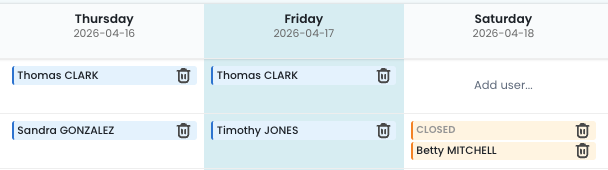 |
| CLOSED The room has been marked as unavailable for that day. |
 |
|
Orange cell
|
 |
|
Blue cell |
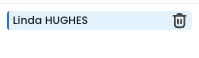 |
|
Warning icon
|
⚠️ |
💡 TOP TIP! For detailed guidance on completing all Cubiko Settings, visit How to complete Cubiko Settings – Rooms.
📎 Related articles
- Future room utilisation
- Clinic consulting utilisation
- Clinic utilisation today
- Consulting hours
- Hours
- How to complete Cubiko Settings – Rooms
Last updated: March 2026