
We have variations on how we define the time spent by your Practitioners within Cubiko. Understanding these definitions will help you use the best time measurement for your practice.
This page will give you a detailed breakdown of all of your timeslots in your appointment book (session hours, booked hours, consulting hours, admin hours) and how they are used to formulate your booking and consulting utilisation.
TOP TIP! Cubiko uses several time definitions to measure how practitioners spend their time. Understanding these definitions will help you choose the right metric for your practice. Watch the time metrics explainer video for a quick overview.
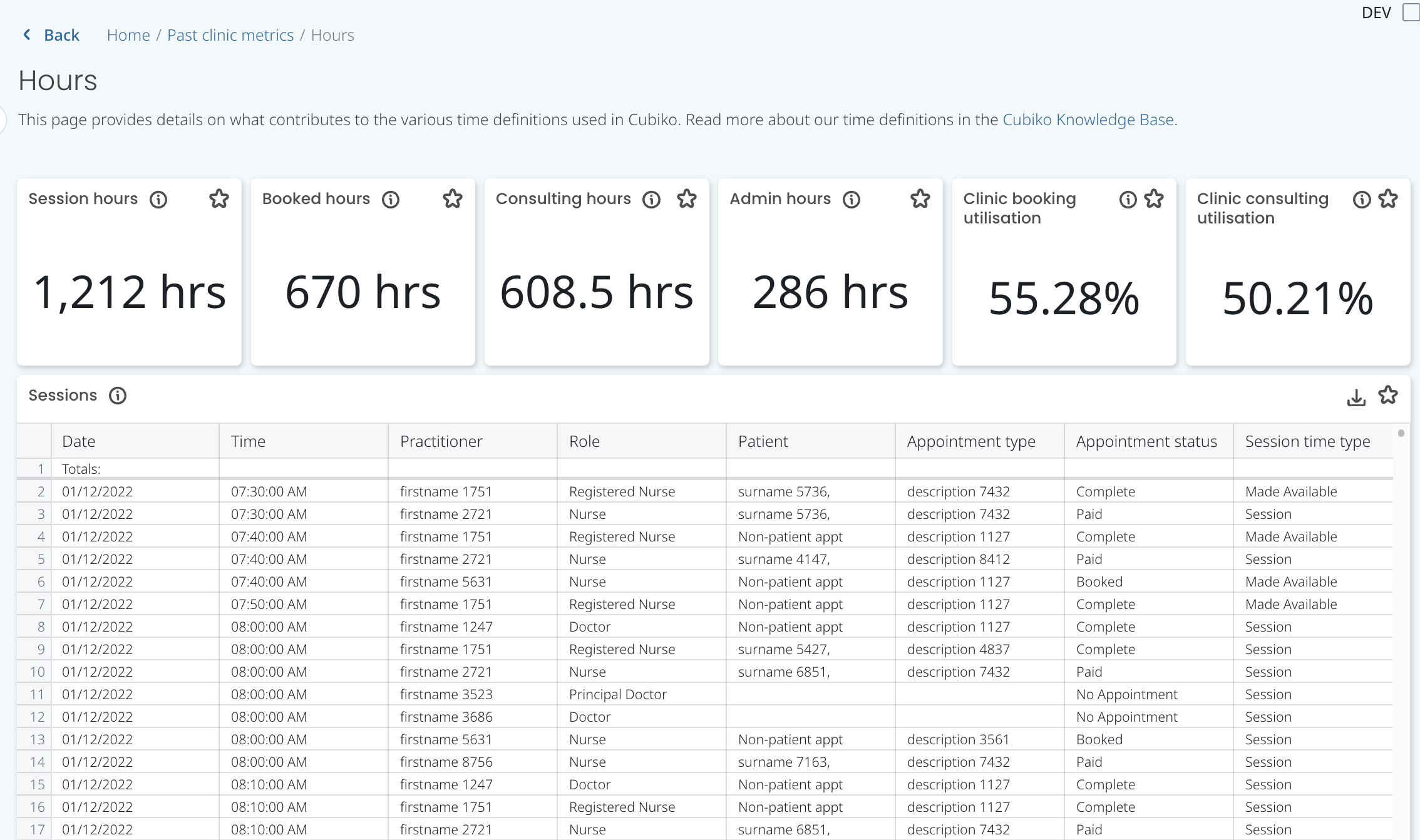
To navigate to this metric, click through on the headings on the metric tiles which will take you through to our Hours page.
1. Clinic Insights > Past clinic metrics > Clinic Consulting utilisation > Clinic booking utilisation OR Clinic consulting utilisation metrics
2. Clinic Insights > Past clinic metrics > Consulting hours > Session hours OR Booked hours OR Consulting hours metrics
The sections included in this article relating to hours are:
- Session hours
- Booked hours
- Consulting hours
- Admin hours
- Clinic booking utilisation
- Clinic consulting utilisation
- Sessions table
- Example appointment book breakdown
Session hours
This figure represents practice total session hours for the period selected. Session hour includes the time opened up in your appointment book (either via the sessions setup screen or right-click - make available). It excludes practice closures, days away and right-click - make unavailable.

Booked hours
This figure represents the practice total booked patient appointment time for the period selected. Booked hours include all patient appointments with a status of: completed, billed, paid, DNA (Did Not Attend), booked, or double-booked.

Consulting hours
This figure represents the practice total consulting hours for the period selected. Consulting hours include all the patient appointments which are completed, billed, paid and booked and excludes DNA appointments, non-patient appointments (such as Meeting or Other) & double-booked appointments.

Admin hours
Admin time (used in Time breakdown metrics in Practice Summary and My Cubiko) shows the total non-patient hours by the Practitioner.
Non-patient time is where the appointment book has been made unavailable (right-click unavailable) or a non-patient appointment type has been booked (e.g. Other, Admin, Meeting).

NOTE: Ensure you add lunch breaks to your appointment book by setting up a morning session and then an afternoon session through Session setup so that lunch breaks are not counted as Admin time because it has been created using 'right-click unavailable'.
TOP TIP! Head to Settings and untick the option Is this a patient appointment? for any non-patient appointment types that you do not want to be counted as Consulting time in your utilisation metrics but want to be included as Admin (or non-patient) time.

Clinic booking utilisation
This figure represents the proportion of available session time that has been booked with patient appointments. A higher percentage means your team's appointment book is more heavily filled. Clinic booking utilisation is calculated as: total duration of all booked patient appointments (completed, billed, paid, booked, double-booked, and DNA) ÷ total available session hours.

Clinic consulting utilisation
This figure shows the proportion of available session time that has been spent actively consulting with patients. A higher percentage means your team is more heavily utilised. Clinic consulting utilisation is calculated as: total duration of all patient appointments (booked, completed, billed, and paid) ÷ total available session hours. Note that DNA and double-booked appointments are excluded from this calculation.

Sessions table
This list shows all of the available appointment timeslots opened up in the appointment book (either via the sessions setup screen or right-click-make available). Excludes practice closures and days away.
For example:
The patient in the table highlighted below was booked into a regular session hour and had a completed appointment (marked as paid)=
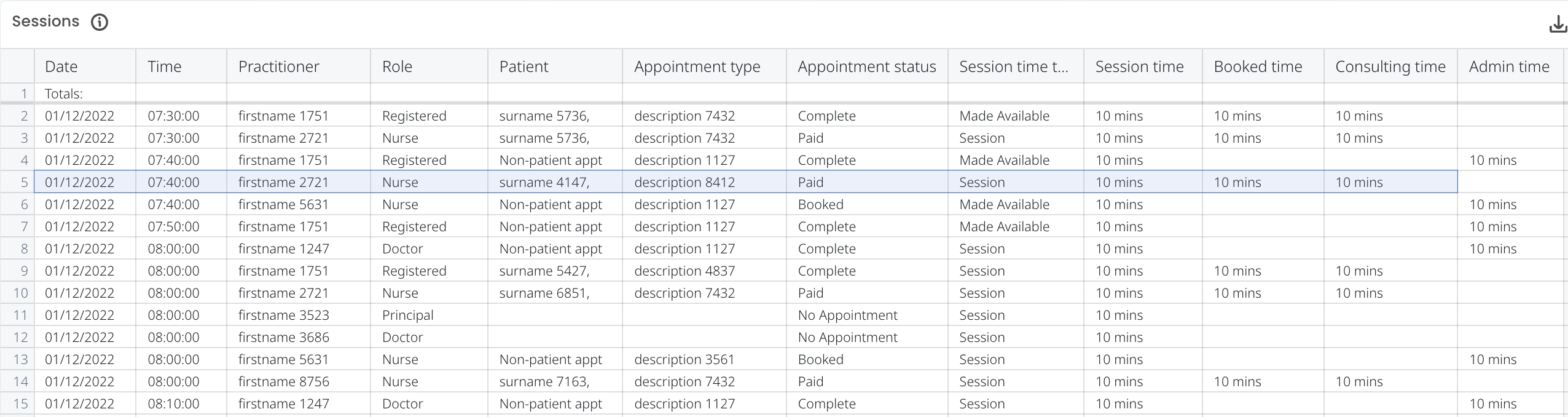
Session time-10 minutes were calculated into session time that was available and bookable
Booked time- 10 minutes calculated into Booked time as an appointment booked into an available slot
Consulting time- 10 minutes calculated into consulting hours and appointment completed
Example appointment book breakdown
Below, we have mapped out a typical appointment book from within Best Practice (BP) software as an example of the range of appointments that may occur during a typical day, and how each appointment type maps to Cubiko's time breakdown definitions.

In the example above, you can see that the available time to be booked includes all patient and non-patient appointments, and timeslots that are marked as available in the appointment book. These time slots are the Session hours, marked in blue and purple.
Booked hours will include patient appointments only that have been booked into the open Session hours. We count your double bookings in this calculation.
Consulting time will include all patient appointments, but we do not include any double bookings or DNA appointments in this calculation. Ensure you have this set up correctly in your Settings in Cubiko, and be sure to untick any non-patient appointments that you do not wish to be included in this calculation.
Admin time will include all non-patient appointments and any right-click unavailable timeslots, marked in green in the example above.
Unbooked time includes all of the timeslots which are marked as available and are empty and not filled with any type of appointment, these are marked in purple in the example above.