
Wisdom brings together the areas of your practice that need attention, shows how you compare with similar practices, and gives you a ready-made list of patients to action. It's designed to help your whole team decide what to focus on today and take action straight away.

The sections included in this article are:
- Finding Wisdom
- The Wisdom page
- Your position and thresholds
- Comparing with other practices (Touchstone)
- Information & resources
- Ways to action this
Finding Wisdom
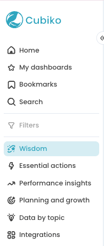
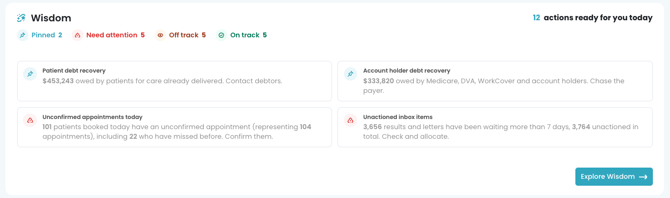
Wisdom appears on the Home page when you first open Cubiko. It can also be opened via the heading in the sidebar. The Wisdom panel shows how many workflows are Pinned, Need attention, are Off track and are On track, and how many actions are ready for you today.
Click through to Explore Wisdom to see the full Wisdom library.
The Wisdom page
Start with what you want to achieve for your practice today

Select a topic to highlight related workflows. This filters the available insights below so you can really focus on what is important to you.
Browse the workflows
Under Workflows, everything is grouped by status:
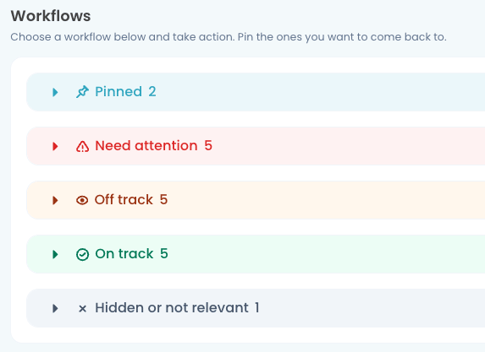
Which group a workflow falls into depends on the thresholds set for it (see Your position and thresholds). Click the arrow next to a group to expand or collapse it and keep the page tidy.
Pin the workflows you use most
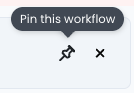
Pin the workflows you're working on so they stay at the top of the list, ready for next time.
TOP TIP! Team members can pin the workflows the team is focusing on this month, so progress is easy to check each morning.
Your position and thresholds
Click a workflow to open it. The Your position section at the top gives you a quick key insight, for example how much is owed by patients for care already delivered.
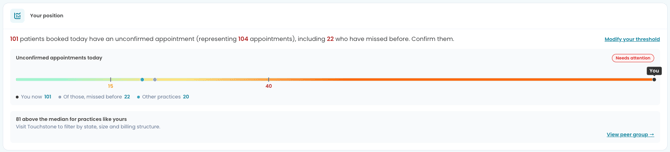
The line underneath shows where your practice sits in relation to your set threshold:
- the black dot (You) is your practice now
- the blue dot is Other practices
- some workflows show extra markers as a grey dot
Hover over the line to see the threshold bands. 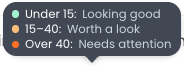
Modify your threshold
Set thresholds that suit your practice, so each workflow falls into the right group for your team. Use the Touchstone data to help guide the thresholds you set in Wisdom
NOTE: Only Viewers with access to Settings will be able to adjust thresholds for the practice. When adjusting a threshold, all Viewers will see this update in their Wisdom insights.
- Click Modify your threshold.
- In the Set threshold window, enter the values for Needs attention and Worth a look.
- Click Save changes.
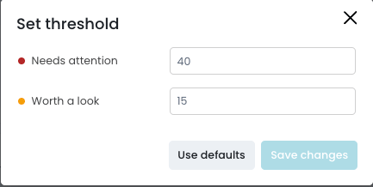
To go back to Cubiko's suggested values, click Use defaults.
NOTE: We recommend to take a moment to review the thresholds for the workflows you use. If they don't reflect your practice's goals, workflows may show in the wrong priority group on the Wisdom page.
Comparing with other practices (Touchstone)
Many workflows show how you compare with practices like yours, for example how far above or below the median your practice is. Other practices are those opted into Touchstone. Use the Touchstone data to help guide the thresholds you set in Wisdom.
Click View peer group to open the Wisdom tab in Planning and growth > Touchstone.
- How the clinic is doing on the left shows your practice performance.
- How your cohort is doing (median) on the right shows the Cubiko cohort.
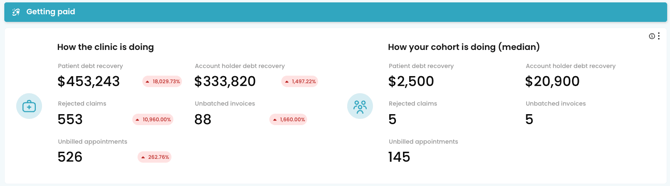
Use the Filters panel to compare practices similar to yours for a real practice comparison.
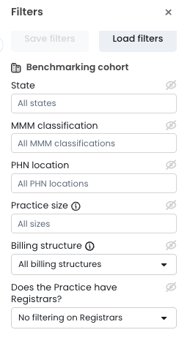
NOTE: The Touchstone filters and figures are a current snapshot and are replaced on every extraction run. Peer comparison isn't available on every workflow in Wisdom.
TOP TIP! Not seeing other practices? Check whether your practice has opted in. See Opt-in to Touchstone.
Information & resources
Not sure what a workflow is showing you? Expand Information & resources to see:
- What is this: what the figure includes
- Why it matters: the impact on your practice
- How we worked this out: how the figure is calculated
- Resources: links to related Knowledge Base articles, where available

Ways to action this
Ways to action this is where you turn the insight into action. Each workflow gives you actionable lists to work from. Click a step to expand it.
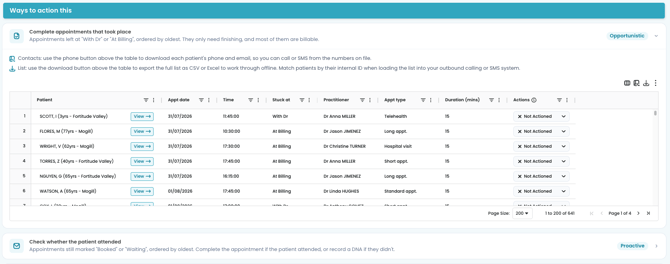
Working with the patient lists

Use the buttons above each table to:
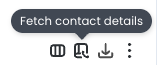
- Fetch contact details: use the phone button to download each patient's phone number and email, so you can call or SMS them straight from Cubiko. This needs to be turned on first. See Patient Contacts feature.
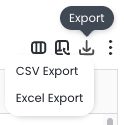
- Download the list: use the download button to export the full list as a CSV or Excel file to work through offline. See Printing and downloading data in Cubiko.
Links to other metrics
The final step helps you look further once you've worked through the lists. Click any of these to open the full metric page in Cubiko and investigate further.