
Cubiko works out utilisation from three areas:
-
How your sessions and appointment types are set up in your practice management software (PMS)
-
The status of each appointment in your diary at the end of the day
-
Your Cubiko settings
Get those three lined up and your utilisation will match what is really happening in your diaries.
On this page
- How Cubiko measures time
- Get your appointment book right in your PMS
- Configure your Cubiko settings
- Check your work on the Hours page
- Related metrics that affect utilisation
- How the team can help
- Frequently asked questions
- Additional resources
NOTE: Cubiko reads your appointment book overnight, so changes you make today show up after the next data extraction. Changes to Cubiko settings apply after you click Save and the next extraction runs.
How Cubiko measures time
Utilisation is a percentage of the time your team is available, so the first step is knowing what counts as available and what counts as used.
| Term | What it means |
|---|---|
| Session hours | Time opened up in your diary, through session setup or right-click make available. This includes an appointment added outside a session. Excludes practice closures, days away, and right-click make unavailable. |
| Booked hours | Patient appointment time that is completed, billed, paid, DNA, booked, or double-booked. Includes DNAs. |
| Consulting hours | Patient appointments that are completed, billed, paid, or booked. Excludes DNAs, non-patient appointments, and double-booked time. |
| Admin time | Non-patient time: non-patient appointment types (like Other or Meeting) and right-click make unavailable. |
| Unbooked time | Open session time with nothing booked into it. Excludes closures and days away. |
A patient appointment is one categorised as Appointment with patient in Settings > Appointments. Admin time shows in the Time breakdown metrics in Practice Summary and My Cubiko.
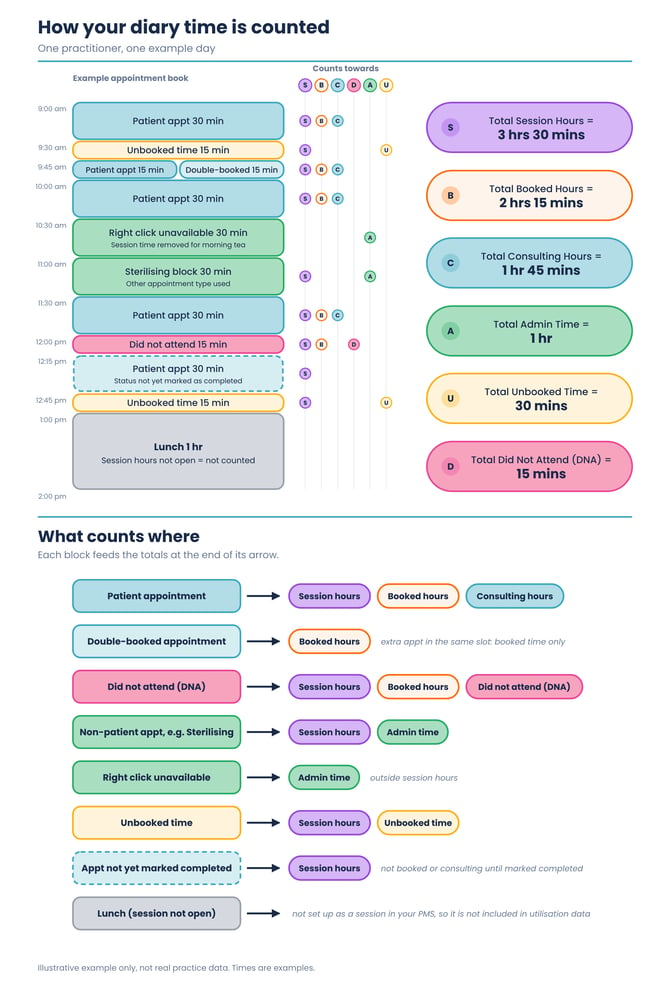
Here is one example of a morning in an appointment book, and where each block of time ends up.
Booking Utilisation = Booked Hours ÷ Session Hours
The proportion of available time that's been booked with patient appointments. Higher numbers mean a more heavily booked diary. In the example below, 2 hrs 15 mins ÷ 3 hrs 30 mins is about 64%.
Consulting Utilisation = Consulting Hours ÷ Session Hours
The proportion of available time actually spent consulting with patients. In the example below, 1 hr 45 mins ÷ 3 hrs 30 mins is 50%.
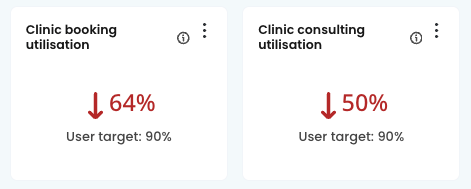
NOTE: The Time breakdown percentages use a different denominator (all hours added together), so they will not match consulting utilisation.
For more detail, see Cubiko time definitions for utilisation.
Get your appointment book right in your PMS
Most utilisation surprises start in the appointment book. These are the habits that make the biggest difference in Best Practice. If you use MedicalDirector or Pracsoft, see the block after this table.
| Do this | Why it matters |
|---|---|
| Mark every appointment as Completed, Billed, Paid, or DNA by the end of each day, nurse appointments included. "Pink and grey at the end of the day". | Appointments still marked Waiting, With doctor, or At billing do not count as booked or consulting time until they are completed, which pulls utilisation down. |
| Set up sessions to match the time you have available to book a patient. For example, use two sessions (8:30am to 11:30am and 12:30pm to 4:30pm) instead of one long session with lunch blocked out. | Session hours are the denominator for utilisation. Time that is not really bookable makes utilisation look lower than it is. |
| Mark days away for a practitioner in your PMS Session setup Mark days away for a practitioner in your PMS Session setup instead of using right-click make unavailable for a whole day or blocking off with an Admin appointment type. |
Marking days away in the PMS Session setup keeps it out of session hours in Cubiko and does not show as admin time. Avoid right-click unavailable or using a non-patient facing appointment type. |
|
Use the "Other" appointment type for nurse admin (or create your own in your PMS and do not tag as an appointment with patient) like stocktake, sterilisation, and setup. Adjust the length to match how long the task really takes. Other or Meeting could also be used for providers for things like Registrar training or Paperwork. |
It shows accurately as admin time for that team member as time spent non-patient facing but still working on other priorities. Avoid using Other to pop notes into the appointment book such as "dentist" or "call back", as that will affect utilisation. Instead use an F8 message. If you do use a placeholder for a note/message, ensure it is removed by the end of the day as it cannot be removed once the day has passed. |
| Keep one appointment book column per user. | A shared column for several nurses distorts the Dr and Nurse hour ratio, because session hours will not reflect each nurse's actual working hours. |
| End-date the sessions of anyone who leaves. | It stops future session hours and unbooked hours for that person appearing in your metrics which will skew your utilisation figures. |
| Be intentional about opening extra time outside a session. |
Time opened with right-click make available or creating an appointment outside of sessions will open the session time and counts as session hours, so it adds to the time your utilisation is measured against. |
Caution: In Best Practice, if a practitioner works across more than one diary or location, session time can be counted twice. Keep each practitioner to one set of sessions, and remove session hours where they are not available.
If your practitioner moves between locations regularly, do not open a standard session, but set up their "extra sessions" to reflect their working location on the day.
For the full steps, see Best Practice's guides on appointment statuses, setting up sessions and holidays, and adding appointment types.
TOP TIP! Set working hours first in Bp Session setup, then allocate the day with patient and non-patient appointment types, then make sure every appointment is Completed or DNA by the close of day.
Using MedicalDirector or Pracsoft?
The same principles apply, but a few things work differently in your appointment book.
| Topic | What to do in MedicalDirector or Pracsoft |
|---|---|
| Leave and days away | Mark leave with Days Absent in Pracsoft (Setup > Availability). Drag-and-drop time blocks count as session time, so avoid using them to mark a full day away. |
| Breaks and different hours | Schedule breaks within your sessions, for example one session from 9am to 12pm and another from 1pm to 5pm. Use Special sessions for hours that differ from the usual. Absent overrides Special, and Special overrides Standard. |
| Final status at the end of the day | Set every appointment to Gone or No Show. Uncompleted appointments are not recorded as No Shows. |
| Admin and non-patient time | Use non-patient appointment types and untick Is this a patient appointment? in Cubiko Settings for custom types. A free-text appointment that is not linked to a patient file counts as session and admin time, so link new patient appointments to a patient file. |
| Duplicate session hours | More than one appointment book, can double up session hours. Filter the Hours page by practitioner and day to find them, then remove the extra sessions in your PMS. |
| Practitioner names | Keep names identical across appointment books so Cubiko merges each practitioner's data. See MD Cubiko multiple users fix. |
Caution: Default sessions in Pracsoft have no start or end date, so they fill your appointment book historically as well as into the future. Remove empty, unbooked session hours from past appointment books to keep utilisation accurate.
For the full guide, see MD and Cubiko - Setting up your diaries.
Configure your Cubiko settings
Cubiko pulls your users and appointment types from your practice management software, then uses your Cubiko settings to decide how each one is counted.
Note: Excluding an appointment from being counted in metrics will not remove it from the session time or admin time it creates/uses. The appointments not included will impact your total appointment counts and other counted metrics.
| Setting | Where | What to do |
|---|---|---|
| Role | Settings > Users |
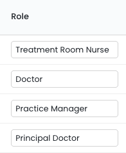
Make sure every user has the right Role. Nurses and treatment rooms need the Nurse role. Assigning a role resets that user's checkboxes to the role defaults, so check any overrides afterwards.
|
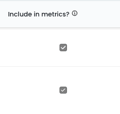
| Include in metrics (users) | Settings > Users | Include anyone with an appointment book or billings (all clinical staff). |
|
Include in metrics (appointment types)
|
Settings > Appointments |
Tick every appointment type to include in metrics, even if you don't use it regularly. It can always be filtered out in the metrics later but if not ticked to include, this will affect certain historical data used with this appt type.
|
| Patient or non-patient | Settings > Appointments |
Patient appointments count as consulting time. Ensure all of these appointments have the category "Appointment with patient" Non-patient appointments count as admin time. Leave the appointment category blank and this will count as Admin time in Cubiko.
|
|
Appointment Categories
|
Settings > Appointments |
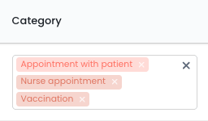
Appointments can have multiple categories. Patient appointments count as consulting time. Ensure all of these appointments have the category "Appointment with patient". Nursing appointments such as ECG, Wound care, Vaccination should also have the "Nurse appointment" category applied as well as "Appointment with patient". Non-patient appointments or Admin blocks count as admin time. Leave the appointment category blank and this will count as Admin time in Cubiko.
|
| Target utilisation | Settings > User Targets |
Set a target by role or for each user. It sets the benchmark you compare against and does not change the calculation. Check expectations with each practitioner first, as 100% is easy to set but hard to hit.
For the full guide, see Setting Targets and Budgets |


For the full walkthrough, see Bp & MD - Completing Cubiko Settings and Setting up your appointment book.
Room Utilisation = Session Time ÷ Opening Time
The same logic, applies to physical rooms rather than Practitioners.
For the full guide on Room Utilisation, see Room Schedule Utilisation
Check your work on the Hours page
The Hours page shows how every timeslot in your appointment book has been classified, so you can see exactly why your numbers look the way they do.
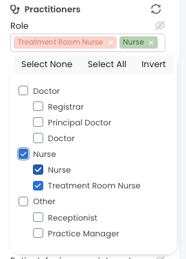
- Open the Hours worked page and filter by Role, for example Nurse.
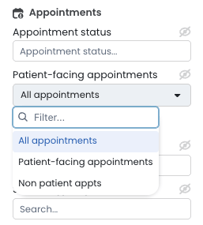
- If admin hours look higher than you expected, use the Non-patient appointments filter to dig in.
- Use the table to see why a slot is showing as admin and compare it with your appointment book. Is it a break that was not allowed for in session setup? Is it genuine nurse admin time? Was it open session time that was marked right-click unavailable?
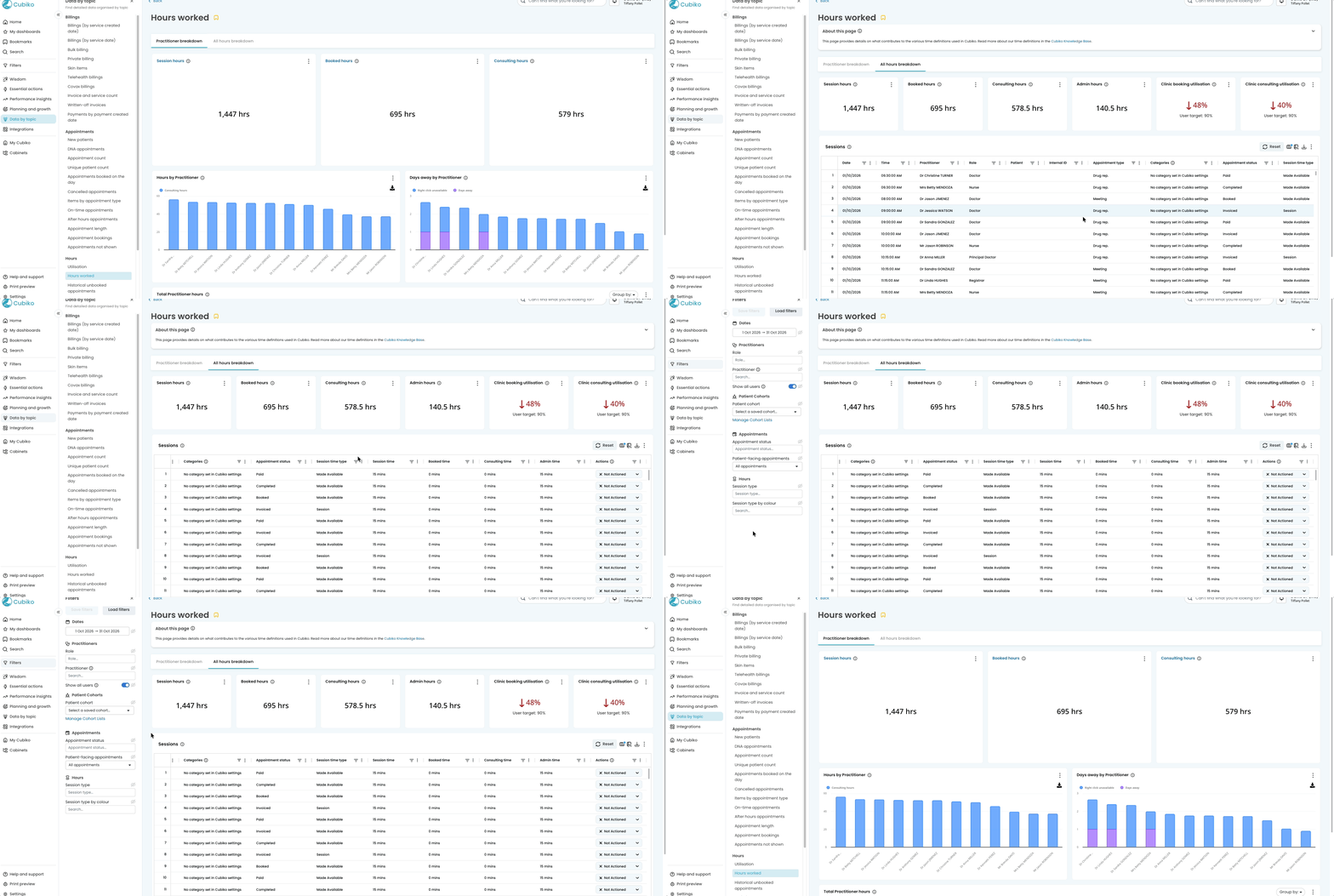
TOP TIP! To get to know the Hours page, filter by a single day and a single provider so you can match the data directly to your Best Practice appointment book.
Related metrics that affect utilisation
| Metric | What it needs from your setup | Where to find it |
|---|---|---|
| Uncompleted patient appointments | A list of patient appointments not yet marked as completed or DNA. Uncompleted appointments affect your utilisation rates. Aim for zero. | Essential actions > Billing actions > Missed billing opportunities |
| DNA rate |
Any appointment where a patient did not attend, should be marked as such in the diary. If left as booked, this will affect your utilisation rate. |
Data by topic > DNA Appointments |
❗️All appointments for the day should either be marked as Completed, or DNA for the most accurate utilisation rates.
How the team can help
Utilisation is a team effort, and it is easier to keep accurate when everyone knows their part. Here is a simple split to start from.
| Team | Suggested responsibility |
|---|---|
| Reception and admin | Mark appointment statuses at the end of the day, and work through the Uncompleted patient appointments list. PMs can give them access to the Billing optimisation cabinet in Viewer settings so they can see it. |
| Nursing team |
Use the Other appointment type in the nurses columns for nurse admin blocks such as sterilisation, restocking, or setup time. Nurses can also ensure the appointments in their column are completed or DNA at the end of the day. |
| Practice manager | Keep PMS session setup and Cubiko settings up to date when providers or hours change. Set utilisation targets by role, and review the Hours page. |
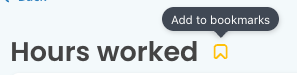
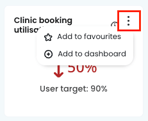
TOP TIP! Use a Bookmark or add a metric to your favourites dashboard so you can find these metrics quick and easily.
Frequently asked questions
Why does Booked Hours show more than Session Hours?
This is almost always double- or triple-booking. It isn't a data error, it means more patient time was booked into a slot than the slot allowed for.
Why do my Consulting Hours look lower than I expected?
Check whether every appointment was marked as completed by the end of the day. Appointments sitting in "Waiting", "With Dr", or "At Billing" status won't count until they are marked Completed. See Get your appointment book right in your PMS.
Why did Session Hours go up unexpectedly?
Check whether appointments were booked outside the configured session times — these are recorded as Session type: Made Available, and add to Session Hours.
Why did a Practitioner's utilisation drop sharply for one day?
Check whether a full or half-day absence was marked with right-click unavailable rather than Days Away or a dedicated appointment type. Right-click unavailable removes the time from Session Hours, which can make utilisation look artificially low. See Get your appointment book right in your PMS.
Can I see unbooked hours from a previous day directly in my PMS?
Not reliably. Best Practice removes the visual white space of unbooked slots once a day has passed. Cubiko is the best source for historical unbooked hours, since it captures this in real time. Ensure the diary is tidy at the end of each day for best utilisation results.
What if my provider is only away for half the day or only working half a day?
If a provider is working a half day outside their regular hours, you can add this in your Bp session set up as additional day with just the hours they are working that day. Currently, Best Practice does not allow for part day away updating, you will need to mark the time as away via either right-click unavailable (removes session time) or as a "Leave" appointment type (keeps session time).
Additional Resources:
Cubiko knowledge base
- Cubiko time definitions for utilisation
- Hours
- Bp & MD - Completing Cubiko Settings
- Uncompleted patient appointments
Best Practice knowledge base