
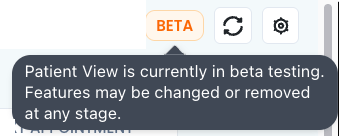
V1 of the Beta release includes Patient View in Today's Cinic Metrics >Possible service opportuntities today and MyCubiko > My service opportunities
Future versions will expand the tables Patient View is available on.
NOTE: Patient View is available to our Best Practice and Medical Director integration customers. Some sections are Best Practice only — these are flagged in this article.
The Patient View panel brings everything you need to know about a single patient into one place — alerts, program registrations, possible service opportunities, clinical insights, admin items, and a timeline of their recent and upcoming care. Open it within your current page, review the patient, then close it and drop straight back to what you were doing.
The sections included in this article are:
- Where to open the Patient view panel
- What's inside the Patient view panel
- Alerts
- Program tags
- Care Prompts
- Care Journey
- Settings and customisation
- How your team can use the Patient view panel
- FAQ
- Additional resources
Patient View - Quick Glance
How to get the most out of Patient View:
- From a patient list table row, click View → next to a patient's name.
- Check the Alerts ribbon and Program tags row first — these flag anything urgent or any registration opportunities like MyMedicare or CTG.
- Review Care Prompts to see possible service opportunities, clinical data gaps, and admin items for the patient.
- Open the Care Journey expanded view to see past and upcoming appointments alongside future eligibility windows — handy for spotting bookings that don't line up with eligibility.
- Use the Settings cog on Care Prompts to tailor which sections and prompt types show for your role. Settings save per user.
Where to open the Patient view panel
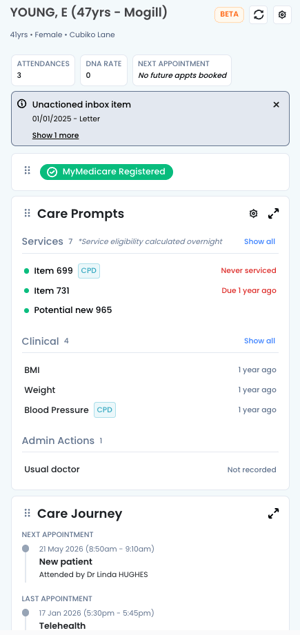
The Patient view panel can be opened anywhere in Cubiko where there's a patient list table — the main ones being on the Service Opportunities Today page for admin and nurses, and in the MyCubiko cabinet for providers.
To open the Patient view panel, click View → next to a patient's name. The panel opens within your current page. Click out of it to return to where you were.
What's inside the Patient view panel
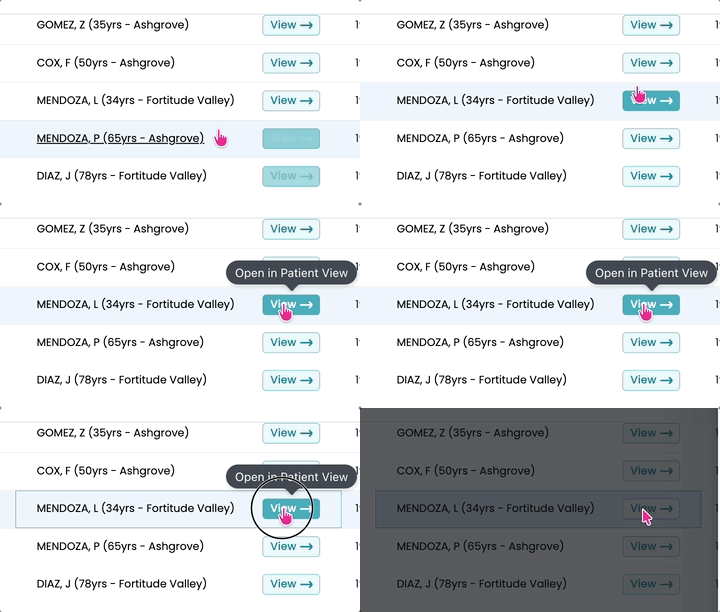
The Patient view panel is made up of five sections, stacked top to bottom. Click through the links to find out more:
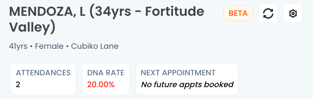
- Patient header — name, age, gender, suburb, attendances in the last 12 months, DNA rate, and next appointment.
- Alerts — high importance information to know about this patient
- Program tags — program registration and eligibility
- Care Prompts — services, clinical insights, and admin opportunities
- Care Journey — recent and upcoming appointments. Expand to see billing type, amount, and item billed.
Alerts
When a patient has something important worth flagging, an alert ribbon appears below the header. It shows the most important alert first, with a Show more link to reveal others.
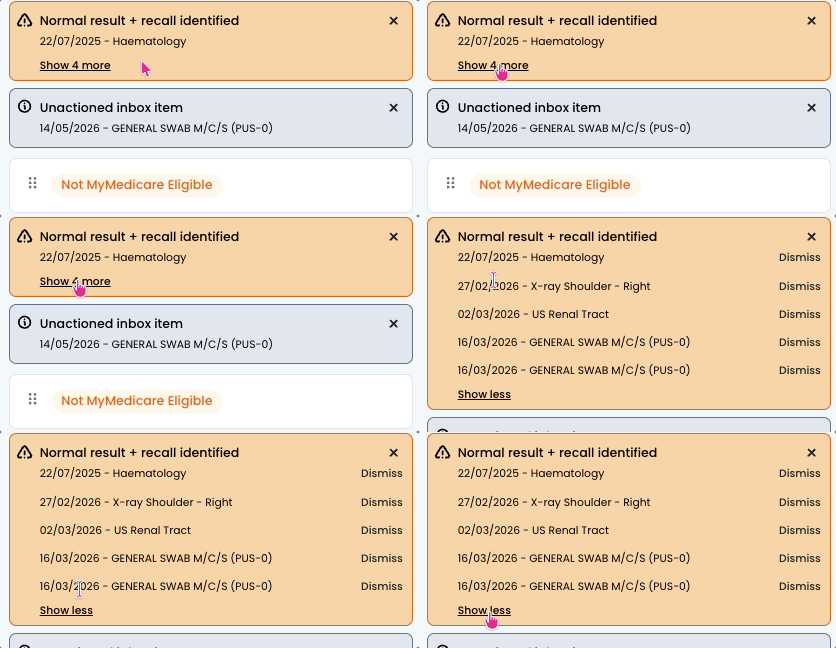
Alerts include:
- Abnormal results with a recall identified
- Normal results with a recall identified
- Unactioned inbox items associated with the patient
Program tags
A row of program tags shows whether the patient is registered for (or eligible for) programs. Tags only show for relevant programs.
Use the Program tags row to spot patients who could be registered for MyMedicare or CTG before their appointment starts.
-
MyMedicare Registered
-
CTG (Closing the Gap)

Note: These tags are based on the data in your PMS.
Care Prompts
Care Prompts is the heart of the Patient view panel — it answers "what does this patient potentially eligible for today?". The data comes from the same eligibility engine that powers the Service Opportunities Today page, just grouped for one patient.
As always, these are highlighted opportunities, and the servicing provider is the final decision maker on what services they provide.
NOTE: Care Prompts in the Patient view panel works alongside the existing Care Prompts write-back to Bp — both can be used together. Learn more about Care Prompts and the Bp write-back workflow here.
Care Prompts sections
Care Prompts is split into:
- Services — possible MBS item-number opportunities
- Ruled out — items that have been ruled out, with the reason shown
- QuickCheck (Best Practice only) — info to let you know your QuickCheck results
- Clinical Insights (Best Practice only) — clinical data quality prompts
- Admin — patient-record housekeeping prompts
Each section header shows a count and a Show all link to expand the full list.
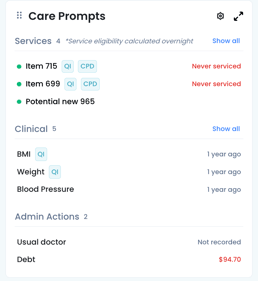
Services
The Services list shows the patient's possible item-number opportunities — the same data that drives Service Opportunities Today and Item Optimisation, just focused on this one patient. Items covered include CCMP, CCMP reviews, Health Assessments, 10997, Nurse items, Vaccines, MHTP, and Medication Management Reviews.
For the full list and how eligibility is calculated, see the Care Prompts knowledge base article.
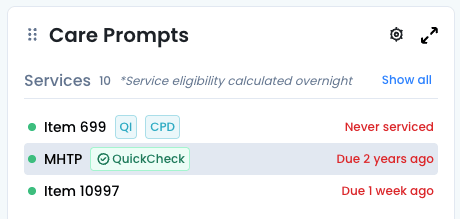
Each item shows the item label, status pills (QI, CPD, ✓ QuickCheck), and status text on the right (e.g. Never serviced in red, or the date last serviced).
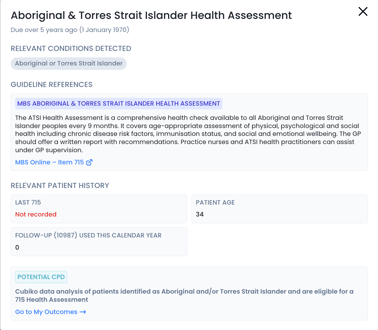
Click through on each item to see more information on why this service was flagged, including relevant conditions, guideline references, and past history:
NOTE: A QI pill flags items that count towards a Practice Quality Improvement initiative.
A CPD pill flags items that count as a CPD opportunity for the practitioner. See more info on CPD activities here: My CPD Outcomes
Ruled out
Below the Services list, a collapsible Ruled out group shows items that would have appeared as opportunities but have been ruled out. Each ruled-out item shows the reason as a small grey pill, with the item name struck through.
Reasons you'll see:
- Medicare confirmed not eligible — a QuickCheck check returned ineligible. This patient may have had the service billed in a timeframe not eligible. Alternatively, they may be MyMedicare registered at another practice so a care plan is not eligible to be billed at your location.
Ruled out is collapsed by default to keep your active list short but can be expanded for more information.
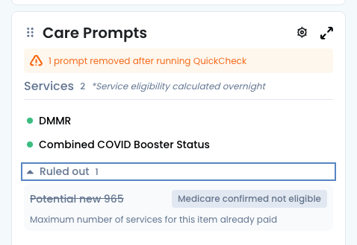
QuickCheck inside the Patient view panel
When QuickCheck has been run for a patient, you'll see:
- ✓ QuickCheck badges next to items confirmed eligible

- A banner if QuickCheck removed an item (1 prompt removed after running QuickCheck — View)
- A banner if QuickCheck couldn't run (e.g. Eligibility check with Medicare could not be completed — Medicare card details incorrect)
Learn more about QuickCheck here.
Clinical Insights (Best Practice customers only)
Clinical surfaces clinical data hygiene prompts pulled from the patient record include things that are missing, out of date, or worth flagging before the appointment. Examples include BMI, Weight, and Blood Pressure - each showing either Never recorded or the last recorded date.
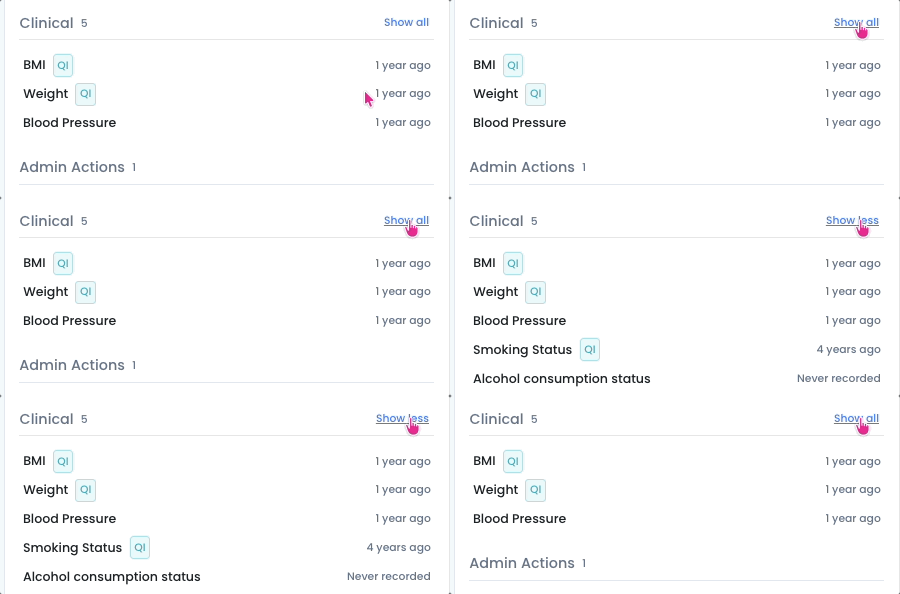
NOTE: If a team member has not been provided with access to the Clinical permissions, they may have limited view to certain clinical metrics. To review this go to: Settings > Viewers > Name > Clinical Permissions > Yes > Save.
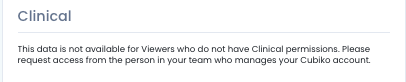
More info here: Setting up and managing Cubiko Viewers
Admin
The Admin section surfaces patient-record housekeeping prompts. Examples:
- Usual doctor — Not recorded
- Debt — outstanding debt amount in red
Even when a patient isn't eligible for any services, the Admin section often surfaces useful patient insight.
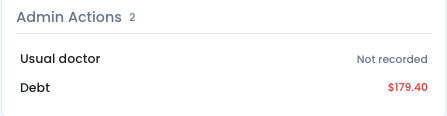
Care Journey
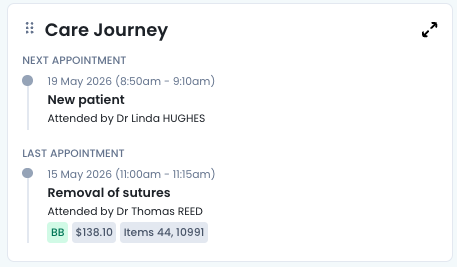
Care Journey is a timeline showing the patient's recent and upcoming appointments, with key context for each. Use the widget's expand option to see the full vertical timeline, and toggle categories on or off to focus the view. The Care Journey includes:
- NEXT APPOINTMENT — date, time, appointment type, and practitioner. Inline alerts may appear underneath, such as items not eligible.
- LAST APPOINTMENT — date, appointment type, a descriptive note, and billing tags:
- Billing method — PB (Privately Billed) or BB (Bulk Billed)
- Amount billed
- Practitioner name
- Appointments — past and upcoming
- Services billed and future eligibility — past billings and the future windows when the patient may be eligible for items
- Future appointments — date, time, location, practitioner, and appointment type
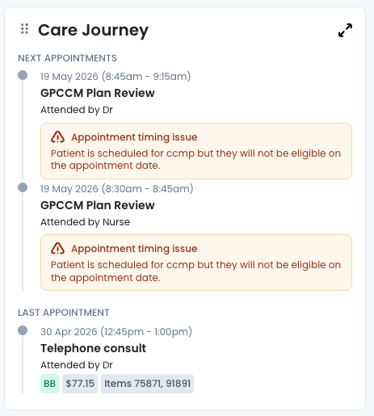
Use the arrows to see the expanded view with appointment and billing history.
TOP TIP! Cubiko flags Appointment timing issue alerts in Care Journey! These highlight appointments booked before the patient is eligible to claim the item with Medicare. Spotting these early gives reception a chance to rebook before it leads to a Medicare rejection for work provided.
Settings and customisation
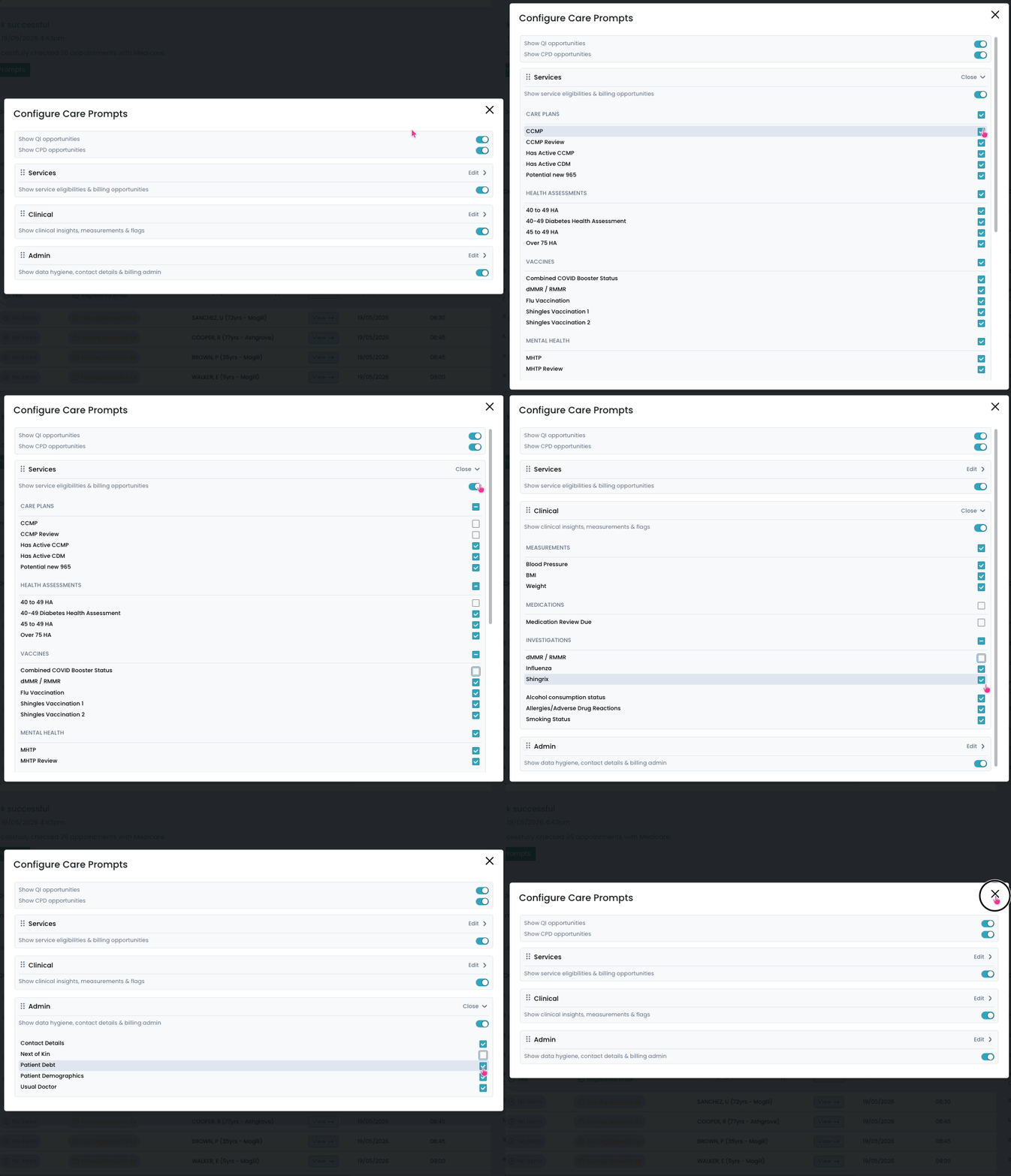
The Patient view panel can be tailored to your role using the Settings cog on the Care Prompts widget. You can:
- Toggle which categories (Services, Clinical Insights, Admin) are shown
- Re-order categories
- Hide specific prompt types you never want to see
Settings are saved per user, so each team member can tailor their own view.
NOTE: Any team members granted permission to the Possible service opportunity table and/or MyCubiko cabinet will be able view the live data and patient view information.
If a team member has not been provided with access to the Clinical permissions, they may have limited view to certain clinical metrics. To review this go to: Setting up and managing Cubiko Viewers
How your team can use the Patient view panel
- Admin team (practice managers, receptionists) — review Care Prompts and the Program tags row at check-in to action housekeeping, MyMedicare registrations, and contact-detail updates before the patient sees their practitioner (missing NOK? Debt?).
- Clinical team (nurses, GPs) — use Care Prompts and Care Journey to spot services the patient may be eligible for, capture clinical measures (Best Practice only), and get a quick read on the patient before they walk in. Teams can also use Alerts to flag any actionable items that need review such as recalls and unactioned inbox items.
FAQ
What data is live, and what's calculated overnight?
The Patient view panel uses a mix of live and overnight data:
- Live (refreshes on page load and via the refresh icon - Best Practice only):
- Appointment data in Care Journey
- Clinical data in Clinical Insights (Best Practice only)
- Calculated overnight:
- Item eligibility (Services in Care Prompts)
- Program registration status (MyMedicare, RACGP Active, CTG, GPACI)
- Admin (debt, contact-details age, usual doctor)
- Patient header fields (name, age, attendances, DNA rate)
I'm a Medical Director customer — why don't I see Clinical Insights?
The Clinical Insights section is available to Best Practice customers only. All other sections work the same way for Medical Director customers.
What happens with walk-in patients who are new to the practice?
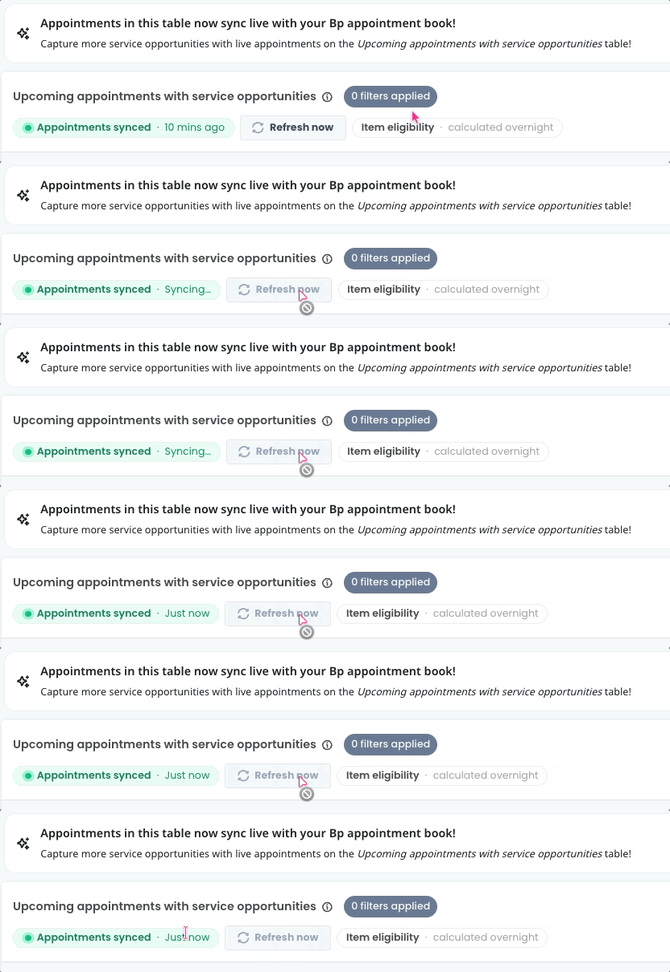
Easy! Within Possible service opportunities today and MyCubiko, refresh the Live data to update your list to show the patients who have booked in on the day. Their appointment will appear in your table list. Item eligibility won't be calculated for them on the day — it'll be picked up overnight once they have had their first consult.
Does the Patient view panel replace the existing Care Prompts write-back to Bp?
No — both work alongside each other. Care Prompts write-back continues to push opportunities into the patient's Bp record. The Patient view panel is an extra layer that gives your team a way to view the same data (and more) inside Cubiko. Learn more about Care Prompts here.
Additional resources
- Care Prompts: send key care opportunities to your Best Practice appointment book
- Possible service opportunities today
- QuickCheck — how to use
- Quality Improvement Cabinet (QI)
- My CPD Outcomes