
Filters live in the metric pages in Cubiko. The filters you see will change depending on which metric you're viewing. Cubiko only shows what's relevant to that page and metric.
Jump to:
Filter quick reference guide
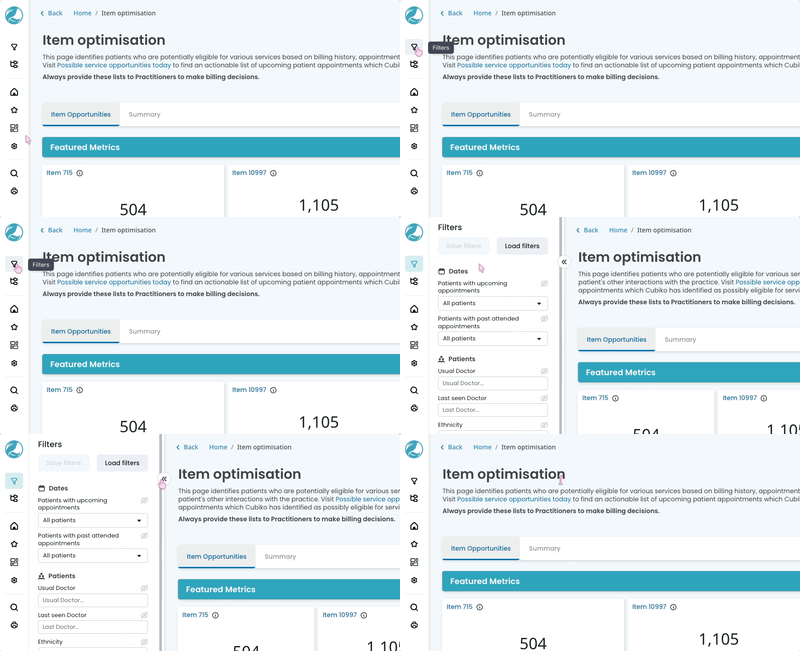
Filters appear in three places in Cubiko: the left sidebar, directly on graphs, or inside data tables. The sections below run through the key filters available.
| Filter | What it does | How to use it |
|---|---|---|
DATES 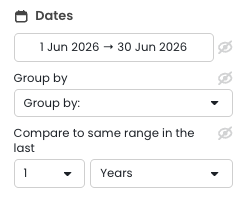 |
||
| Date range | Sets the time window for your data. |
Click the date range to choose from presets (e.g. Last financial year) or set a custom range using the calendar. TOP TIP! When selecting dates manually, work from year → month → date. Start with the furthest-away date first, then select the closest one. |
| Group by | Changes graph granularity — day, week, or month. | Use the drop-down in the sidebar or directly on a graph. Useful for switching a year of data to a monthly view to make trends more readable, or to daily when investigating a specific spike. |
| Compare periods | Overlays 1–2 previous periods on trend graphs as additional lines. | Select the number of periods and timeframe (e.g. 1 Year). Note: "Last year" in Cubiko means 52 weeks prior — not date-for-date — so you're comparing the same days of the week. |
PRACTITIONERS 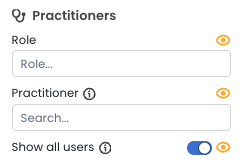 |
||
| Role | Filters by staff role as configured in your Cubiko Settings (e.g. Doctor, Nurse, Allied Health). | Select a role from the drop-down. Useful for reviewing a metric by role separately rather than as a combined practice view. Or when sending Care Prompts, filter by role to send different care opportunities to each team group. |
| Practitioner | Scopes data to one or more specific practitioners. | Select from the drop-down. Useful for 1:1 conversations using data, printing custom patient lists per provider (e.g. service opportunities or unbilled appointments), or reviewing individual billing patterns. |
PATIENTS  |
||
| Opportunities | Filters the consolidated patient list by a specific service opportunity. | Select a service type (e.g. CCMP, Health Assessment, Nurse item) to focus on certain opportunities without cluttering the list. |
| Usual Doctor / Last seen Doctor | Filters patient lists to those linked to a specific GP in your PMS. | Select a doctor from the drop-down. Useful for generating lists for specific providers. |
| Age bracket | Breaks data into patient age groups. |
Select one or more brackets. Type in the age or brackets and press enter to lock it in. Eg. 70-75 > Enter. 16-16 > Enter. 75+ > Enter. |
| Bulk billing eligibility type | Filters by Medicare eligibility category — bulk billed, private, DVA. | Select from the drop-down. Updates the whole page including any patient lists. |
| MyMedicare registered patients | Filters to show all patients by their MyMedicare status. | Select from the drop-down. Useful for reviewing for specific MyMedicare cohorts. |
| Ethnicity | Filters patient data by ethnicity group. | Select from the drop-down. Useful for identifying patients within specific communities. |
PATIENT COHORTS 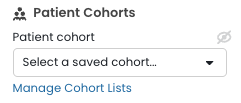 |
||
| Patient cohort | Applies a custom-built cohort from the Patient Cohorts product to the metric. | Select a saved cohort from the drop-down. The metric will update to show only patients in that cohort. For example, a cohort of women aged 18–65 with a concession card will filter your patient lists across metrics to show only those patients. Cohorts are built and managed in the Patient Cohorts product. |
BILLINGS 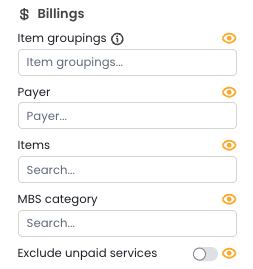 |
||
| Item groupings | Filters by pre-set groups of related MBS items (e.g. Health Assessments, Telehealth, CCMP / CDM, Nurse items). | Select one or more groupings from the drop-down. Useful for quickly reviewing a category of billing activity without needing to select individual item numbers. |
| Items | Filters to one or more specific MBS item numbers. | Select items from the search drop-down. Useful for finding information on a specific item, including any custom items created at your practice. |
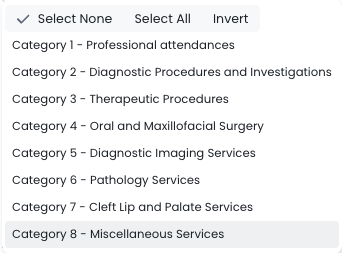
| MBS category | Filters by MBS billing category. |
Select a category type from the drop-down. |
| Payer | Filters by payer type (e.g. Patient, Medicare, DVA). | Select from the drop-down. Useful for isolating patient accounts with outstanding debt for follow-up, or reviewing Patient, 3rd party, Medicare and DVA debt separately. |
| Invoice age | Filters outstanding debt by how old the invoice is. | Select from the search drop-down. Useful for prioritising older debts that need urgent follow-up. |
| Status | Filters by invoice status once Medicare/DVA debt is included. | Select from the drop-down. Useful for narrowing the outstanding debt list to a specific status for follow-up. |
APPOINTMENTS  |
||
| Appointment type | Filters by appointment types as set up in your PMS (e.g. Standard, Long, Nurse, Telehealth). | Select one or more types from the search drop-down. Useful for understanding how each appointment type is being used in the practice. |
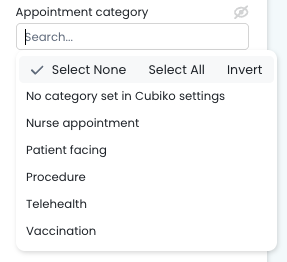
| Appointment category | Filters by appointment category groupings. |
Select from the search drop-down to filter by appointment categories as set up in your Settings > Appointments.
|
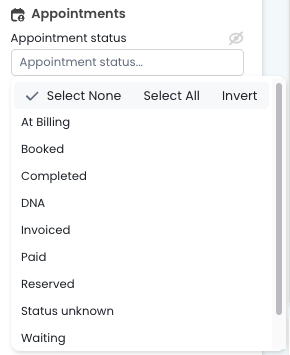
| Appointment status | Filters by the status of appointments (e.g. Booked, Completed, DNA). |
Select from the drop-down. Useful for filtering by appointment status to find all appointments currently sitting in a specific status type. For example, 'At Billing' are appointments that may need to be finalised and invoiced.
|
| Booking method | Filters appointments by how they were booked — in person or online. | Select from the drop-down. Useful for understanding how patients are booking their appointments at the practice. |
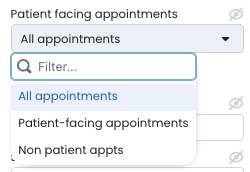
| Patient-facing appointments | Filters to show all appointments, or patient-facing appointments only. |
Select from the drop-down. Useful for excluding non-patient time (e.g. admin, meetings) when reviewing appointment activity. More info here: Hours page
|
| Dr seen | Filters the appointment list to those seen by a specific doctor. | Select from the drop-down. Useful for reviewing patient history linked to a particular GP |
HOURS 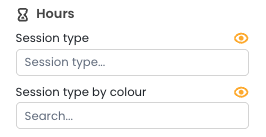 |
||
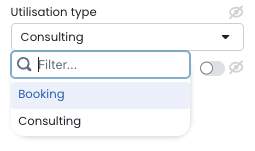
| Utilisation type | Switches between booking utilisation and consulting utilisation. |
When reviewing your Future utilisation, select from the drop-down. Booking utilisation includes all booked time; Consulting utilisation counts only patient-facing appointments (excludes DNA and non-patient time). Useful for understanding how your practitioners' time is actually spent vs. how booked they are. See Cubiko time definitions for more information.
|
| Session type by colour | Filters the hours view by session type as colour-coded in your appointment book. | Select from the search drop-down. Useful for reviewing specific session types — for example a flu clinic or procedure day that has been set up using a different colour to standard consult sessions. |
| Session type | Filters by session type as configured in your appointment book - Day away, Made available, Session. | Select from the search drop-down. Useful for narrowing utilisation data to a specific type of session. |
REMINDERS 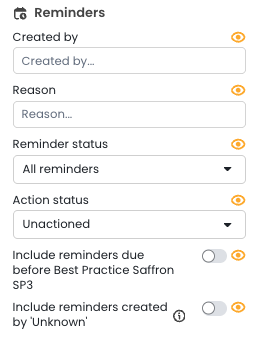 |
||
| Created by | Filters the reminders list to those created by a specific PMS user. | Select from the drop-down. Useful for reviewing reminders by practitioner or staff member to understand workload distribution. |
| Reason | Filters reminders by the reminder reason as recorded in your PMS. |
Select from the drop-down. Useful for focusing on a specific type of reminder — for example, filtering to skin check reminders only.
|
| Reminder status | Filters by the current status of the reminder (e.g. All reminders, Overdue). | Select from the drop-down. Useful for identifying which reminders are overdue and need to be followed up. |
| Action status | Filters by whether a reminder has been actioned or not. | Defaults to Unactioned. Useful for working through outstanding reminders without being distracted by those already completed. |
MISCELLANEOUS 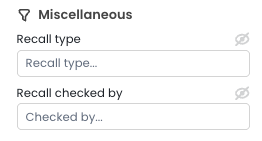 |
||
| Recall type | Filters the recalls list by recall type as set in your PMS. | Select from the drop-down. Useful for focusing on a specific recall category — for example, pathology recalls only. |
| Recall checked by | Filters recalls to those checked or actioned by a specific team member. | Select from the drop-down. Useful for auditing recall follow-up across your team. |
| Category | Filters by pathology and imaging categories | Categories are determined by your PMS and this filter is available to see data on a specific category for imaging and pathology referrals. For example: Dentist, Cardiology, Exercise Physio. |
TOP TIP! Use the eye icon on any metric tile to see more information about this metric, including any filters that may already be applied. 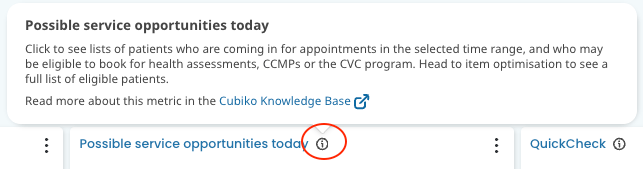
Toggles
Toggles are quick on/off switches in the sidebar to include or exclude specific patient groups or data types. They appear below the filter fields in each section.
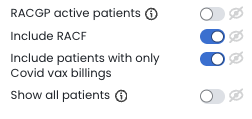
| Toggle | What it does |
|---|---|
| RACGP Active patients (3+ appts in 2 years) | Filters to patients meeting the RACGP active patient definition |
| Show all users | Includes all PMS users in the data, including those not yet reviewed in Cubiko Settings |
| Include RACF patients | Include or remove residential aged care patients |
| Include patients under 18 years old | Toggle on to include patients under 18 in your list |
| Include patients with only COVID vax billings | Include patients whose only billing history is COVID vaccine items |
| Include/Exclude Medicare / DVA debt | Show Medicare and DVA outstanding amounts (Outstanding Debt metric) |
| Exclude unpaid services | Remove unpaid services billings from Total Billings reports. These unpaid services will show in your Outstanding Debt metric. |
| Exclude COVID-19 services | Remove COVID item billings from your data |
| Exclude upcoming telehealth | Remove upcoming telehealth appointments from a list or metric. This filter relies on Settings > Appointment types setup having a telehealth category. |
| Include double-booked appointments | Add double-booked appointment time to utilisation calculations |
| Show all items | See all service opportunities for each patient in the table (Possible Service Opportunities Today) |
Chart filters
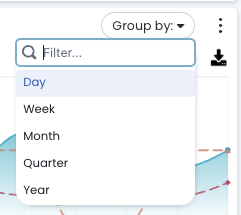
Some filters sit directly on a graph rather than in the sidebar. These update only that specific chart, not the whole page.
| Filter | What it does | How to use it |
|---|---|---|
| Group by | Changes the graph granularity — day, week, or month. | Use the drop-down on the right-hand side of the graph. Useful when viewing a long date range — switch to weekly or monthly to make the trend easier to read. |
| Compare periods | Adds 1–2 comparison period lines to a trend graph. |
Select from the drop-down on the graph. Useful for overlaying last year's data to spot seasonal trends or year-on-year growth.
|
| Utilisation type | Switches a utilisation graph between booking and consulting view. | Select from the drop-down on the graph. Useful for understanding the difference between how booked a practitioner is vs. how much time they actually spent with patients. |
| Drag to Zoom | By default the charts will show all available names, items, appts, etc. Drag to Zoom in on the first few in the list. |
On the chart, hold and drag your mouse to zoom on a selected area of the chart, effectively zooming in on specific columns for better visibility. Reset zoom available to return to default view.
|
| Select column to filter by field | Selecting a column will apply the column name to the filters |
Select a column to see data on a specific provider, service, or appointment type. Use reset to return to default view. |
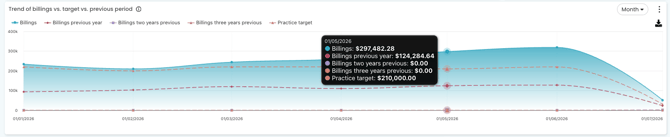
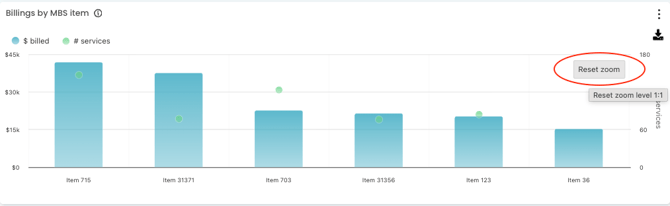
Table filters
Table filters sit inside the data tables themselves and let you drill into specific rows without changing the rest of the page.
For the full guide to table customisation, see Customisable Tables: Your Data, Your Way!
| Filter | What it does | How to use it |
|---|---|---|
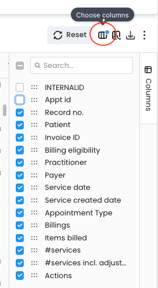
| Column show/hide | Choose which columns are visible in the table. |
Click the column icon and tick or untick columns to show or hide them.
|
| Column reorder | Change the order columns appear in the table. |
Drag and drop column headers to reorder.
|
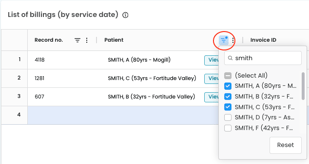
| Column search / filter | Search or filter within a specific column. |
Click the filter icon on a column header to search by keyword, date range, or condition. Useful for finding a specific patient, item number, or value without changing the sidebar filters. |
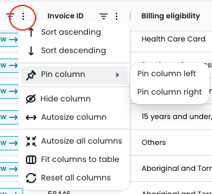
| Pin Column | Locks the column in place to the left or right of the table. |
Pinning a column locks that column (such as patient name) visible in the table so when you are scrolling to the sides, that column is always visible. |
-Jan-29-2025-01-38-27-4114-AM.gif?width=670&height=267&name=Large%20GIF%20(1746x696)-Jan-29-2025-01-38-27-4114-AM.gif)
Saved filters
Group, name, and reapply your favourite filter combinations so you don't have to set them up from scratch each time.
Filters you can save: Items, Practitioner, Appointment type (and in Multisite: Items and Practice).
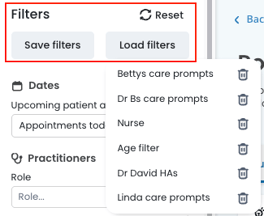
| 1. Set up | Select the filters you want to save, click Save filters in the top left of the sidebar, name the combination, and press Save. |
| 2. Apply | Click Load filters in the sidebar and select your saved combination from the drop-down. |
| 3. Reset | Press the Reset button at the top of the sidebar to clear all active filters. |
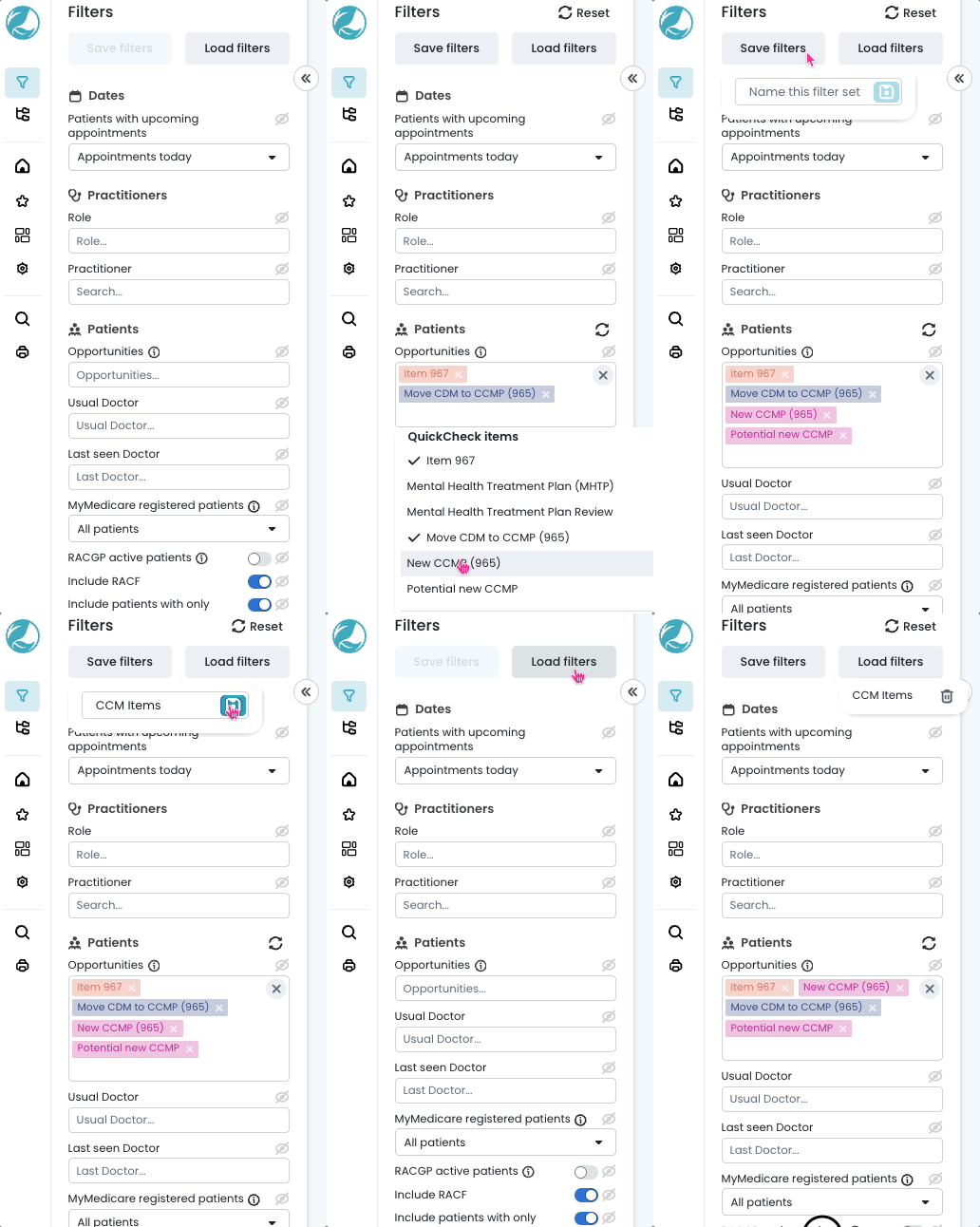
TOP TIP! Set up all your common combinations upfront, then switch between them quickly using Load filters during your regular review sessions.
More info: Creating and Applying Saved Filters