
This page brings together everything you need to track money owed to your practice: private outstanding debt, invoices waiting to be batched, and Medicare/DVA rejections needing action. Switch between the three using the tabs at the top of the page.
To navigate here: Clinic Insights > Today's clinic metrics > Debtors
Jump to:
Using the charts and tables
There are various components of this metric to help you gain a fuller understanding of your current Debt for your practice.
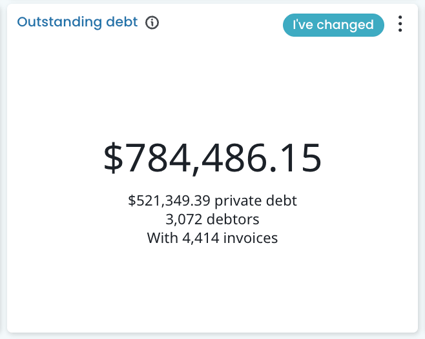
- Top tiles give you a quick snapshot of the information within each heading, including $ value, the number of patients, invoices, and services outstanding.

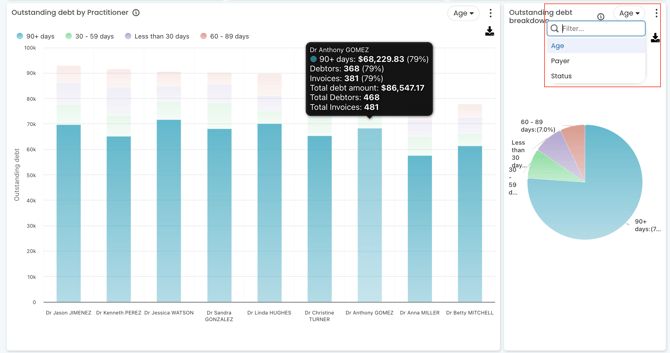
- Charts show which providers are holding the debt at your practice, and the breakdown of that debt. Use the drop-down above each chart to switch the breakdown between Age, Payer, and Status. Hover over the charts for a fuller picture of the breakdown at the practice.
- Tables at the bottom give you the full list - patient, invoice, and payer detail for whichever tab you're on. Scroll right on the tables to see more columns including next appointment. In the top corner of the tables, you'll find icons to adjust columns, add Patient Contact details, or download the lists.

TOP TIP! You can customise which columns show in the table and download the list using the button in the top right-hand corner. This is helpful for handing a list to your team to action or batch in your practice software.
For anything filter-related that's not covered in this article, see our Cubiko Filters guide.
Outstanding debt
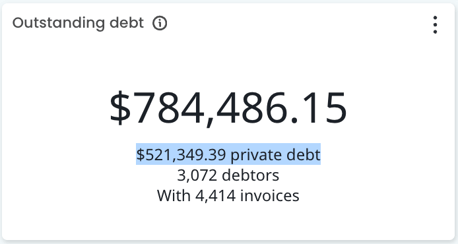
What it covers: the total value of unpaid invoices at your practice, how many patients owe money, and how many invoices are unpaid. Medicare/DVA debt is included by default - toggle this off under filters if you just want private debt.

Use the drop-down on the charts to break this down by Age, Payer, or Status. See Using the charts and tables for more.
Two tables give you two views of the same debt:
- Outstanding invoices - every unpaid invoice, line by line.
- Debtors - the same debt rolled up by account holder, for a person-level view instead of invoice-level.

Filter either table by Patients with upcoming appointments, Practitioner/Role, Payer, or Invoice age - see our Cubiko Filters guide for how each one works. Invoice age is worth a special mention here: it's the quickest way to isolate historic debt or debt sitting with a provider who's left the practice.
How it helps the team:
- Catch billing mistakes - items like Care Plans or Health Assessments sitting in patient debt may need to be switched to bulk-billing in your PMS and submitted to Medicare/DVA.
- Flag it at the next visit - see a patient's upcoming appointment and note on their file that there's an account to settle.
- Spot online bookers with debt - useful for catching patients who need to settle before rebooking, and for staff training if the same team member keeps booking patients without flagging the debt.
- Chase DNA and no-show fees - filter by MBS item, check for an upcoming appointment, and settle before they arrive.
- Bulk SMS reminders - filter by payer, export with internal IDs, send SMS in bulk via a third-party booking system.
NOTE: Debt figures now include invoices that make up outstanding debt. Medicare and DVA services (such as unbatched invoices) and outstanding rejections are included by default. Toggle 'Exclude Medicare and DVA services' to show only invoices not billed to Medicare/DVA.
Unbatched invoices
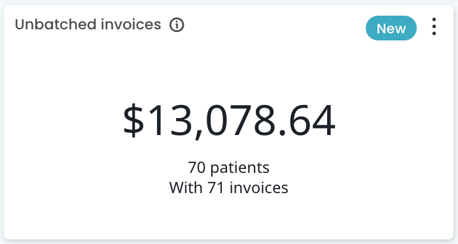
What it covers: invoices that have been generated but haven't yet been batched and sent to Medicare or DVA.
How it helps the team:
- Daily check - review the table list to make sure batches are going out on time. Delays here can hold up cash flow and practitioner disbursements.
- Work through the list - break it down by practitioner or payer to divide up who's actioning what.
- Check the $Benefit column - see the dollar value of these unbatched invoices and how this will affect your cash flow if they remain unsent.
Rejections
What it covers: outstanding Medicare and DVA rejections that need follow-up. Reviewing this list regularly will enable you to resubmit services with updates, or cancel services that may have changed.
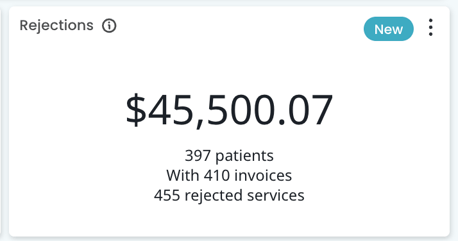
How it helps the team:
- Weekly review - rejections sitting too long can affect both billings and a patient's access to services, so a regular check keeps things moving.
- Prioritise by item number - this is especially useful for care plan items. If a care plan hasn't been approved, the patient can't access the allied health visits linked to it, so these are worth chasing first.
- Find old rejections - Use the Days since batched column to find the rejections that are oldest and may require immediate action.
- Need the detail on a specific rejection code? Check Services Australia's rejection code list.
TOP TIP! Always check with the provider when resubmitting or changing a rejected service.
Note: Rejections information is available to Best Practice integration customers only - not currently available for Medical Director practices.