

Automation is currently in BETA testing and is currently being rolled out to all practices.
Navigation path: Settings > Automation > Care Prompts
In this article, we cover:
1. What is Care Prompts and QuickCheck?
Care Prompts sends possible service opportunities from Cubiko straight into your Best Practice appointment book. Your team can see them before the patient is seen for their appointment, with no manual data entry.
Care Prompts is available for Best Practice customers. Customers on the Best Practice integration need at least the March 2025 data update.
QuickCheck is an add-on feature for existing Cubiko customers. It enables practices to directly confirm patient item eligibility with Medicare for Chronic Condition Management Plans (CCMP) and Mental Health Treatment Plans (MHTP).
TOP TIP! There is no extra cost to turn on automation! The automation can be filtered by Opportunities or Practitioners, not by location.
Where Care Prompts appear in Best Practice:
- Appointment Details
- Appointment Book Notes
- Waiting Room Notes
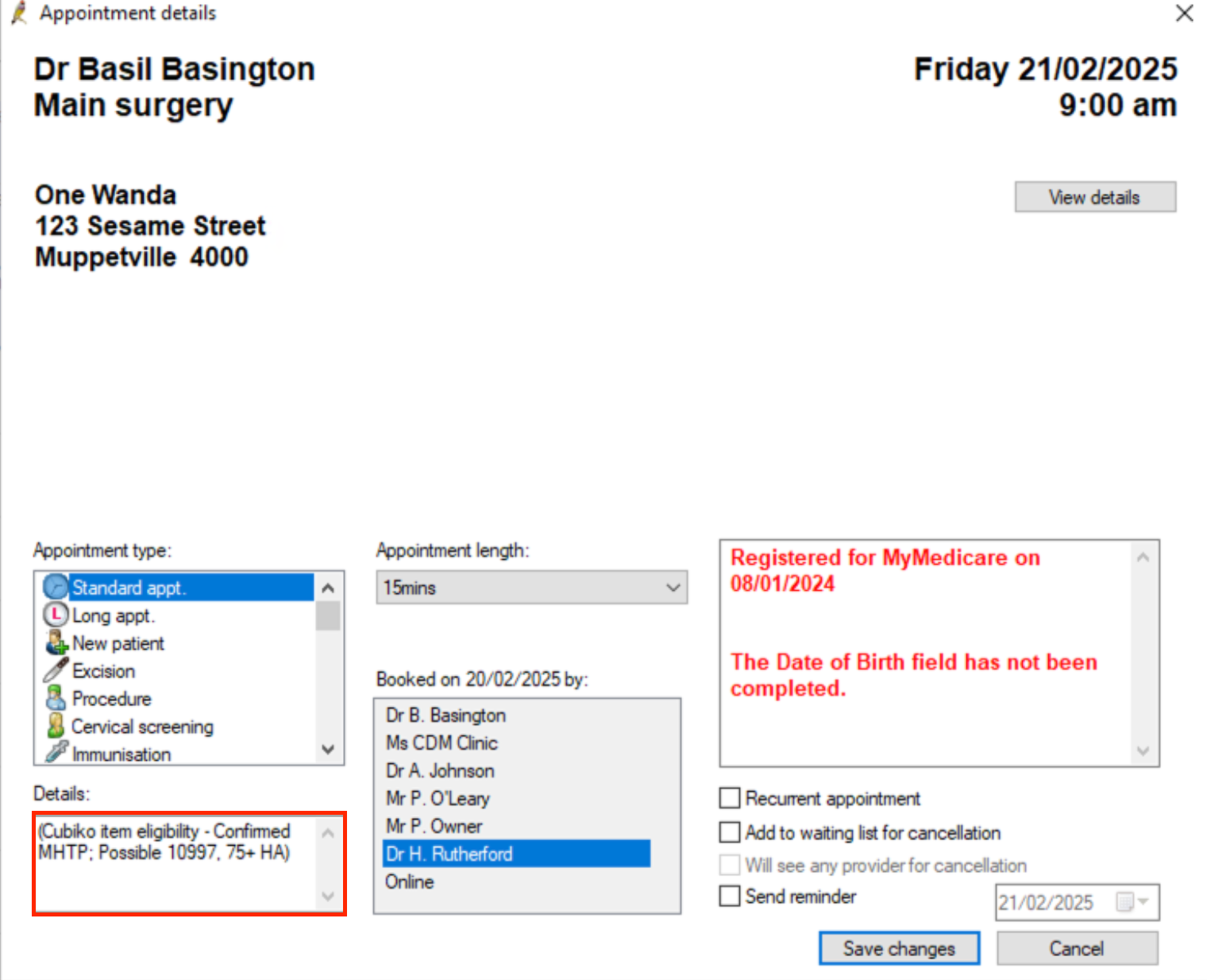
Possible and Confirmed opportunities:
- Possible: Possible services based on the patient's billing history in your PMS only. These are not yet confirmed as eligible via Medicare.
- Confirmed: The opportunity has been verified with Medicare using QuickCheck.
Not signed up to QuickCheck yet? Head to Settings > QuickCheck > Join: QuickCheck - getting started
Care Prompts are a possible service prompt, not a confirmed claim. A Practitioner needs to review eligibility before providing the service to the patient if it is clinically relevant, or billing it.
2. How to automate Care Prompts
Set up automated Care Prompts
Setup takes a couple of easy steps, and you can change anything later. To set up automation, you will need Settings access - if you do not have settings access, speak with your Practice administrator.
- Go to Settings > Automation > Care Prompts.
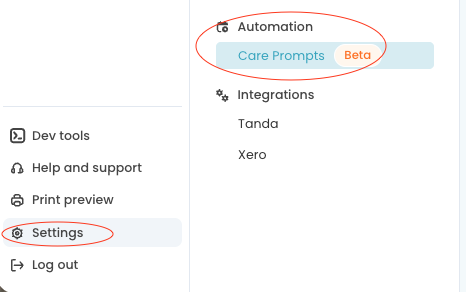
- Select Get started.
- Follow the setup prompts
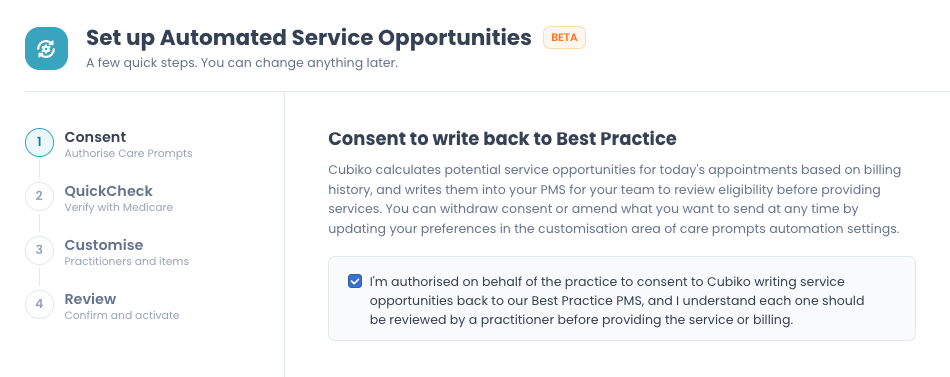
Step 1: Consent: Authorise Care Prompts
Tick the box to confirm you're authorised on behalf of the practice to consent to Cubiko writing service opportunities back to your Best Practice, and that a Practitioner should review each one before providing the service or billing. Select Continue.
Step 2: QuickCheck: Verify with Medicare
-
Provide consent
-
Select how QuickCheck handles provider numbers
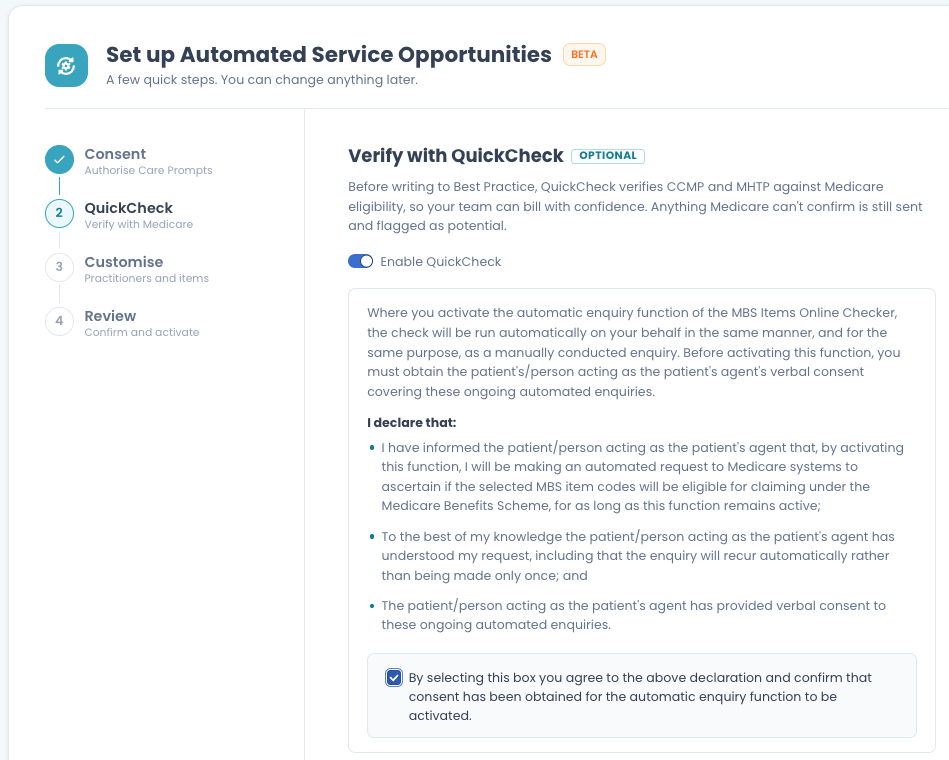
Caution: This declaration confirms you have told the patient (or the person acting as their agent) that an automated Medicare request will be made, and that they've given consent to ongoing automated enquiries.
Make sure your team has had this conversation first and always refer to your current practice policy on obtaining patient consent for item number verification via Medicare/PRODA.
A Medicare verification requires the use of a provider number to verify if these services are eligible (the same as running a PRODA check). Nurses or Allied Health providers, for example, may not have an authorised provider number to verify specific CCMP or MHTP items via Medicare, therefore a GP provider number must be used.
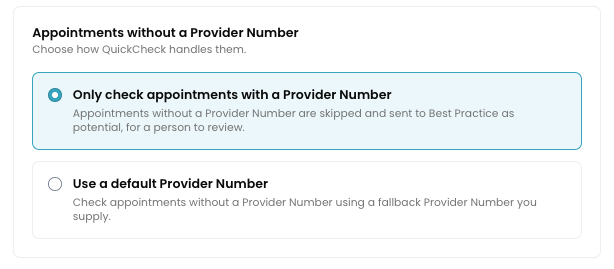
NOTE: Practices that haven't yet signed up to QuickCheck won't see a QuickCheck step during setup. Care Prompts are sent as Possible opportunities based on the patient's billing history at your PMS location only.
To sign up to QuickCheck, go to Settings > QuickCheck > Join: QuickCheck - getting started
Step 3: Customise: Practitioners and Items
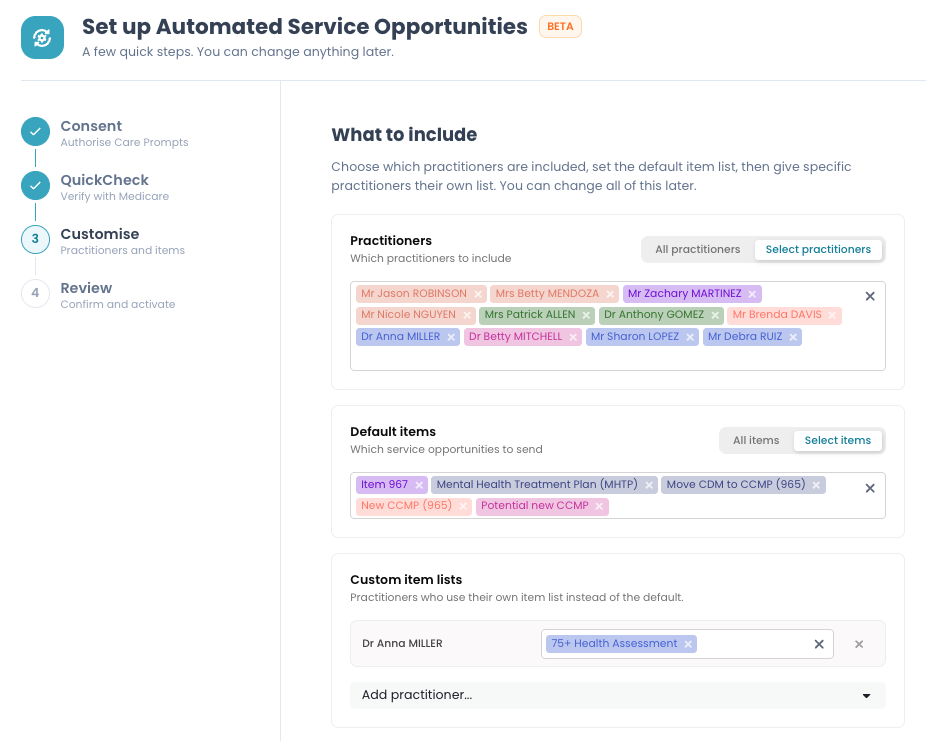
To reduce clutter in your appointment book and help your team focus on specific services, you may wish to apply Practitioner or Item filters as part of your automation. By default, the automation will send all opportunities to all practitioners, but you can customise this for your practice.
If a practitioner wants something different to the practice, this can be accommodated in the settings setup shown below. For example, Dr Anna Miller only wants to see 75+ HA's in her appointment details.
Step 4: Review: Confirm and activate
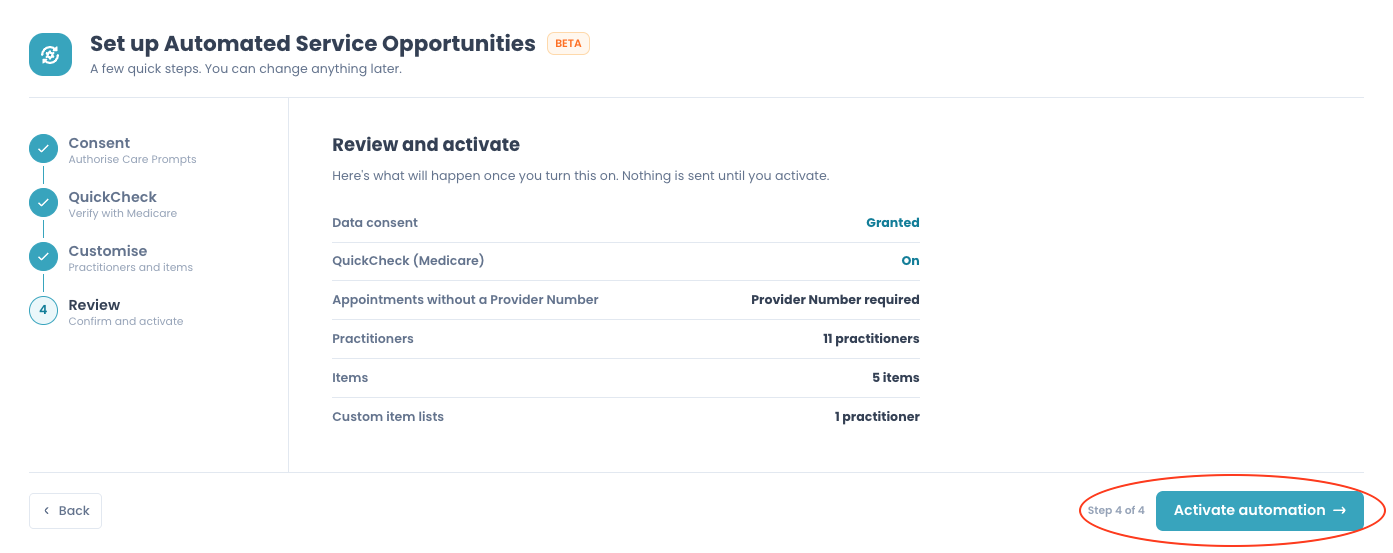
Check the summary of your consent, Practitioners, items and custom item lists. Nothing is sent until you select Activate automation.
🎉 Congratulations! You have set up Automated Care Prompts and QuickCheck and are now saving the team precious time while flagging opportunities for your patients with the team.
Once activated, the Care Prompt automation settings open a page with four tabs: Summary, QuickCheck, Customisation and Activity log.
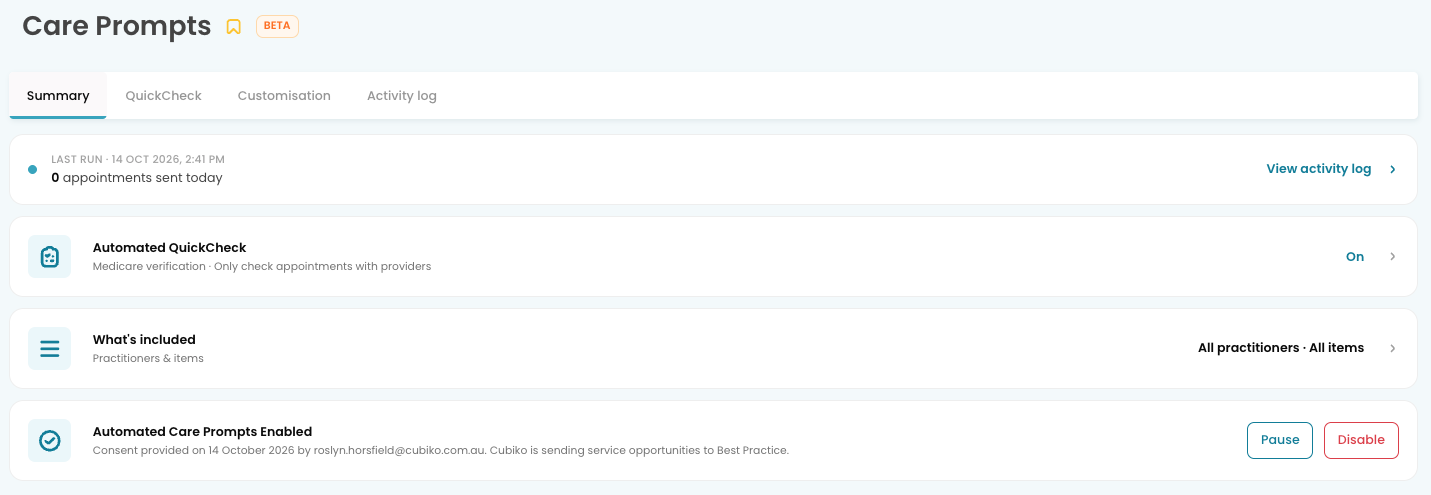
If you wish to edit, pause, or disable your Automated Care Prompts at any time, this is where you can update this setting.
Activity log shows what happened for each appointment. Use the table filters and tabs to focus on specific dates and responses.
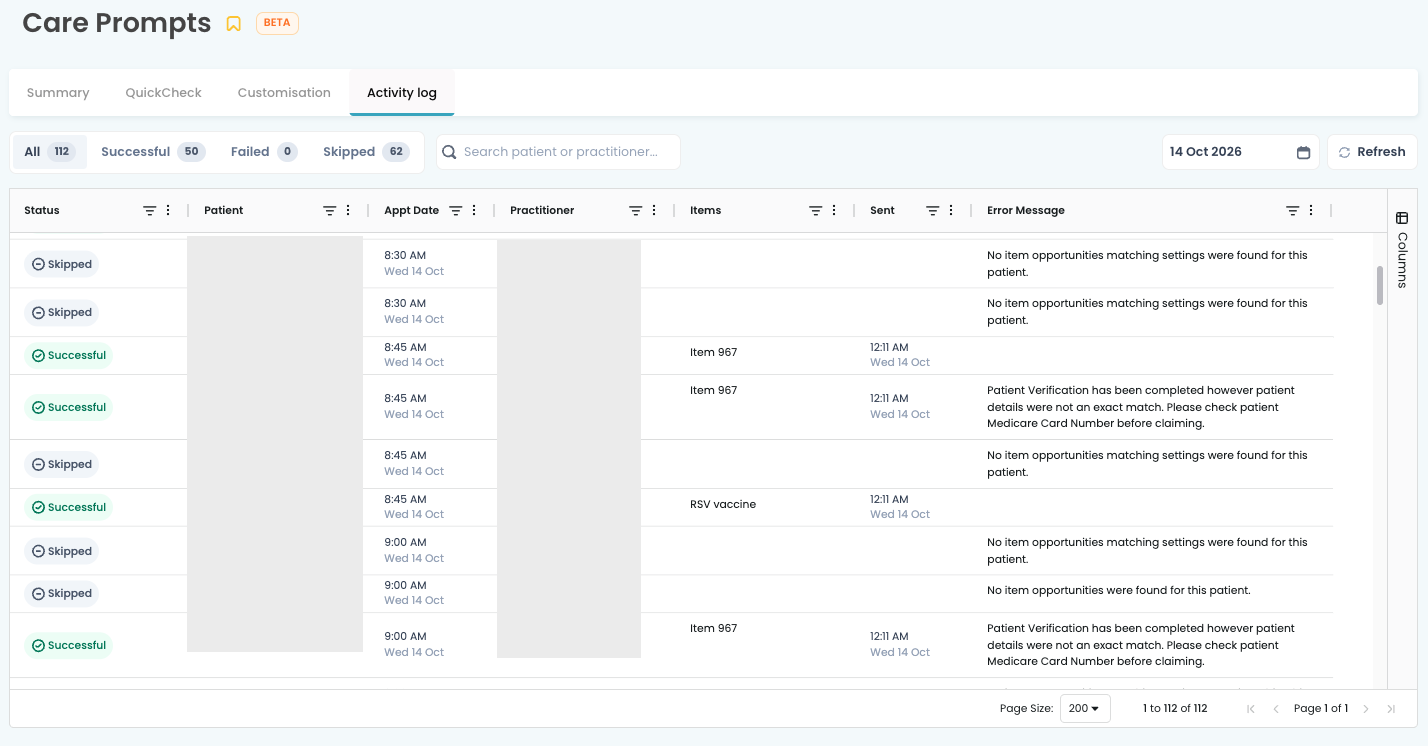
The log shows the Status, Patient, Appt Date, Practitioner, Items, Sent time and any Error Message.
Common messages you may see:
- No item opportunities were found for this patient: This patient had no Care Prompt opportunities available to them, based on their billing history at your practice, so nothing was sent.
- No item opportunities matching settings were found for this patient: Opportunities may exist, but none match the Practitioners or items you've included in your settings setup. Check the Customisation tab if you expected something to be sent.
- Patient Verification has been completed however patient details were not an exact match. Please check the patient's Medicare Card Number before claiming: The prompt was sent, but check the patient's Medicare card details before claiming. You may also see a similar message regarding a name change for a patient.
TOP TIP! Check the Activity log during your morning huddle to see which patients have opportunities waiting in Best Practice and capture these services or future bookings opportunistically.
FAQs
Q: How often are the Care Prompts verified and sent to Best Practice?
A: Every day, every hour. Cubiko checks for new and updated appointments throughout the day, so appointments booked on the day still get picked up. Appointments that have already been sent aren't sent again, but any that failed previously are retried.
Q: Can automated Care Prompts send tomorrow's appointments today?
A: Cubiko only sends for appointments on the day, so tomorrow's appointments won't have Care Prompts until tomorrow. On days with no appointments (such as weekends), nothing is sent.
You can send future Care Prompts manually by heading to Possible Service Opportunities > Selecting filters > Select all > Run QuickCheck > Send Care Prompts.
Q: A QuickCheck failed because the patient details were incorrect. I fixed them in BP, will this trigger a re-run?
A: Not straight away, but it will be retried again on the hourly update. To run a manual QuickCheck and Care Prompt, head to Possible Service Opportunities Today instead and perform this manually using the table.
Q: How do I disable QuickCheck and Care Prompt automation?
A: Go to Settings > Automation > Care Prompts and select the disable button from the overview. See steps above.
Q: Where can I view any QuickCheck verification failures?
A: The Care Prompts Activity log tab (settings) is the place to review these QuickCheck failures - make this part of your daily routine. This will help keep patient files up to date with current medicare details and names.