
Automate Care Prompts: Want Care Prompts and QuickCheck to run on its own each day?
Check out: Care Prompts and QuickCheck Automation.
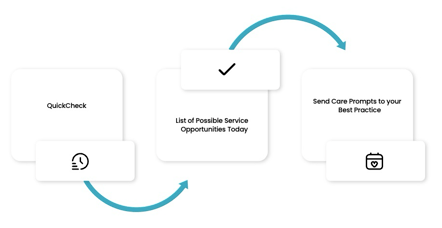
Care Prompts sends key care opportunities from Cubiko straight into your Best Practice appointment book, so your team can see them before the patient walks in.
This article walks you through sending them manually and explains how Care Prompts works so you know exactly what your team will see in Best Practice.
In this article:
- Who can access and use Care Prompts?
- When to send Care Prompts manually
- How to send Care Prompts manually
- Where the data appears in Best Practice
- Items and their definitions
- FAQs
1. Who can access and use Care Prompts?
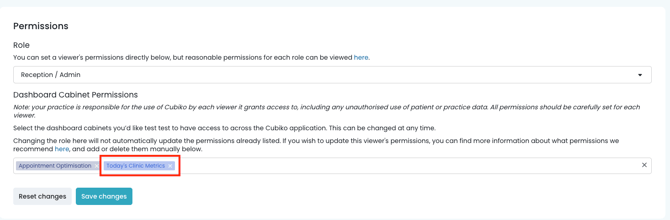
Anyone with the Today’s Clinic Metrics cabinet can use Care Prompts through the Possible Service Opportunities Today table. This is your Practice Manager, Reception, and Nurses by default. Providers can access their Care Prompts via their My Cubiko cabinet.
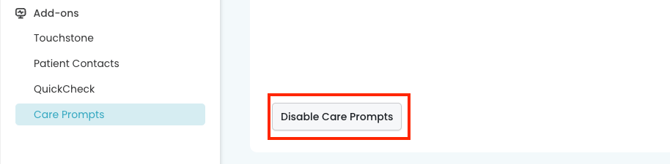
To switch Care Prompts off for the whole practice, go to Settings > Care Prompts.
Using automation as well?
Automated Care Prompts has its own settings under Settings > Automation > Care Prompts. Turning off manual sending doesn’t turn off automation, and the other way around. Find out more in Care Prompts and QuickCheck Automation
2. When to send Care Prompts manually
If you’ve switched on automation, Care Prompts is sent for you each day. Manual sending is still really useful for a few things:
- Future appointments. Automation only sends same-day appointments. If you like to plan ahead, for example, sending next week’s appointments on a Friday, you can do that manually.
- Practices not using automation yet. If you haven’t switched it on, or you’ve paused or disabled it, manual sending works as it always has.
- A quick re-run after fixing patient details. If you’ve updated a patient’s Medicare details or name in Best Practice, you can re-send straight away rather than waiting for the next hourly check.
Not sure which suits your practice? Plenty of practices use a mix. Automation covers today, every hour, and manual covers the days ahead or impromptu prompts.
3. How to send Care Prompts manually
Top tip! Run QuickCheck first. This lets Cubiko show Confirmed (Medicare-verified) items for CCMP and MHTP items. Without QuickCheck you’ll only see Possible items.
To send Care Prompts:
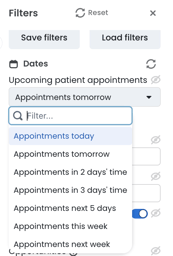
- Start in Possible Service Opportunities Today. To send for a future date, change the date range first.
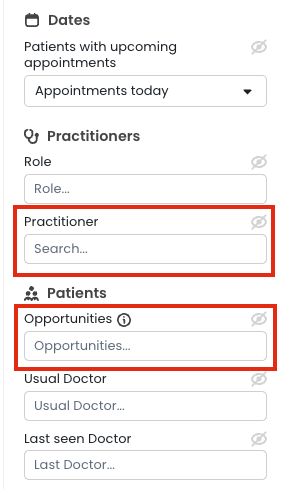
- Choose who and what to send. In the Cubiko filters, select the practitioner and the service items you want to send back to Bp.
- Select your rows. Choose All Rows from the top of the table, or tick individual appointments.
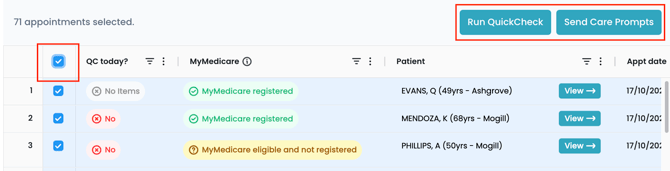
- Run QuickCheck (if enabled at your practice)
- Select Send Care Prompts
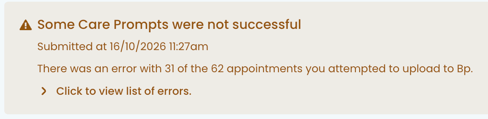
- Check that it worked. You’ll see a notification while the prompts are sending, then a success or error message. If there are errors, you can see which appointments were affected on the page.
If you see an “Appointment Deleted” error: this is the most common one. This patient's appointment may no longer exist in Best Practice.
NOTE: If you re-send for the same appointment, the latest Care Prompts data replaces what was sent before. You won’t end up with duplicates.
TOP TIP! Watch the Care Prompts Power Tip video on the Cubiko Learning Hub.
4. Where the data appears in Best Practice
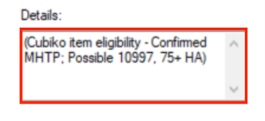
Care Prompts adds a note headed Cubiko item eligibility, which lists the Confirmed and Possible items for the patient. You’ll find it in three places:
| Appointment details | 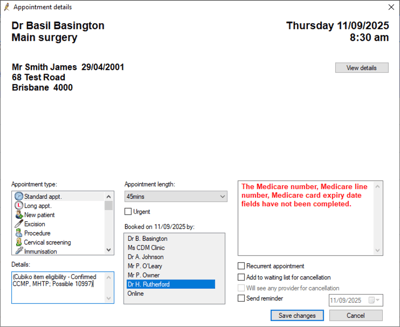 |
| Appointment book notes | 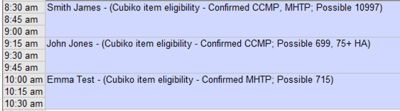 |
| Waiting room |  |
What’s the difference between Confirmed and Possible?
- Confirmed: verified with Medicare through QuickCheck, based on the date you ran the check. QuickCheck verifies CCMP and MHTP items only.
- Possible: potentially eligible based on your practice’s billing history, but not verified with Medicare.
❗A practitioner should always review eligibility and clinical relevance before providing or billing a service.
5. Items and their definitions
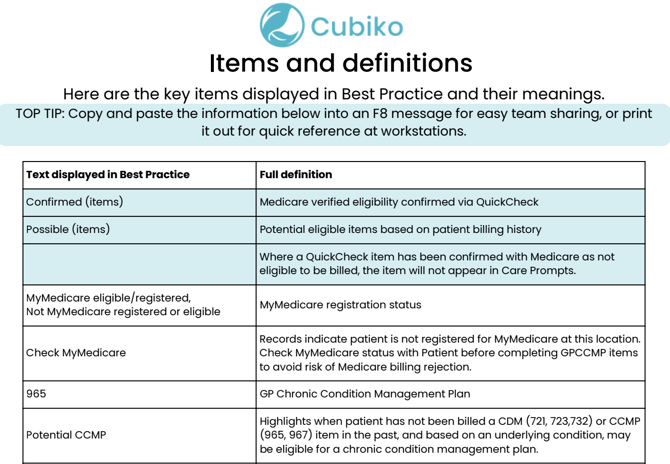
These are the items you might see in the Care Prompts note, and what they mean.
Print this Item Definitions PDF and pop it at your workstations so everyone knows what these prompts mean in their diary.
6. FAQs
Why don’t some services appear in the appointment details?
If QuickCheck shows a patient isn’t eligible for a service, it won’t be added to the appointment. You’ll still see it crossed out in the Possible Service Opportunities list.
Why can’t I see any Confirmed items?
Run QuickCheck first, then send Care Prompts. Without QuickCheck, you’ll see Possible items only. See Where the data appears in Best Practice for how Confirmed and Possible differ.
Can I delete Care Prompts once they’ve been sent?
There’s no bulk delete or undo. You’ll need to remove the note from each appointment in Best Practice. But you can write over them with the corrected Care Prompts - just re-run.
How do I send Care Prompts for the whole week?
Select a larger date range in Possible Service Opportunities, then follow the steps in How to send Care Prompts manually. If you’re sending manually, running it daily is a good habit.
What happens if reception moves an appointment?
The note stays on the appointment. Update or remove it as you would for any internal or other 3rd party notes in this field.
Why can’t I see Care Prompts at all?
Check you have the Today’s Clinic Metrics cabinet (see Who can access and use Care Prompts?), and that Care Prompts hasn’t been switched off for your practice. It’s also only available for supported practice management systems.
The notes are getting cluttered. Can I turn them off for certain items?
There isn’t a setting to switch off for certain items, but you can choose which items get sent, reducing the clutter. Filter to the specific items you want before sending Care Prompts. If you’re using automation, you can also do this in the Customisation tab.
What If I send Care Prompts from Cubiko to Best Practice, will it overwrite the notes we've already typed into the appointment book?
No. Sending Care Prompts to BP doesn't overwrite your existing notes in the appointment book. Cubiko adds its own prompt text alongside what your team has already written.
What happens if I send Care Prompts again for the same appointment?
If you send Care Prompts again for the same appointment, Cubiko may update or replace the previous Cubiko-generated prompt text. It still shouldn't remove any unrelated notes your practice has already typed.
Care Prompts is available to our Best Practice software integration customers and requires, at minimum, the March 2025 data update.
It is always a good idea to ensure Best Practice is updated to the latest version for full functionality.