
The sections included in this article are:
Finding the metric
In the sidebar, go to Essential actions > Appointments and follow up > Assignment of benefit.
The page has two tabs:
- AoBs Today: what needs actioning for today's appointments. This is the tab the page opens on.
- AoBs Overview: AoB trends for upcoming appointments over a time period.

TOP TIP! Click the bookmark icon next to the page title so reception can open Assignment of benefit in one click at the start of each day.
AoBs Today
The Assignment of Benefits (AoB) Workflow sets out three steps for managing today's AoBs:
- Send Pre AoBs: find patients with an appointment today who haven't yet been sent a pre-AoB form.
- Follow up on pending or declined AoBs: remind patients to approve their AoB, or generate a post-AoB for them to sign before they leave.
- Handle frequent non-signers: for patients with a history of not signing, generate a post-AoB for them to sign before they leave the clinic.
Hover over a step to highlight its related metrics, or click it to see the patients.
NOTE: A patient with more than one appointment is listed once per appointment, so they may appear more than once in the tables.
Metrics
Below the workflow, three tabs show a table of patients that need actioning for each step. Hover over the information icon next to each metric or table for a description.

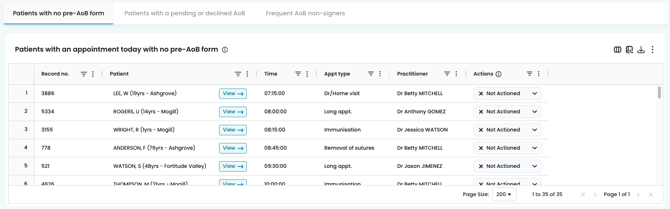
1. Patients with no pre-AoB form
This table lists today's patients who haven't been sent a pre-AoB form, or it was declined. These patients need an AoB sent via your PMS or third-party tool. The table shows the record number, patient, appointment time, appointment type and Practitioner.
TOP TIP! Add patient contact details to these tables so your team can call patients straight from Cubiko instead of looking them up in your PMS. See Patient Contacts feature.
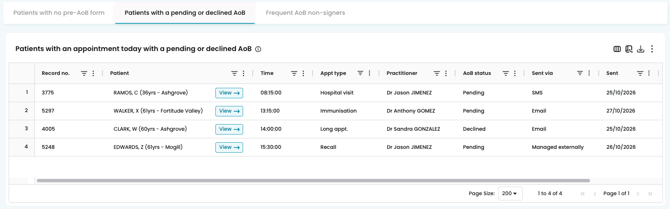
2. Patients with a pending or declined AoB
This table lists today's patients whose AoB has been sent but not yet signed, or was declined. As well as the appointment details, it shows:
- AoB status: Pending or Declined
- Sent via: how the form was sent, such as SMS, email, or managed externally, such as printing
- Sent: the date the form was sent
TOPTIP! Use the table filters to focus on specific data within the tables. 
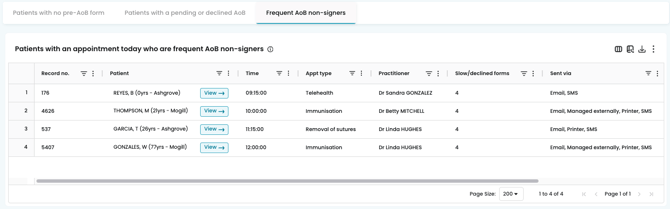
3. Frequent AoB non-signers
This table lists patients coming in today who have declined more than three AoBs in the past. It shows their appointment details, how forms were sent to them, and how many of their forms were slow or declined.
TOP TIP! Add a note to frequent non-signers' files in your PMS, so the team knows to have them sign a post-AoB before they leave.
AoBs Overview
The AoBs Overview tab metrics look at AoBs across the last 28 days, or the dates applied in the Dates filter.
Upcoming appointments by appointment type
This chart shows upcoming appointments for each appointment type, split into With Pre AoB and Without Pre AoB. Hover over a bar to see the counts.

Metrics
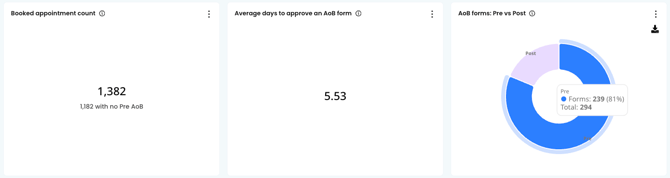
- Booked appointment count: the number of booked appointments, and how many have no pre-AoB.
- Average days to approve an AoB form: how long, on average, it takes for an AoB to be approved.
- AoB forms: Pre vs Post: a chart comparing the number of pre and post AoB forms. Hover over it to see the counts.
TOP TIP! Practice managers can use Average days to approve an AoB form when budgeting, allowing at least that long for AoB payments to come in.
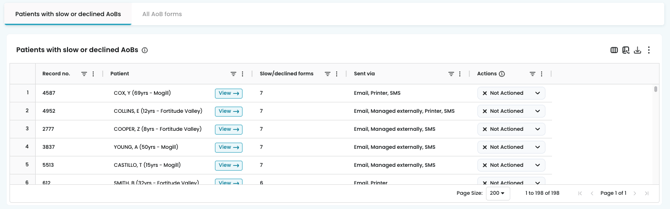
Patients with slow or declined AoBs
This table lists patients with slow or declined AoBs, how many slow or declined forms they've had, and how their forms were sent.
All AoB forms
This table lists every AoB form, including the appointment details, whether it was a Pre or Post AoB, the AoB status, how it was sent and the date it was sent.
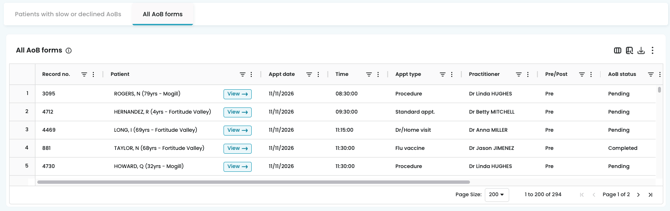
TOP TIP! Scroll across on the table to see all columns, and use the table filters to find specific groupings within the tables. See Customisable Tables: Your Data, Your Way! for more on working with tables.
Filtering the data
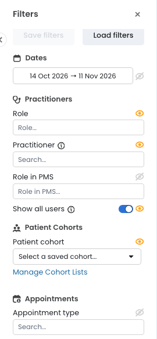
Select Filters in the sidebar to narrow down the data. You can filter by:
- Role, Practitioner and Role in PMS
- Patient cohort
- Appointment type, for example, to focus on the appointment types you most want AoBs for
- Dates (on the AoBs Overview tab)
For more detail, see Cubiko Filters.
How your team can use it
- Reception can work through the three AoBs Today tables each morning, sending pre-AoBs and asking patients with a pending, declined or frequently unsigned AoB to sign a post-AoB before they leave.
- Practice managers can use the AoBs Overview tab to spot appointment types that often go without a pre-AoB, and to understand how long AoB payments take to come in.
- Practitioners can filter to their own appointments to see which of their patients still need an AoB.
TOP TIP! Add patient contact details to these tables so your team can call patients straight from Cubiko instead of looking them up in your PMS. See Patient Contacts feature.