
The sections in this article include:
How to set up a regular service fee run
Before you're able to start executing your regular service fee runs in just a few clicks, there are couple key settings you'll need to configure and confirm are correct.
- Service fee runs occur based on your calendars, these ensure you're completing fee runs on time and specify which practitioners, registrars and locums will be included in the fee run.
- All service fee calculations are based on each practitioners service fee rules. Ensure each practitioners, registrar and locum's fee rules are configured in line with their agreements.
- (Optional) If you're planning on generating ABA files in Calculate for simple bank transfer and direct debits, ensure the relevant details are entered for each practitioner.
Executing a service fee run
Step 1: Review the fee run and practitioner outcomes
Navigate to Calculate > Fee Runs.
You’ll see a list of automatically generated fee runs based on your calendars. From this list, you can quickly identify the status of each fee run:
- In period (orange): The fee run is still collecting data
- Reached End of period (green): The period has ended and the run is ready to review
- Completed (grey): The fee run has been executed and locked
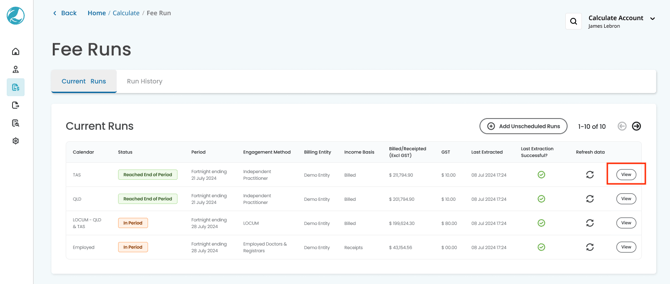
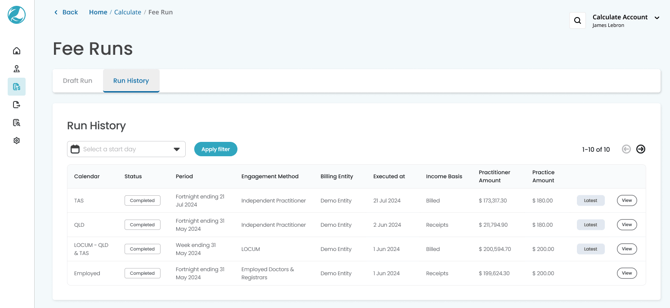
Select View on the fee run you want to review.
At the top of the fee run, you’ll see summary tiles that provide a high-level overview of the service fee outcomes for the period. These tiles help you quickly understand how receipts, adjustments and final amounts have been calculated across the run.

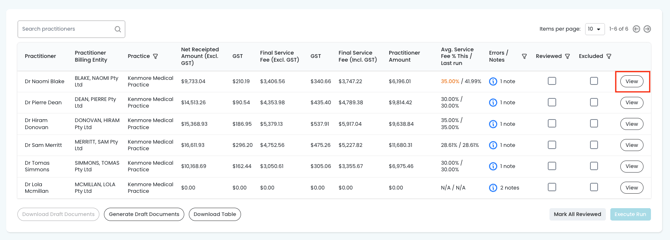
Below the summary tiles is a table listing all practitioners included within this fee run.
From this table, you can review each practitioner’s billings or receipted amounts, service fee outcomes based on the fee rules applied and how the current run compares to their previous fee run.
Notes or error indicators are also displayed to highlight anything that may require closer attention.
Step 2: Review an individual practitioner
To review an individual practitioner, select View next to the practitioner’s name within the service fee run. This allows you to review how their service fee has been calculated before finalising the run.
Within the practitioner view, you’ll see several tabs that help you complete the review process.
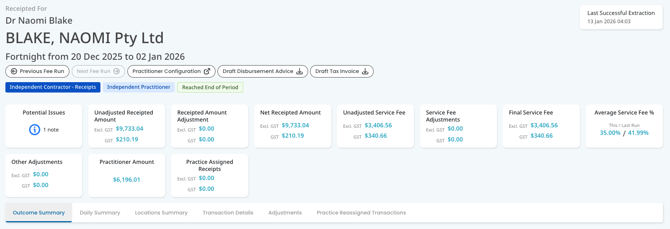
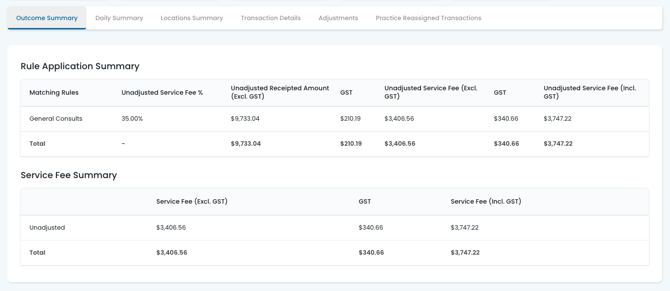
The Outcome Summary shows how each configured service fee rule has been applied and the resulting service fee amounts for the practitioner.
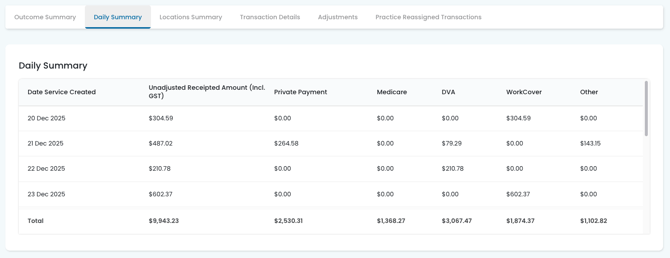
The Daily Summary provides a breakdown of billings or receipts by day across the fee run period, including the source of payment such as Private, Medicare, DVA or WorkCover.
The Locations Summary displays where services were delivered, which is helpful for practices operating across multiple locations, nursing homes or visit types.

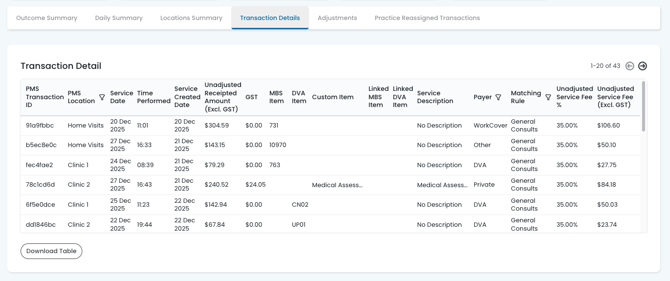
The Transaction Details tab provides the most detailed view, listing every invoice included in the fee run along with item details, matched rules and calculated service fees. This view is useful for deeper audits or responding to practitioner queries.
The Adjustments tab allows you to apply receipt adjustments, service fee adjustments or reimbursements where required. Any adjustments must be completed before executing the fee run.
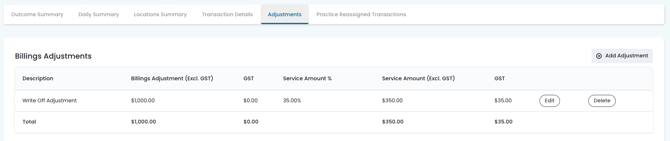
For a detailed overview of how to make adjustments in Calculate, please refer to our Knowledge Base article Making Adjustments in Calculate.
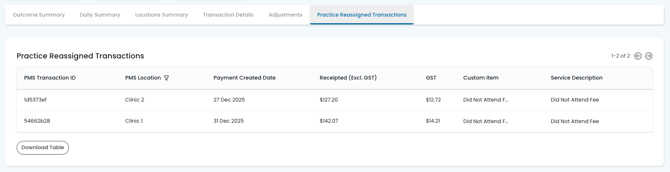
The Practice Reassigned Transactions tab shows transactions that have been reassigned or excluded for the practitioner. These transactions are removed from the service fee calculation but do not update your Practice Management System, so any billing corrections must still be completed in your PMS.
Step 3: Mark Practitioners as reviewed
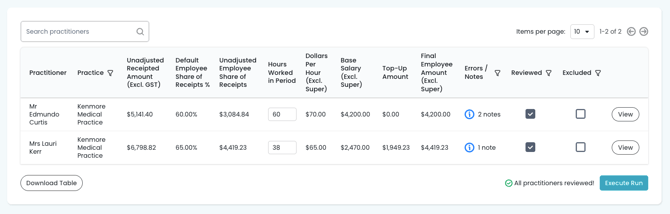
After reviewing each practitioner and resolving any notes or errors, mark them as Reviewed.
You can review practitioners individually or mark all as reviewed once you’re satisfied that the fee run is ready to be finalised.
Step 4: Execute the fee run
When all practitioners have been reviewed:
- If a practitioner should not be included in the fee run, select Exclude
- Select Execute Fee Run.
- Confirm the action.
Executing a fee run locks the data in place, finalises all documents, sends the relevant documents to practitioners and practice contacts and creates a full audit log for the run.
If an issue is identified after execution, it should be corrected in the next fee run using an adjustment.
Sending & Resenting Correspondence:
To send the documents to practitioners, simply select Email Documents on the executed fee run.
If you need to resend any correspondence/emails to a practitioner at a later date, you can easily complete this in Calculate!
You can resend any of the previously sent correspondence directly from Calculate.
Go to Practitioners > Calculate Practitioners > View > Correspondence > Email history > View > Send
Alternatively, you can return the the executed fee run > click the fee run status and send.
Processing payments and accounting
Once the fee run is completed, additional options become available depending on your setup.
- ABA file generation: If you use ABA files for payments, you can generate an ABA file from the completed fee run.
Practitioners must have valid bank details and authorisations on file before an ABA file can be generated. For more information on how Calculates ABA File generation works, please refer to our Knowledge Base.