
Summaries sit alongside your fee runs in Calculate and follow a similar review and execution workflow, so if you’re comfortable executing a fee run, executing a summary will feel familiar.
The sections in this article include:
- What are summaries?
- Summary availability and timing
- Reviewing and excluding practitioners
- Executing a summary
- Downloading summary documents
- Viewing summary history
What are summaries?
Summaries are documents Calculate prepares for practitioners who have been included in executed fee runs during a relevant summary period. Their purpose is to support the compliance lodgements of the underlying practitioners, giving them the detail of all executed fee run data for the period in a condensed, easy to read format.
Each summary document lists every fee run included in the period, with its invoice date, period dates, document number, billings, service fee and disbursement amounts, followed by a BAS Summary section that maps the period’s totals to the relevant BAS reference codes (G1, G3, G11, 1A and 1B).
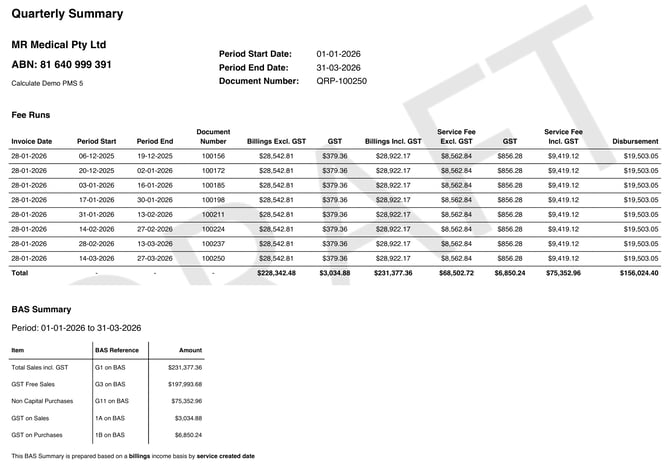
Note: If a practitioner is marked as not registered for GST, their summary does not include the BAS Summary section, as it is anticipated they do not have a lodgement obligation for it.
Note: Summaries are only prepared for independent practitioners and locums. Employed doctors and registrars don’t receive a summary, as they do not have the same compliance obligation and it is anticipated they’re already separately receiving pay slips from the relevant payroll system.
Note: In some circumstances, more than one summary is prepared for a practitioner within the same period. This happens if the practitioner’s billing entity name or ABN changes during the period, as the practitioner is expected to need to lodge any related compliance documents under the new entity.
(back to top)
Summary availability and timing
Because summaries follow a quarterly workflow, an alert appears against the Current Summaries tab within Calculate > Fee Runs whenever a summary requires action.
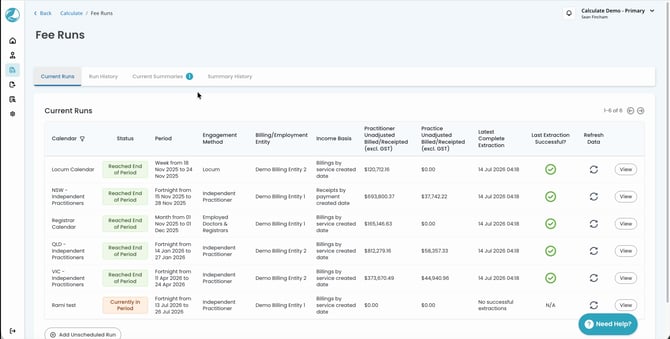
A summary becomes available in Calculate from two weeks prior to the end of its relevant summary period, but it can only be executed once the period has ended and all fee runs connected to that period have been executed.
Summaries are prepared quarterly. Following the end of the 30 June quarter, Calculate also prepares a full financial year summary, covering 1 July to 30 June. The financial year summary is the same document and follows the same review and execution process as a quarterly summary, just covering the longer period.
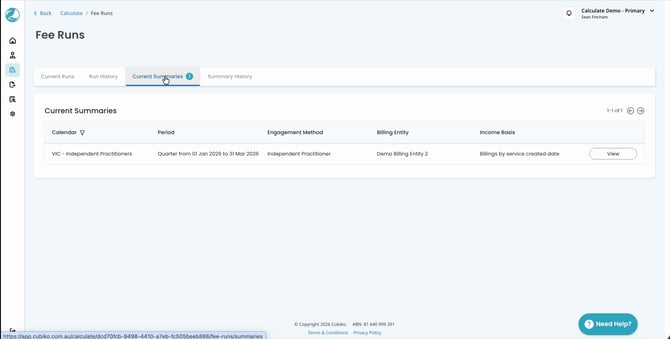
Select the Current Summaries tab and choose View against the relevant calendar to open its summary.
Your first summary period
Note: If you have started using Calculate partway through a quarter or financial year, Calculate only includes data that has been executed in Calculate. This means your first summary period may show incomplete data, as anything processed before you started using the product isn’t included.
(back to top)
Reviewing and excluding practitioners
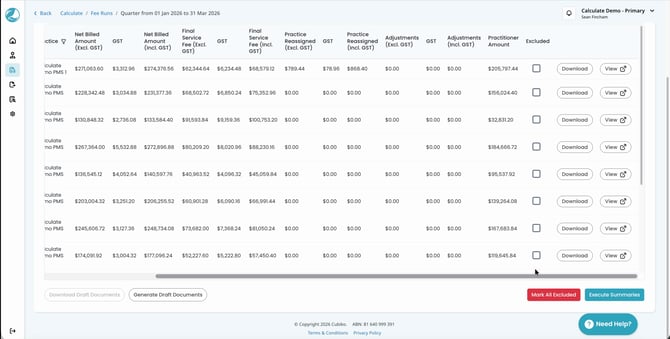
Opening a summary shows a screen similar to a fee run, listing each practitioner’s billed or receipted amounts (based on the calendar’s income basis), service fees, reassignments, adjustments and the resulting practitioner amount for the period.
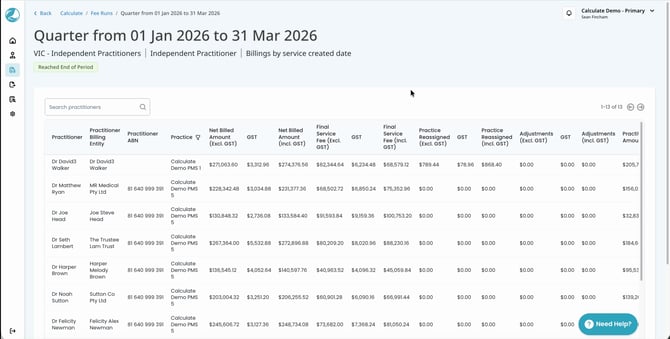
If you don’t want a practitioner to receive a summary for the period, you can mark them as excluded. Excluded practitioners don’t have a document prepared, and it isn’t saved or emailed to them.
- Exclude an individual practitioner: select the Excluded checkbox against their row.
- Exclude every practitioner in the summary: select Mark All Excluded.
Executing a summary
Once you’re happy with the summary data, execute the summary to generate and email the documents to your practitioners, in the same way you would execute a fee run.
Step 1: Review and confirm exclusions
Review the practitioners included in the summary and mark any exclusions.
Step 2: Execute the summary
- Select Execute Summaries.
- Confirm the number of summaries included and excluded in the Execute Summaries? dialog.
- Select Execute Summaries to confirm.
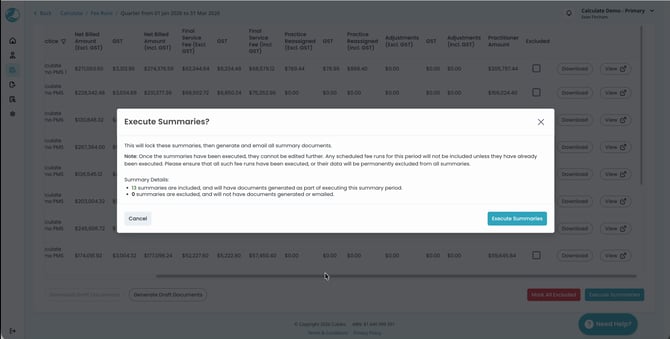
Note: Once a summary has been executed, it cannot be edited further.
(back to top)
Downloading summary documents
You can review a summary document before or after execution in two ways:
- Download an individual practitioner’s document: select Download against their row.
- Download every document in one batch: select Generate Draft Documents, then Download Draft Documents once they’ve generated, to review every practitioner’s document at once rather than individually.
TOP TIP: Generating and downloading all draft documents is a quick way to review every practitioner’s summary before you execute it and send it to them.
Adjustments made to a practitioner’s billings or receipts are reflected in the fee run data that feeds their summary. For a detailed overview of adjustments, please refer to our Knowledge Base article Making Adjustments in Calculate.
(back to top)
Viewing summary history
Once a summary has been executed, it moves to the Summary History tab, alongside every other summary that’s been executed. Open an executed summary from here to see the email status of each practitioner’s summary email, and resend it if required.
You can also review, and resend if needed, a practitioner’s summary from the Correspondence tab on their individual practitioner page.