
The sections in this article include:
- Why use fee rules?
- Creating a fee rule
- Completing Basic Settings
- Applying Filtering Options
- Save and Review your Fee Rules
Why use fee rules?
Fee Rules define how income is split between the practice and practitioner. They give you flexibility to apply different percentages based on items, dates, times, or locations, ensuring payments are accurate and tailored to each practitioner.
Please note: Before setting up Fee Rules, you need to have completed your Account Configuration and Practitioner Configuration.
Creating a Fee Rule
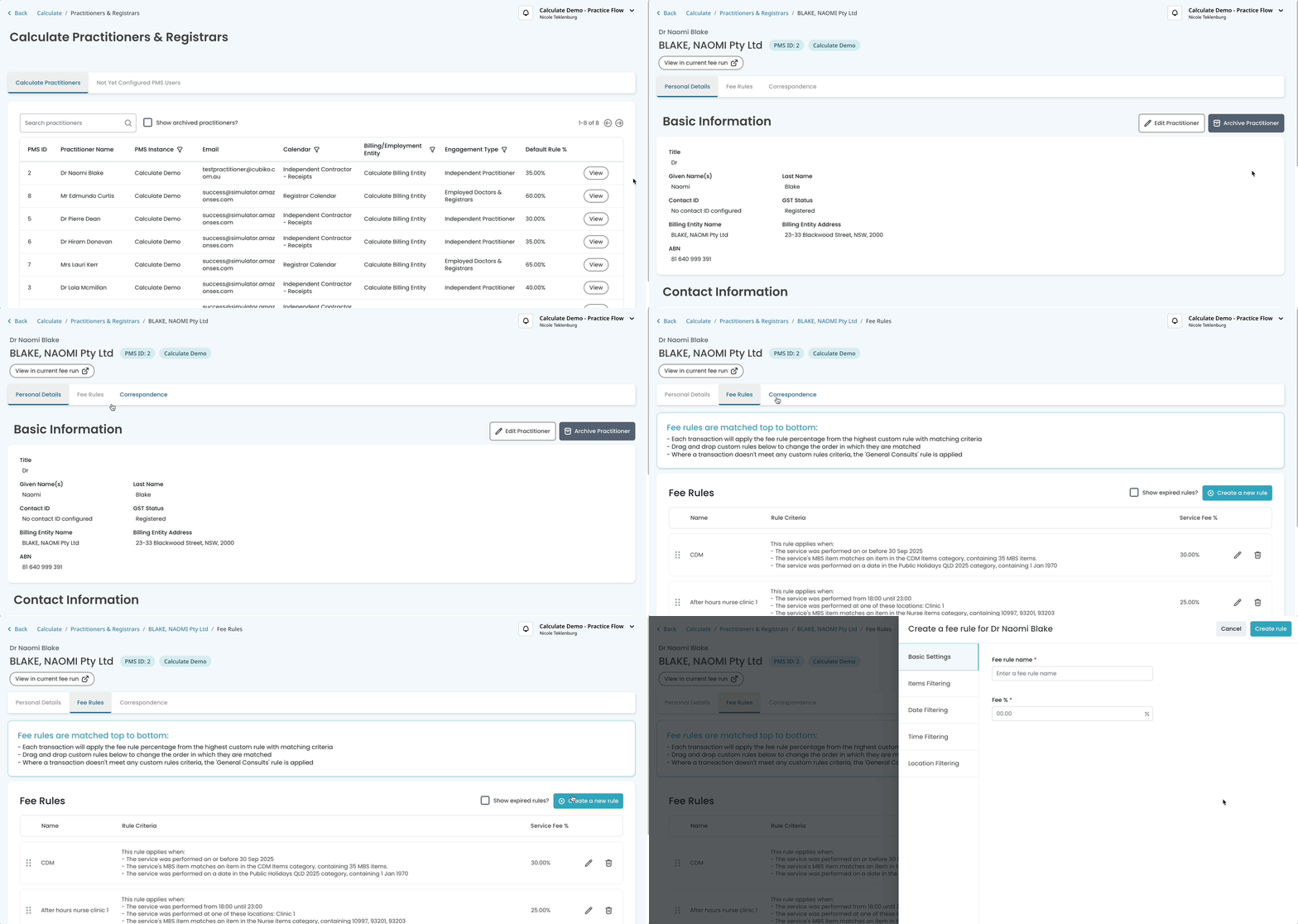
- Navigate to the Fee Rules section in the practitioner profile.
- Select Create a new rule
- Complete the Fee Rule Settings
The General Consults rule is created automatically from the practitioner's default fee rule % when they're set up, and always sits at the bottom of the hierarchy as the catch-all rule for anything that doesn't match another rule. It can't be deleted.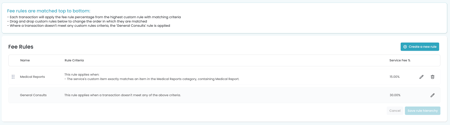
Note: The default fee rule % can't be edited from the practitioner's Personal Details tab once the practitioner has been created. Select the pencil icon next to General Consults in the Fee Rules tab instead.
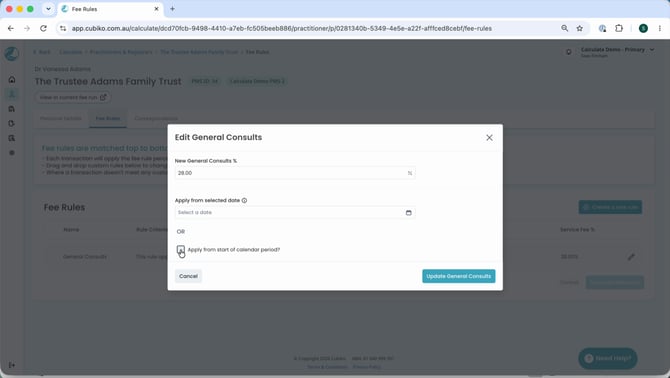
To edit the General Consults rule:
Step 1: Edit the General Consults rule
- Select the pencil icon next to General Consults.
- Enter the New General Consults %.
- Choose when the change applies, either a specific date under Apply from selected date, or tick Apply from start of calendar period? to apply it from the beginning of the current calendar period.
- Select Update General Consults.
Complete Basic Settings
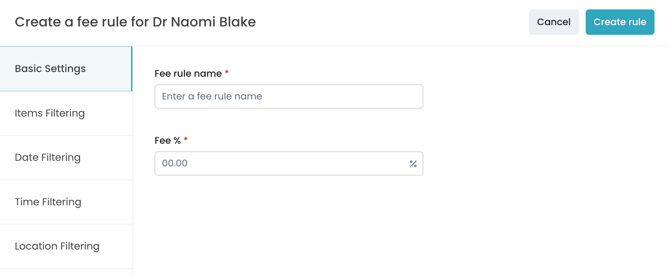
Set up your basic settings first so the rule has a clear name and the correct percentage split applied.
- Fee rule name: A clear label for the rule (e.g. CCM, After Hours). This is what your practitioner sees on their documents if the rule is matched, so use a name they'll recognise rather than internal shorthand.
- Fee %: The split percentage to apply.
Apply Filter Options
Filtering lets you control when the rule applies. If no filters are set or none match a specific transaction, the Default Fee Rule % set in the practitioner’s profile will apply to all billings for that practitioner.
You can create fee rules using a range of filters to identify transactions and apply a specific fee percentage. Available filters include:
-
Date filters such as Date Categories, Day of Week or specific Date Ranges
- Threshold filtering (based on a practitioner's accumulated billings or receipts)
Item Filtering
This rule will only apply to services that meet one of the following conditions:
- The service has an MBS item number from the MBS Items category.
- The service has a DVA item from the DVA Items category.
- The service is a Custom Item from the Custom Items category.
- The service is an incentive linked to a service with an MBS or DVA item.
Note that rules making use of multiple item filters will apply to transactions matching one or more of the selected item filters.
If all fields are left blank, the rule applies to all services.
You can create new categories in the Category Configuration page and refresh the list from within the Fee Rule form.
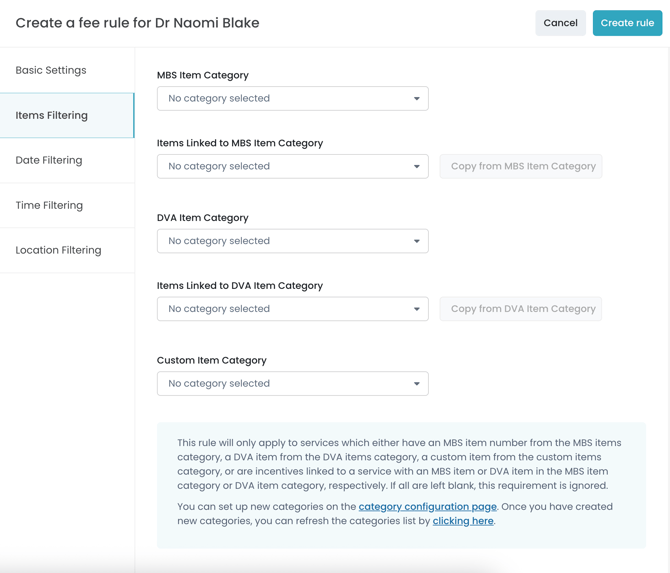
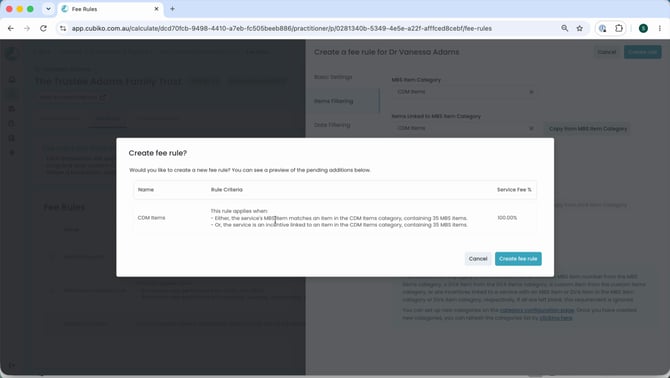
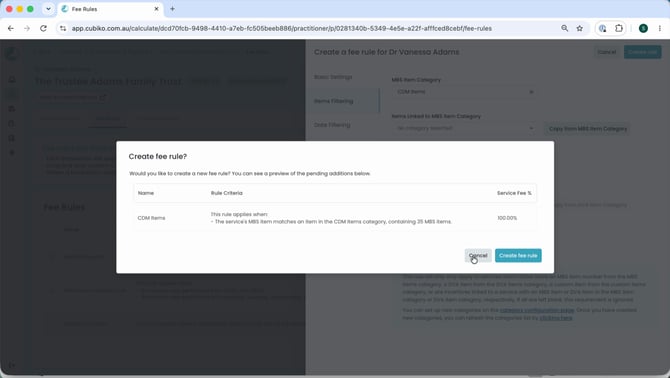
If you select an MBS or DVA item category, you can choose whether the rule also matches bulk billing incentives linked to those items. Select Copy from MBS Item Category (or Copy from DVA Item Category) to populate the matching Items Linked to MBS Item Category (or Items Linked to DVA Item Category) field, which includes incentives in the rule. Clear that field to exclude incentives.
The rule's generated description confirms which condition is applied. With incentives included:
With incentives excluded:
Date Filtering
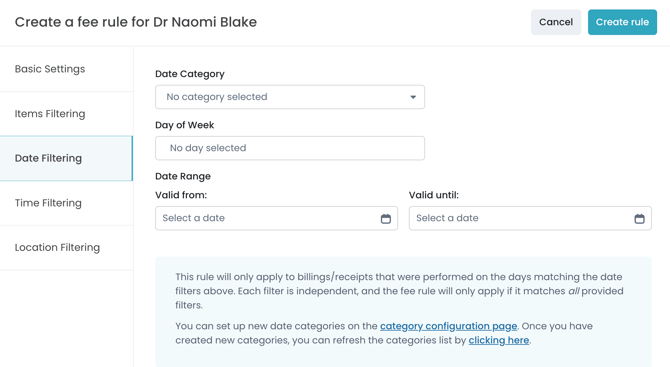
This rule will only apply to billings or receipts performed on the days matching the selected date filters.
- Each filter is independent, and the rule applies only if it matches all selected filters.
- Create new date categories in the Category Configuration page, then refresh the list in the Fee Rule form.
Time Filtering
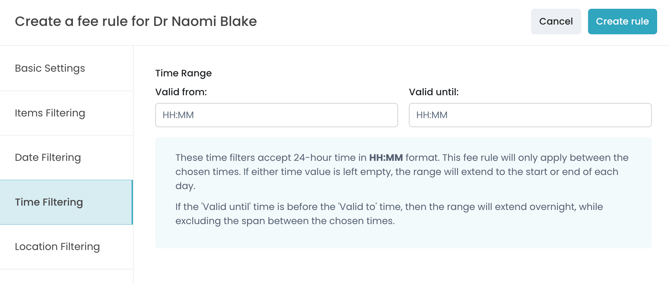
These filters use 24-hour time in HH:MM format.
- If one time field is left blank, the rule extends from the start or end of the day.
- If the Valid From time is later than the Valid To time, the rule applies overnight, excluding the in-between hours.
Location Filtering
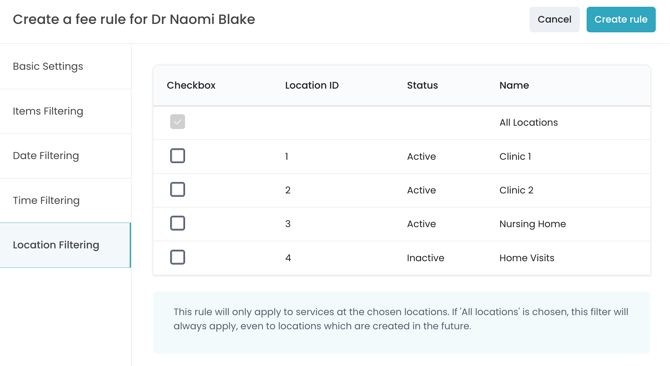
This rule applies only to services at the selected locations.
- Choosing All Locations means the rule will apply everywhere, including to locations created in the future.
(Back to top)
Payments Filtering
This rule will only apply to payments made by one of the selected payers and received as one of the selected payment types. If either option is left blank, it will be ignored.
- Payer: who paid for the service (e.g. Private, Medicare, DVA).
- Payment Type: how the payment was received (e.g. Credit Card, EFT, Cash).
Both lists come directly from your practice management system. Use Select All, Select None or Invert in either list to update your selection quickly.
Note: Payments Filtering only applies to calendars on a receipts income basis. The payer and payment type are assigned to a transaction when it is receipted, so they are not available for billings-basis calendars.
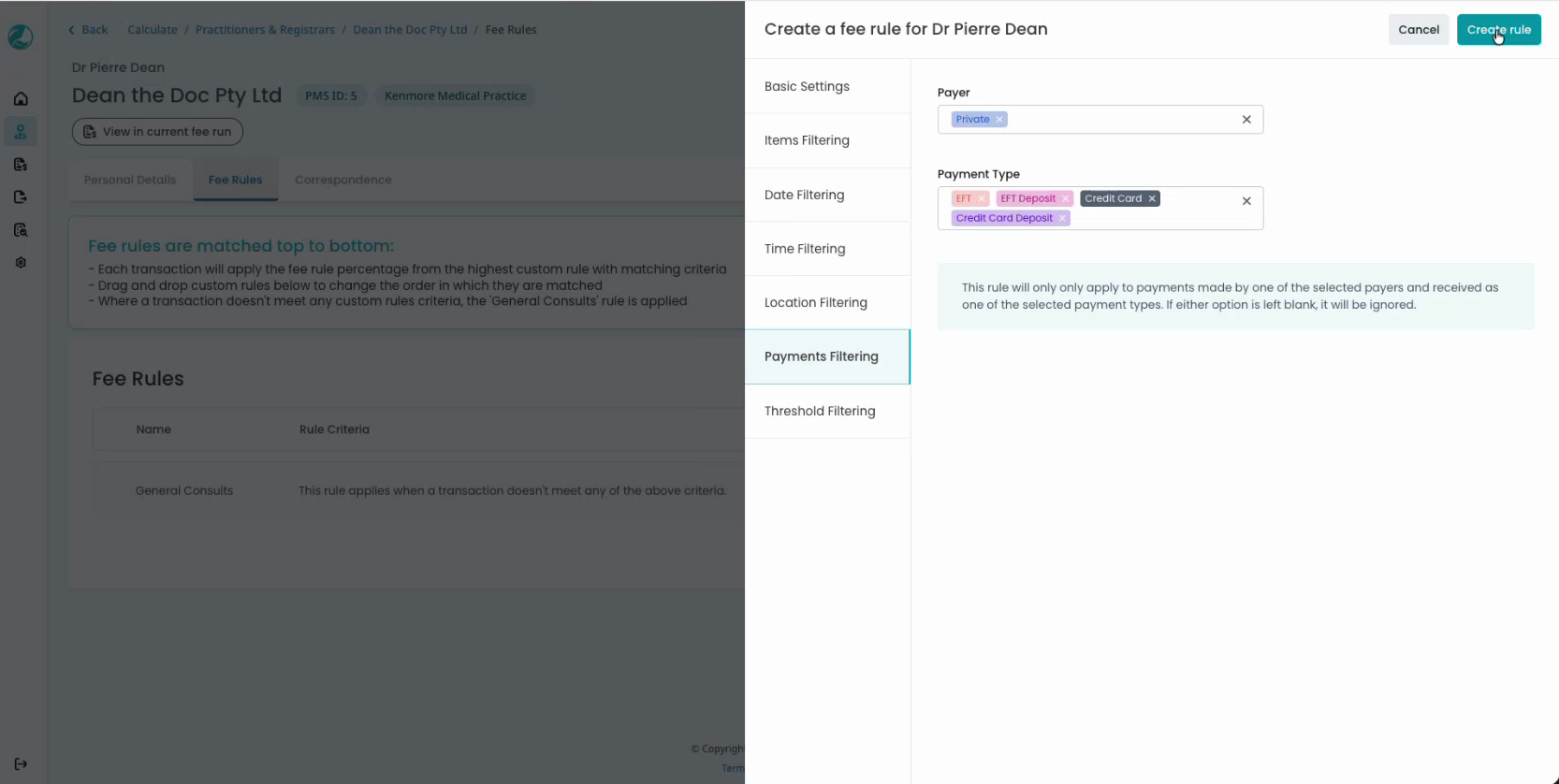
The rule’s generated description confirms the payer and payment types it will match.
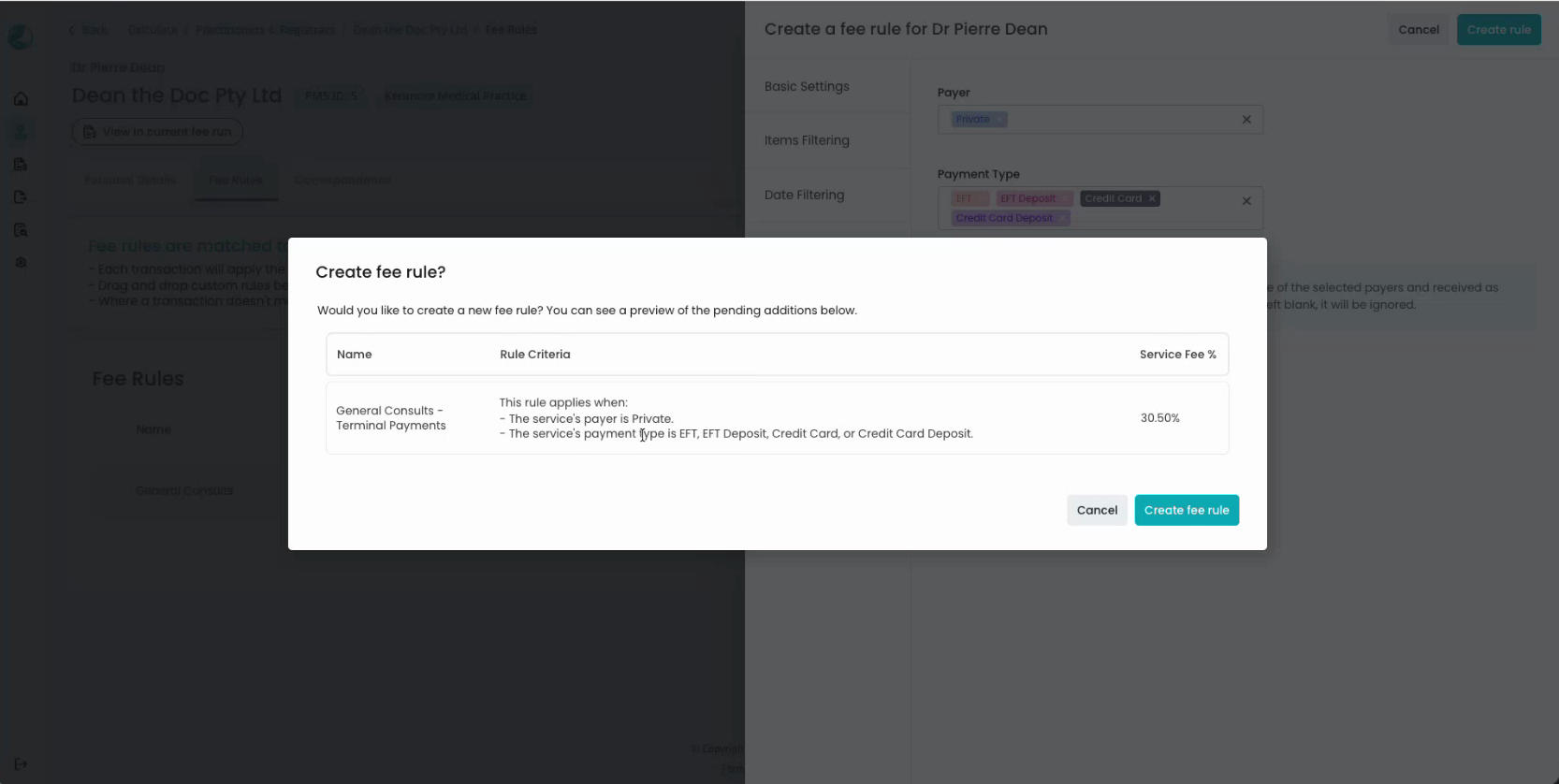
Note: Debit Credit is not a debit or credit card payment. In Best Practice, it is the payment method assigned to Medicare MBS payments.
TOP TIP: Payments Filtering is commonly used to recover merchant fees from practitioners now that card surcharges can no longer be passed on to patients. For step-by-step guidance, please refer to our Knowledge Base article Responding to 1 October Surcharge Changes.
Threshold Filtering
This rule will only apply once a practitioner's accumulated billings or receipts, depending on their calendar's income basis, exceed a set threshold.
Note: Threshold Filtering only appears as an option once Track balance for thresholds has been enabled for the practitioner, and won't be available otherwise. For more on enabling and configuring thresholds, including how the balance resets each period, please refer to our Knowledge Base article Configuring Practitioners in Calculate.
- Threshold (Excl. GST): The dollar amount the practitioner's accumulated billings or receipts must exceed for the rule to apply.
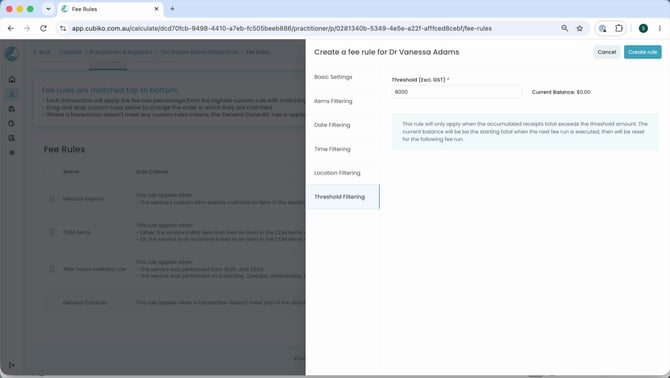
TOP TIP: Threshold rules generally apply once a practitioner has already earned above their usual rate for the period, so it's best practice to place them near the bottom of the rule hierarchy, above only General Consults. This keeps other rules, such as a lower fee for medical reports, still applying at their own rate even after the threshold is exceeded.
Save and Review
Once you’ve completed the settings and filters, save the rule. It will appear in the practitioner’s Fee Rules list.
How fee rules are matched
Fee Rules in Calculate are matched top to bottom:
- Each transaction will apply the percentage from the highest custom rule that matches its criteria.
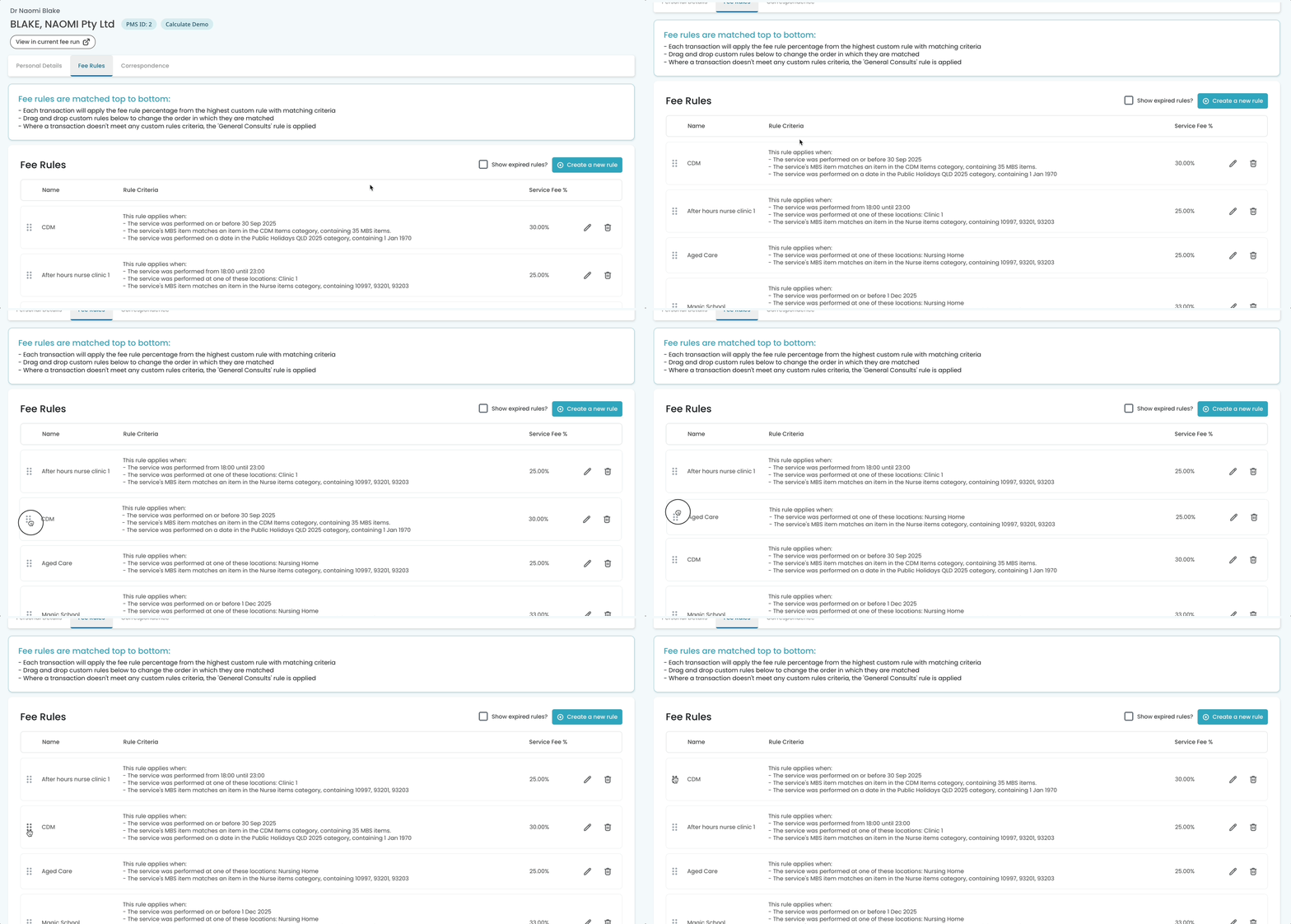
- You can drag and drop rules to change the order in which they are matched. Select Save rule hierarchy afterwards to apply the new order.
- If a transaction does not meet any custom rule criteria, the default General Consults rule will be applied as a catch-all.
- A rule with no filters applied matches every transaction. Creating or moving a rule into this state warns you that it will disable all subsequent fee rules, and any rule this affects is flagged in red once saved.
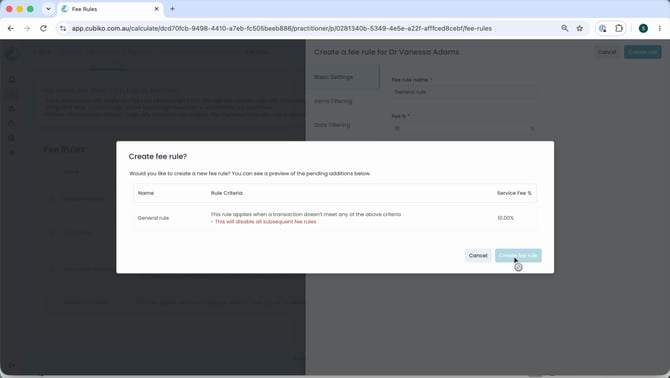
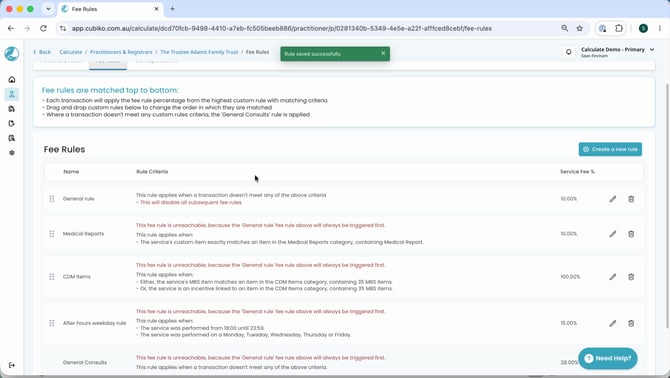 Fee rules list showing unreachable rules · 670px
 - Most Calculate fee rule options work together by requiring all conditions to be met at the same time. The one exception is the item filtering section. When you use multiple item filters, such as a DVA item category and an MBS item category, the rule will match transactions that meet either item filter. When item filters are combined with other filter types, at least one item filter must be matched along with all other selected filters.
- Select the bin icon next to a rule to delete it.
NOTE: Reassigning MBS Items
MBS item income should not be removed from a practitioner's income (as MBS income is required to be provided by the practitioner under their provider number) but rather to achieve the same outcome a 100% service fee should be applied.
What to do:
Create a new rule using Item filtering to apply a 100% service fee on MBS Items.
GST must be applied on the service fee (as the billing entity is GST registered), however, the net impact for practitioners is identical (post their BAS lodgement). When the practitioner lodges their BAS they will received this GST back in full making the total outcome identical.