
The sections in this article include:
- Video detailing how to complete your Service Fee Details Spreadsheet
- Billing/Employment Entity Details
- Independent Practitioner Information
- Registrar Information
- MBS Item Fee Group
- Custom Item Fee Group
- Practice Reassigned Items List
Video detailing how to complete your Service Fee Details Spreadsheet
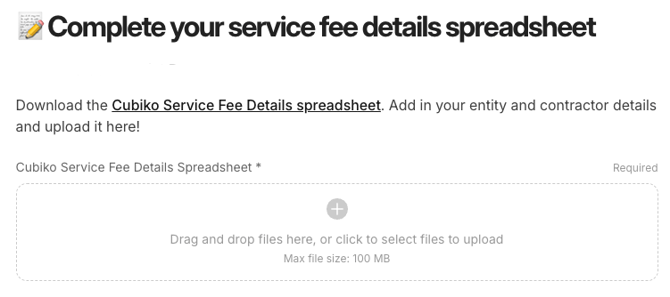
We’ve created a spreadsheet to help gather the information needed to get your Calculate account set up and running smoothly. Once you've filled in what you can and emailed it back or uploaded it to your Arrows onboarding plan we'll configure your account, set up your practitioners and create your custom fee rules. After that, we’ll book your onboarding session and provide you with the training you need to use the product confidently.
Note: Once your spreadsheet is submitted and your onboarding sessions are complete, you’ll have time to review your previous fee runs and get everything ready for your first service fee run in Calculate.
Billing/Employment Entity Details
A Calculate account requires at least one billing or employment entity. The details you enter here should reflect the entity that holds the practitioner contracts and issues service fee invoices.

Independent Practitioner Information
Complete one row per Independent Practitioner to be configured in Cubiko Calculate. This section captures key details such as practitioner billing information, contact details, fee rule preferences and payment settings, which ensures each practitioner is linked to the correct configuration in your account. Please complete all columns that are not labelled as optional so that we have everything we need to set them up accurately.
TOP TIP: Once you have completed the first practitioner you will be able to copy repeated details, such as billing entity information or standard settings, to speed up entry for the remaining practitioners.
Registrar Information
Complete one row per registrar or employee practitioner to be configured in Cubiko Calculate. This tab captures the details needed to link each registrar to the correct employment entity, fee percentage, income basis and calendar period settings. Please complete all columns that are not labelled as optional so that we can configure them accurately.
MBS Item Fee Group
If your practice applies different service fee percentages for MBS items , you can outline those rules in this tab., List the relevant MBS item number, fee group name, the percentage to apply and the practitioners the rule should apply to. This helps ensure your custom fee rules are set up accurately during configuration.

TOP TIP: If you have multiple different MBS item groups add another tab to the table to list this group and it’s rules.
Custom Item Fee Group
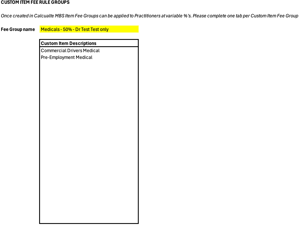
If your practice applies different service fee percentages to specific custom item fee groups, you can then record those details in this tab. List the custom items, fee group name, the percentage to apply and the practitioners this rule relates to.
Practice Reassigned Items List
Practice reassigned items are designed to help correct situations where fees have been incorrectly billed to practitioners. Once this list is created any transactions with a description that matches one of the custom items will be removed from the practitioner’s income and reassigned to the practice. These appear as “Practice Reassigned Transactions” within a fee run.
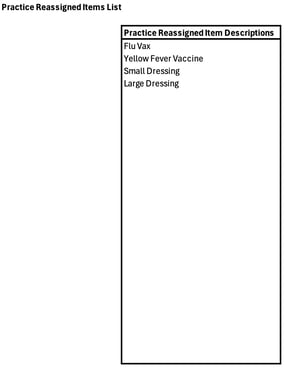
TOP TIP: Common example is when a vaccine should be billed to the practice but is incorrectly billed to the practitioner.