
In most practices, the money collected at reception is the practitioner’s billings, not practice income. If your practice collects payments through a single merchant facility on behalf of practitioners, the practice now absorbs the merchant fees on those payments unless it recovers them another way. Calculate lets you build that recovery into each practitioner’s service fee and shows it clearly on their documents.
The sections in this article include:- Before you start
- Choosing a recovery method
- Method 1: Payment-based fee rules
- Method 2: Direct cost recovery using adjustments
- How recovery appears on practitioner documents
Before you start
Card surcharging ended on 1 October 2026 under the Reserve Bank of Australia’s payment reforms (see the RBA’s Merchant Card Payment Costs and Surcharging: At a Glance).
Who bears the cost depends on your merchant structure:
- Multi-merchant facility (one facility per practitioner): the practitioner pays the merchant fees directly, and the practice is largely not exposed.
- Single merchant facility (the practice collects on behalf of practitioners): the practice absorbs the merchant fees unless it recovers them another way. This is where the methods in this article apply.
Note: Both methods change the service fee your practitioners pay. Set them up in Calculate once the changes are agreed with your practitioners.
Note: Both methods rely on the payer and payment type of each transaction, which are only assigned when a transaction is receipted. They apply to calendars on a receipts income basis
Choosing a recovery method
Calculate supports two approaches. You can use either one, depending on how your practice wants to share the cost.
- Payment-based fee rules: apply a slightly higher service fee percentage to payments made by selected payers through selected payment types (e.g. private patients paying by credit card or EFT). Calculate captures these transactions automatically in every fee run, so there is no manual work once the rule is set up.
- Direct cost recovery using adjustments: once you receive your terminal provider’s statement, work out each practitioner’s share of the actual merchant fees and recover that exact dollar amount through a direct input service fee adjustment. This matches recovery to the real cost, but involves a manual calculation each period.
TOP TIP: To size the cost before choosing a method, run a Transaction Details export for the last few months (see Step 1: Export transaction details). It includes the payer and payment type recorded in your practice management system, so you can quickly total the payments processed through your terminal.
Method 1: Payment-based fee rules
This method uses Payments Filtering in the fee rules engine to match transactions by payer and payment type, then applies an uplifted service fee percentage to those transactions only.
Before you start, confirm the merchant fees your terminal provider charges and the service fee increase agreed with the practitioner to cover them (e.g. an increase of 0.5 percentage points).
Step 1: Create a terminal payments fee rule
- Navigate to Calculate > Practitioners & Registrars and select View next to the practitioner.
- Open the Fee Rules tab and select Create a new rule.
- In Basic Settings, enter a Fee rule name (e.g. General Consults - Terminal Payments). This name appears on the practitioner’s documents, so use one they will recognise.
- Enter the uplifted Fee % (e.g. 30.5 where the General Consults rule is 30%).
Step 2: Set the payer and payment types
- Select Payments Filtering.
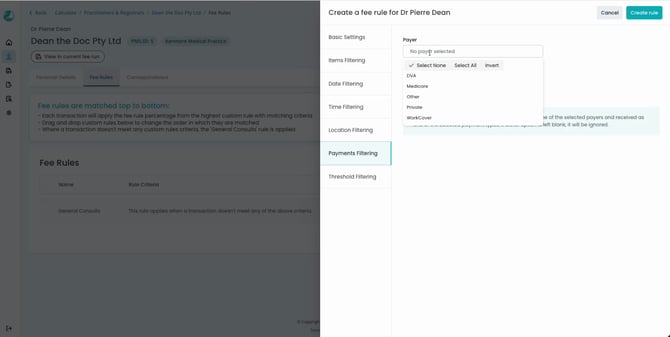
- In Payer, select the payers the rule applies to. Most practices select Private, as these are the payments most likely to be processed through the terminal.
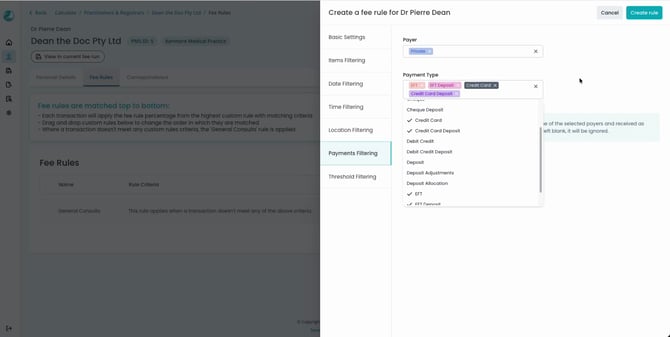
- In Payment Type, select the payment types your front desk uses for terminal payments. The most common selection is Credit Card, Credit Card Deposit, EFT and EFT Deposit.
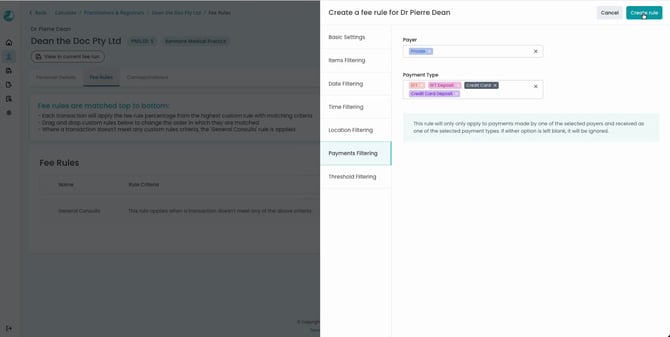
- Check the rule description. The rule only applies to payments made by one of the selected payers and received as one of the selected payment types.
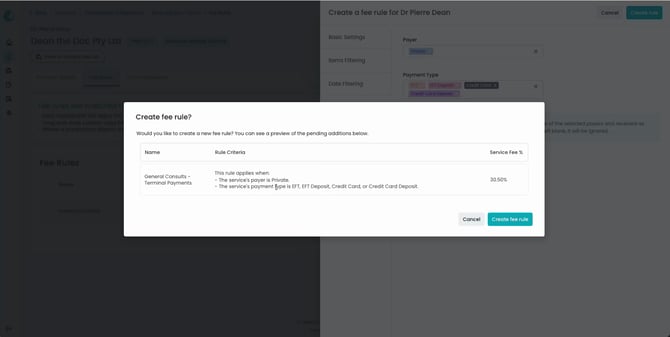
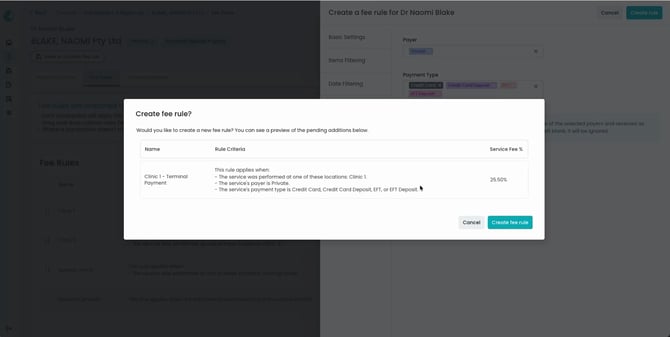
- Select Create rule, review the rule criteria in the confirmation, then select Create fee rule.
Note: The payers and payment types listed come directly from your practice management system. Debit Credit is not a debit or credit card payment. In Best Practice, it is the payment method assigned to Medicare MBS payments, so it should not usually be included in a terminal payments rule.
TOP TIP: If you are not sure which payment types your front desk uses for terminal payments, run a Transaction Details export first (see Step 1: Export transaction details). It shows the payer and payment type recorded against every transaction, so you can confirm the right selections before creating the rule.
Step 3: Check the rule in the fee run
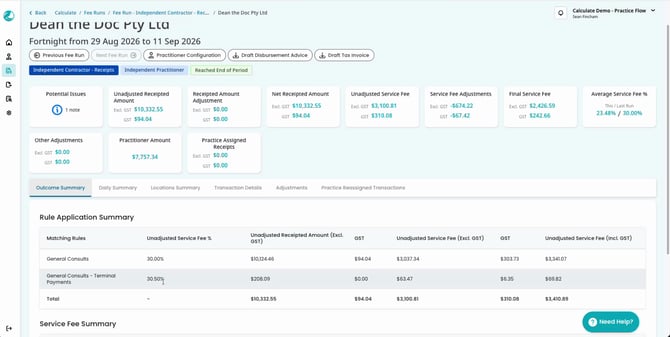
Open the practitioner in the current fee run. On the Outcome Summary tab, the Rule Application Summary shows the transactions matched by the new rule at the uplifted percentage, alongside those charged under General Consults.
Practitioners with custom fee rules
If a practitioner has custom fee rules (e.g. location-based rules for Clinic 1, Clinic 2 and Nursing Home), create a matching terminal payments rule for each one. Apply the same filters as the original rule, then add the payer and payment type selections in Payments Filtering.
For example, a Clinic 1 - Terminal Payment rule uses Location Filtering set to Clinic 1, plus the same payer and payment types as above.
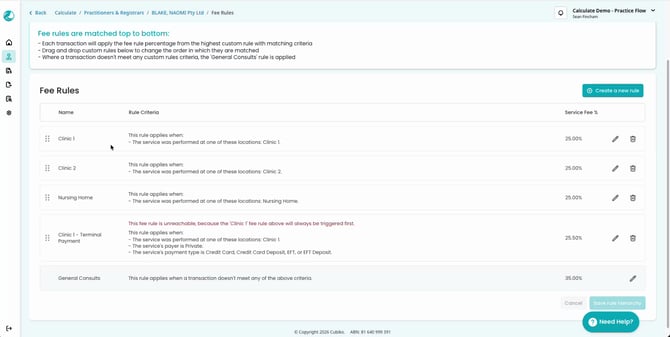
Fee rules are matched top to bottom, so each terminal payments rule must sit above the rule it is based on. If it sits below, every matching transaction is captured by the original rule first, and Calculate flags the new rule in red as unreachable.
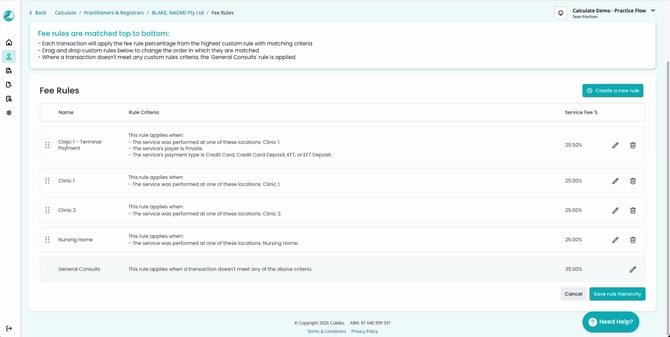
To fix this:
- Drag the terminal payments rule above the rule it is based on.
- Select Save rule hierarchy.
TOP TIP: If you would like help setting up payment-based fee rules for your practitioners, contact our support team at
For a detailed overview of fee rules, filters and the rule hierarchy, please refer to our Knowledge Base article Setting Up Fee Rules in Calculate.
Method 2: Direct cost recovery using adjustments
This method recovers the actual merchant fees charged by your terminal provider, shared between practitioners in proportion to their terminal payments. It suits practices that want recovery to match each monthly statement exactly.
Step 1: Export transaction details
- Navigate to Calculate > Exports and open the Transaction Details tab.
- Select a Date range that matches the period of your terminal statement, so you are looking at the same transactions your provider calculated fees on.
- Select Download CSV.
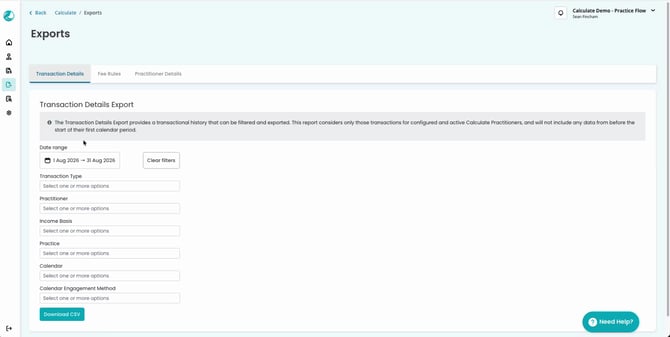
The export gives a transactional view of every transaction in the period for practitioners set up in Calculate, including the payer and payment type recorded against each one.
Step 2: Work out each practitioner’s share
Open the CSV in a spreadsheet and insert a pivot table:
- Rows: practitioner name.
- Filters: payer, set to the payers processed through the terminal (e.g. Private).
- Columns: payment type, filtered to your terminal payment types (e.g. Credit Card and EFT).
- Values: the sum of Unadjusted Billed / Receipted Amount Excl. GST.
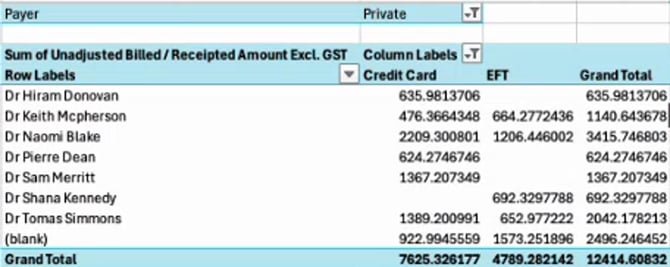
Divide each practitioner’s total by the grand total to get their share of terminal payments, then multiply that share by the merchant fees on your terminal statement. The result is the amount to recover from each practitioner.
Step 3: Create a direct input service fee adjustment
- Navigate to Calculate > Fee Runs, select View on the current fee run, then select the practitioner.
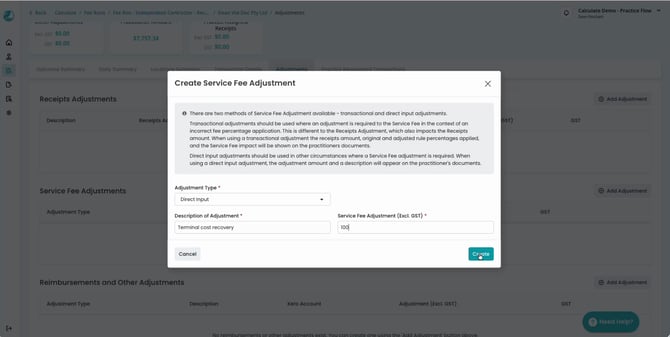
- Open the Adjustments tab and select Add Adjustment under Service Fee Adjustments.
- Set Adjustment Type to Direct Input.
- Enter a Description of Adjustment (e.g. Terminal cost recovery). This description appears on the practitioner’s documents.
- Enter the Service Fee Adjustment (Excl. GST) you calculated for the practitioner.
- Select Create.
The adjustment appears under Service Fee Adjustments on the practitioner’s Adjustments tab.
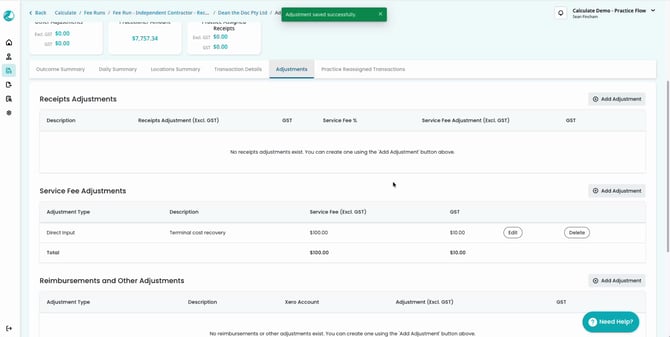
Repeat for each practitioner who processed terminal payments in the period.
NOTE: Adjustments can only be made while the fee run is in its current period. Once a fee run has been executed, it is locked, and any recovery must be processed in the following period.
For a detailed overview of service fee adjustments, please refer to our Knowledge Base article Making Adjustments in Calculate.
How recovery appears on practitioner documents
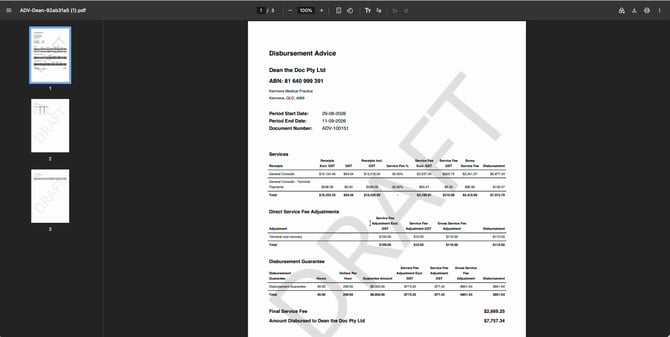
Both methods are documented clearly for the practitioner, so they can see exactly how the merchant fee recovery was applied.
- Payment-based fee rules: the terminal payments rule appears as its own line under Services, showing the receipts it matched and the uplifted Service Fee %.
- Direct input adjustments: the adjustment appears under Direct Service Fee Adjustments with the description you entered and the dollar amount, with GST applied automatically. It also flows through to the practitioner’s tax invoice.
For a detailed overview of fee runs and practitioner documents, please refer to our Knowledge Base article Executing a Fee Run in Calculate.