Adjustments allow you to alter the outcome of a fee run when something needs to be corrected in the current period. This may include correcting billings or receipts, updating service fee amounts, passing through reimbursements or resolving one-off scenarios.
You can make adjustments at any time during a current fee run period. Once a fee run has been executed it becomes locked, meaning adjustments cannot be added or edited. If you need to make an adjustment for an already locked run, it should be made to a future fee run.
NOTE: Calculate does not allow any adjustments to Fee Run outcomes once a Fee Run has been executed.
Executing the Fee Run is a full and final action with documents prepared and often data pushed to the accounting system.
Any adjustments are required to be processed in the following period.
Adjustments made in the current period are clearly displayed on practitioner statements, invoices and summaries for full transparency.
The sections in this article include:
- What you need to know before making adjustments
- Billings/Receipts adjustments
- Service fee adjustments
- Reimbursements and other adjustments
- Disbursement guarantees
What you need to know before making adjustments
- Adjustments can only be created in an active Fee Run period. You cannot add or edit adjustments after a fee run has been executed.
- To navigate to adjustments, go to Fee Runs > view a Fee Run in the current period > view the practitioner > open the Adjustments tab.
- Adjustments can be positive or negative unless noted otherwise.
- All adjustments flow through to practitioner documents and summaries. On invoices, adjustments are reflected in the net service fee, with reimbursements and other adjustment types shown as separate line items. On disbursement advice, all adjustments are itemised so you can see exactly what has changed.
- The Outcome Summary tab also spells out all adjustments clearly so you can review their impact on the practitioner’s payment.
- Calculate records all adjustments in the Fee Run audit log and highlights them under Errors and Notes.
Billings/Receipts Adjustments
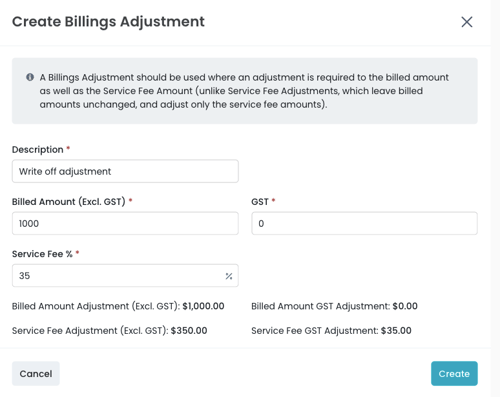
A Billing/Receipts Adjustment should be used when you need to adjust both the billed/receipted amount and the service fee amount. This differs from the service fee adjustment, which leaves the billed/receipted amount unchanged and only the adjust the service fee.
Billing/Receipts adjustments allow you to correct the practitioner’s billings or receipts for the period.
Use billing adjustments when:
- You need to reverse the impact of a debtor write-off
- You want to add back billings that should not reduce the practitioner’s pay
- A payment was receipted against the wrong practitioner and needs correcting
How it works
When you create a billing or receipts adjustment, Calculate updates the practitioner’s billings or receipts and automatically recalculates the associated service fee. You can enter either a positive or negative amount depending on whether you are adding to or reducing the billed value. GST and service fee treatment can then be applied as needed to ensure the practitioner’s payment outcome is accurate.
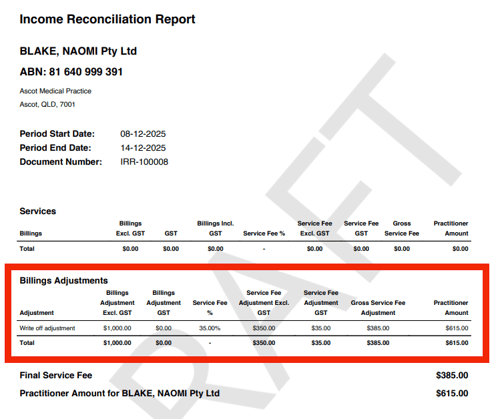
 These adjustments appear on the practitioner’s statement, showing the original billings or receipts, the adjustment and the updated total.
Service Fee Adjustments
Service fee adjustments let you modify the service fee amount without changing the practitioner’s billings or receipts. There are two types of service fee adjustments available: transactional adjustments and direct input adjustments.
How it works
When you create a service fee adjustment, Calculate updates only the service fee component of the practitioner’s payment, leaving the billings or receipted amount unchanged.
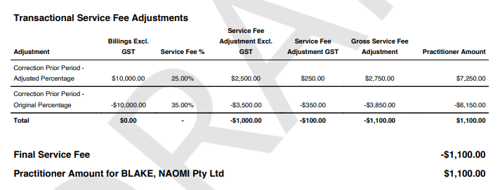
- Transactional adjustments recalculate the final service fee by adjusting an arbitrary transaction amount charged at an original percentage to be charged at a new percentage instead.
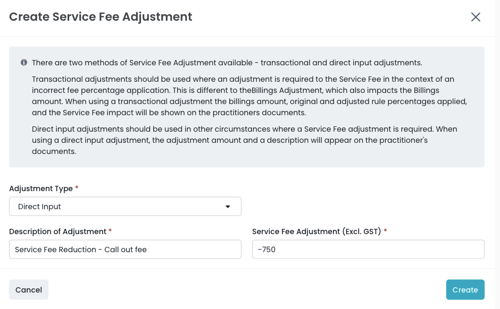
- Direct input adjustments apply a specific dollar amount to increase or reduce the service fee.
Transactional service fee adjustments
Use a transactional adjustment when the practitioner has been charged the incorrect service fee percentage. This may occur if a fee rule was not updated, or a contract change was not applied in time.
A transactional adjustment recalculates the service fee based on the corrected percentage. The billings or receipts amount remains unchanged.
On practitioner documents:
- invoices do not show the transactional adjustment as a separate line item
- disbursement advice shows two line items:
- the corrected service fee percentage applied
- the original service fee percentage applied
Transactional adjustments are most common when correcting a previous period’s percentage or aligning payments to updated agreements.
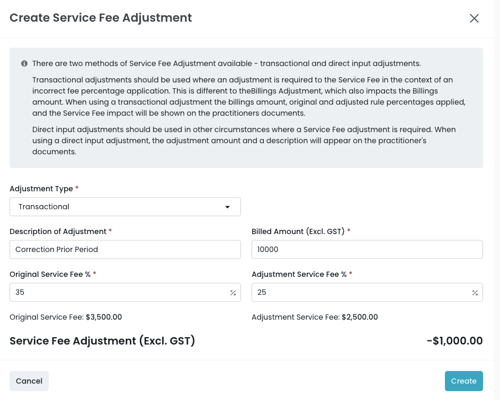 The impact of this adjustment appears clearly on practitioner statements, showing the adjusted service fee and the relevant percentage details.
Direct input service fee adjustments
Use a direct input service fee adjustment when you need to change the service fee by a specific dollar amount, rather than a percentage. This is suitable for one-off scenarios such as on-call allowances, manual fee corrections or other agreed adjustments.
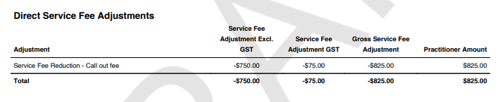
On practitioner documents the adjustment appears with:
- the description you enter
- the dollar amount applied
GST is handled automatically based on billing entity’s income basis and registration status
The impact of this adjustment appears clearly on practitioner statements, showing the adjusted service fee and the description provided.
Reimbursements and other adjustments
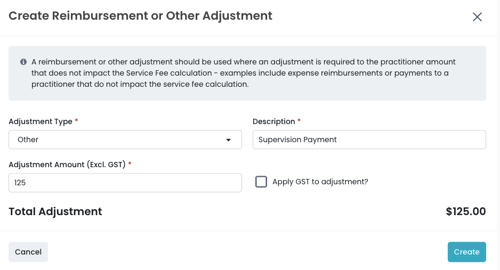
Reimbursements and other adjustments allow you to update the practitioner amount without affecting the service fee calculation. These adjustments are useful when the practice needs to pass through a payment or reimburse an expense that should not change billings/receipts or service fees.
Note: This adjustment type works differently depending on your practice flow. The way the adjustment is applied will vary based on whether your practice uses practice payment flow or practitioner payment flow
How it works
When you create a reimbursement or other adjustment, Calculate adds the amount directly to (or subtracts it from) the practitioner’s final payment amount. The adjustment does not interact with billings/receipts or the service fee calculation.
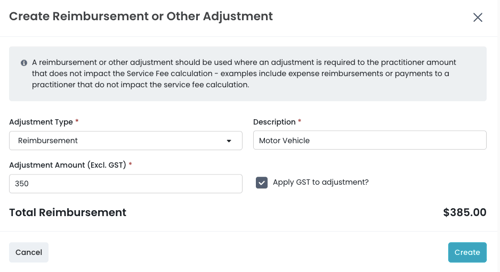
- Reimbursements must be positive
- Other adjustments can be positive or negative
- GST can be included or removed depending on the nature of the payment
Reimbursements
Use a reimbursement when the practice is covering a cost on behalf of the practitioner. Common examples include motor vehicle expenses, training costs or equipment reimbursements.
Other Adjustments
Other adjustments give you flexibility to apply one-off corrections or pass-through payments that impact the practitioner’s amount but do not impact their billings/receipts or service fee. The adjustment amount can be positive or negative. Common examples where you may use other adjustments include supervision payments, incentive payments, or correcting amounts when funds were receipted to the wrong practitioner, which is particularly helpful in a practitioner payment flow.
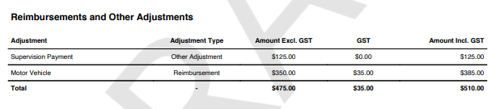
These adjustments appear clearly on practitioner documents as separate line items, showing the description, amount and any GST applied.
Disbursement guarantees
A disbursement guarantee provides practitioners with a minimum agreed payment for a fee period. When a practitioner’s calculated payment is below the guaranteed amount, Calculate adjusts the final payment to ensure the minimum is met, based on the billing entity’s income basis.
How the adjustment is applied, and whether GST is included, depends on both the income basis and the billing entity’s GST registration status.
How it works
Disbursement guarantees are managed through two options:
Standard guarantee
The standard guarantee reflects the practitioner’s current configuration.
- It applies automatically to all Fee Runs
- It remains in place unless the practitioner’s configuration is updated
- The guarantee appears as a separate line on practitioner documents
Use this when the practitioner has an ongoing minimum payment agreement.
Current Period Override
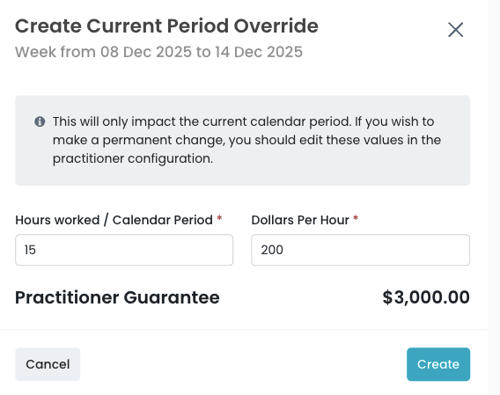
A Current Period Override allows you to adjust the guarantee for the current Fee Run only.
- It temporarily replaces the configured guarantee amount
- It does not update the practitioner’s configuration
- Future Fee Runs will return to the standard guarantee settings
This is useful when a practitioner has worked more or fewer hours than usual, or when a temporary change has been agreed for the period.